



A website annotation tool lets you highlight, comment on and draw over any web page without changing the page itself. People use these tools for two quite different jobs. Agencies and web teams use them to collect feedback on sites they’re building, and students and researchers use them to mark up articles they’re reading. This guide covers the best tools for both.
Here’s the short version of which website annotation tools fit each job:
- Agencies collecting client feedback on live sites: Atarim, where built-in AI experts review pages and make the changes for your approval
- Detailed bug reports for developers: Marker.io or BugHerd
- Free, simple feedback on a single project: Pastel or Huddlekit
- Reviewing websites alongside PDFs, images and video: BugSmash
- Annotating articles for study, research or group reading: Hypothesis, which is free
- Saving highlights and notes as you browse: Web Highlights
- Marking up screenshots to share: Markup Hero or Snagit
What are website annotation tools?
Web annotation means adding notes, highlights, drawings or comments on top of a web page. The page itself stays the same. Your notes sit in a separate layer that you, and anyone you share them with, can see when you open the page again.
Most website annotation tools fall into one of two groups:
- Feedback annotation: you pin a comment to an exact spot on a site you’re designing or building. The tool captures a screenshot and browser details, and the comment becomes a task for someone to fix. This is what agencies, designers and developers use.
- Reading annotation: you highlight text and add notes on articles, PDFs and research pages so you can come back to them or discuss them with a group. This is what students, teachers and researchers use.
Some tools, like Markup Hero and Snagit, sit in between: you take a screenshot of the page and draw on the image instead of the live page.
How to annotate a website
The steps are similar whichever tool you choose:
- Pick a tool for the job. Use a feedback tool if you’re reviewing a site you’re building, or a reading tool if you’re marking up something you’re reading.
- Open the page through the tool. Depending on the tool, you install a browser extension, paste the page’s URL into the tool’s web app, or add a small script to the site.
- Select the spot. Click an element to pin a comment, highlight a passage of text, or draw a box or arrow.
- Write a specific note. Say what should change and why, such as “Make this button the brand blue so it stands out,” rather than “Fix this.”
- Share it. Send a link, invite your team or let clients comment as guests. Feedback tools turn each note into a task with a screenshot attached.
- Follow through. Mark notes as resolved once they’re handled. In Atarim, an AI expert can make the change for you and show a live preview to approve.
For tips on writing notes people can act on, see our guide to giving and receiving website design feedback.
Website annotation tools compared at a glance
| Tool | Best for | How you annotate | Free way to try it |
|---|---|---|---|
| Atarim | Agencies managing client sites | Pin comments on live sites, then AI experts review pages and make changes | Start free, no card needed |
| Marker.io | Bug reports for developers | Mark up a screenshot that becomes a bug report in Jira, GitHub and more | Free trial |
| BugHerd | Visual bug tracking for client projects | Point, click and comment on a live site | Free trial |
| BugSmash | Websites plus PDFs, images and video | Share a review link, no login needed | Free plan |
| Huddlekit | Design and QA reviews | Share a link or add a script to live or staging sites | Free plan |
| Pastel | Simple client reviews | Paste a URL and comment on the page | Free plan |
| Hypothesis | Study, research and group reading | Browser extension for highlights and notes | Free |
| Web Highlights | Saving highlights and notes as you browse | Browser extension | Free |
| Markup Hero | Marked-up screenshots | Take a screenshot, then draw and comment | Free plan |
| Snagit | Detailed screenshots and how-to guides | Desktop screen capture and editing | 15-day free trial |
Based on each tool’s published features and plans as of October 2026. Plans change often, so check each website annotation tool’s pricing page before you decide.
The best website annotation tools for client and team feedback
These website annotation tools are built for reviewing websites you’re designing or building. Every comment is pinned to an exact spot on the page and tracked until it’s fixed. For a deeper comparison, see our roundup of the best website feedback tools.
1. Atarim: the AI web agency, plugged into yours

Atarim lets clients and teammates pin comments right on a live website, and each comment becomes a task with a screenshot and browser details. What sets it apart is what happens next. Atarim is the AI web agency that plugs into yours, with a team of six AI experts that review pages, turn vague comments into clear tasks, and make the change themselves.
You stay in control the whole time. The AI shows a live preview before anything ships, every change is logged and can be undone, and your clients only ever see your agency’s brand.
- Best for: agencies looking after many client sites who want annotations turned into finished work.
- Standout features: comments on any live site through a web snippet, a free Chrome extension or a native WordPress plugin, white-label client views, and connections to Slack, Jira, Asana, ClickUp, Trello and more.
- AI: six AI experts cover design, copy, UX, SEO, accessibility and QA. They review pages on their own and from your team’s comments, then make changes for your approval.
- Pricing: start free, no card needed. See current plans.
- One downside: Atarim does far more than annotate, so someone who only wants to highlight an article now and then won’t use most of it.
2. Marker.io
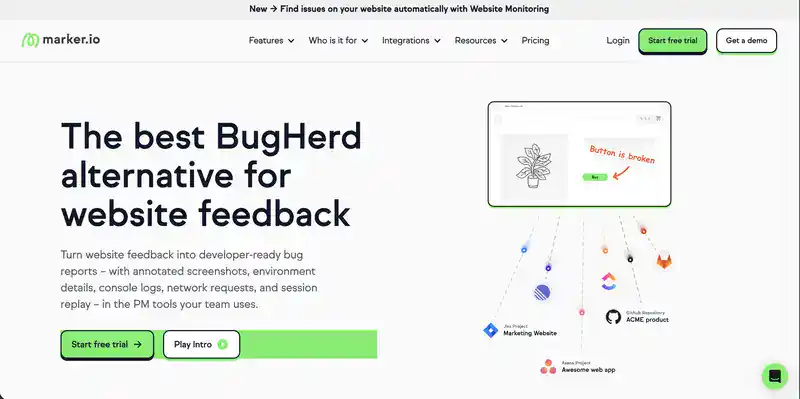
Marker.io lets reviewers draw on a screenshot of the page, add a note, and send it straight to developers as a detailed bug report.
- Best for: development teams and agencies with a strong QA process.
- Standout features: annotated screenshots with console logs, network requests and session replay, sent into tools like Jira, Trello, Asana and GitHub.
- AI: rewrites rough notes into clear reports, and its MCP server lets your own AI coding agent pull a bug’s details and attempt a fix.
- Pricing: paid plans with a 15-day free trial, no card needed.
- One downside: there’s no free plan, and it can feel more technical than non-technical clients need.
3. BugHerd
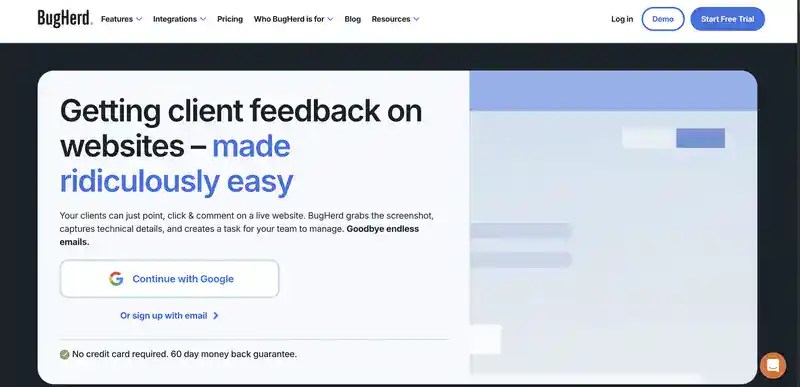
BugHerd lets clients point, click and comment on a live website. Each annotation becomes a task on a board your team works through.
- Best for: teams that want straightforward visual bug tracking on client projects.
- Standout features: point-and-click comments, automatic screenshots and browser details, and a task board.
- AI: beta features suggest task titles and tags, and BugHerd MCP lets your own AI tool read tasks and attempt fixes.
- Pricing: paid plans with a free trial.
- One downside: there’s no free plan. See our list of BugHerd alternatives if you’re comparing options.
4. BugSmash

BugSmash lets you annotate websites, PDFs, images, videos and even Android apps in one place, and reviewers can comment through a shared link without logging in.
- Best for: teams that review websites alongside lots of other file types.
- Standout features: comments on many file types and no-signup review links.
- AI: AI Reviews (beta) check a page for design, UX, accessibility and content issues and add suggestions as comments. A new MCP connection lets your own AI agent act on comments.
- Pricing: a free plan with three projects, with paid plans above that.
- One downside: its built-in AI points out issues but doesn’t fix them.
5. Huddlekit
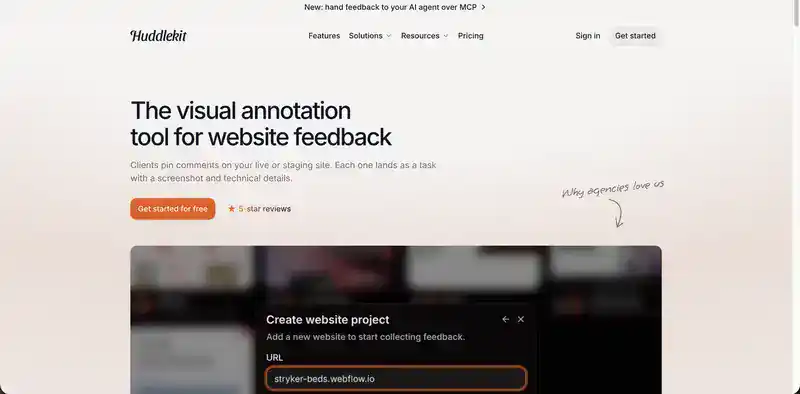
Huddlekit calls itself a visual annotation tool for website feedback. Clients pin comments on live or staging sites without an account or browser extension, and each comment becomes a task with a screenshot and browser details.
- Best for: designers and small teams doing design and QA reviews.
- Standout features: an inspect mode for quick CSS checks, breakpoint switching, and guest links for clients.
- AI: on paid plans, an MCP connection hands feedback to your own AI agent, like Claude or Cursor.
- Pricing: a free plan for up to three team members and one project, with unlimited guests and paid plans above that.
- One downside: agencies with several client projects will need a paid plan.
6. Pastel

Pastel is a lightweight way to collect comments on a live website. Paste in a URL, share the link, and clients can start annotating straight away.
- Best for: designers, freelancers and small teams who want simple client reviews.
- Standout features: fast setup, unlimited guest reviewers and simple comments on live pages.
- Pricing: a free plan for one user and one active project, with paid plans and a 14-day free trial above that.
- One downside: sending annotations to tools like Trello, Asana or Jira starts on the higher plans.
The best website annotation tools for reading, study and research
If you want to mark up articles and pages you’re reading, rather than a site you’re building, these website annotation tools are a better fit.
7. Hypothesis
Hypothesis is a free, open-source tool for highlighting and commenting on web pages, PDFs and EPUBs. It works through a Chrome extension, or a bookmarklet in other browsers, and adds an annotation layer over the page.

- Best for: students, teachers and researchers who want to read and discuss content together.
- Standout features: public, private and group annotations, so a class or research team can comment on the same page, plus integration with learning management systems for higher education.
- Pricing: free.
- One downside: it’s built for reading and discussion, so there’s no way to turn notes into tasks or track changes to a site.
8. Web Highlights
Web Highlights is a browser extension for highlighting text and adding notes on websites, PDFs and YouTube videos. You can use it without creating an account, and everything you highlight stays on the page for when you come back.

- Best for: anyone collecting research or reading notes as they browse.
- Standout features: unlimited highlights, notes, tags and bookmarks, plus exports to tools like Notion.
- Pricing: most features are free, and paid plans add syncing across devices.
- One downside: it’s a personal research tool, so it isn’t designed for collecting feedback from clients.
9. Markup Hero
Markup Hero takes a screenshot of a web page, image or PDF and gives you simple tools to draw, highlight and comment on it. You can then share it with a link.

- Best for: quickly marking up a page and sending it to someone.
- Standout features: full-page screenshots, a Chrome extension and desktop app, and shareable links.
- Pricing: a free plan with a limited number of saved markups, with paid plans from a few dollars a month.
- One downside: your notes sit on a screenshot rather than the live page, so they can go out of date as the site changes.
10. Snagit
Snagit from TechSmith, now branded Camtasia Snagit, is a desktop app for capturing your screen and marking up screenshots with arrows, callouts, text and blur, plus short screen recordings.

- Best for: people creating detailed visual instructions, how-to guides and documentation.
- Standout features: advanced markup tools, scrolling captures, text extraction from images, and video capture.
- Pricing: $39 a year for an individual subscription, with a 15-day free trial. TechSmith moved Snagit from a one-time license to a subscription in 2025.
- One downside: like Markup Hero, annotations live on an image instead of the live page.
What to look for in a website annotation tool
Start with the job you need done, then check for:
- Annotations on the live page: notes pinned to the real page stay accurate. Screenshot annotations go out of date once the page changes.
- Easy access for guests: clients and classmates shouldn’t need to create an account or install anything just to leave a note.
- Screenshots and browser details: for website feedback, the tool should capture what the reviewer saw, plus their browser and screen size.
- Connections to your tools: feedback should flow into wherever your team already works, such as Jira, Trello, Asana or Slack. For research, look for exports to tools like Notion.
- What happens after the note: most tools stop at collecting annotations. Some, like Atarim, have AI that reviews pages and makes the changes too, which saves the most time when you manage many sites.
Website annotation tool FAQs
What is the best website for annotation?
It depends on what you’re annotating. For feedback on websites you’re building, Atarim is the strongest choice for agencies because its AI experts review pages and make the changes, while Marker.io and BugHerd suit developer bug reports. For annotating articles you’re reading, Hypothesis is free and built for group discussion.
How do you annotate a website?
Open the page with an annotation tool, either through a browser extension, by pasting the URL into the tool’s web app, or with a script on the site. Then click or select the spot you want to comment on, write a specific note, and share the link with whoever needs to see it.
What are the best free website annotation tools?
Hypothesis and Web Highlights are free website annotation tools for highlighting and commenting as you read. For feedback on websites, Pastel, Huddlekit and BugSmash all have free plans, and you can start free with Atarim, no card needed.
Which website annotation tools have a Chrome extension?
Atarim, Hypothesis, Web Highlights and Markup Hero all have Chrome extensions. Some feedback tools, like Pastel and Huddlekit, don’t need an extension at all: reviewers open a link and start commenting.
Can AI annotate a website?
Yes, some tools now do this. BugSmash’s AI Reviews (in beta) check a page and leave suggestions as comments. Atarim’s AI experts go a step further: they review the live page for design, copy, UX, SEO and accessibility issues, then make the changes and show you a live preview to approve.
Turn website annotations into finished work
Annotating a page is the easy part. Atarim gives your agency an AI team that reviews client sites, turns comments into clear tasks and makes the changes, with you approving every one. Start free with Atarim, no card needed, or book a demo to see it on your own client sites. Before your next launch, run through our website QA checklist too.