
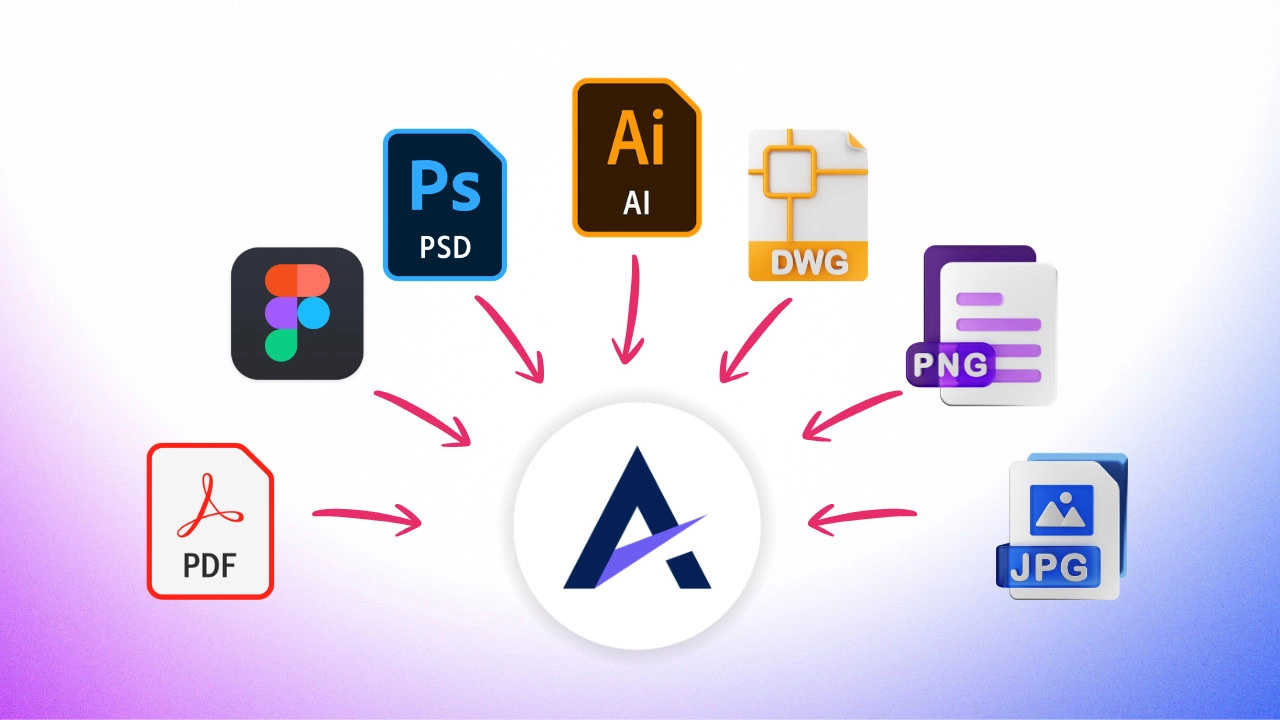
Step 1: Adding Designs to Atarim
This creates a design project where team members, clients, and stakeholders can leave visual feedback directly on the design.
Atarim supports multiple ways to bring designs into the platform depending on how your team works. Whether you already have exported files, a live Figma design, or prefer using the Figma plugin for a faster workflow, you can quickly prepare your designs for review.
Option A: Upload Files
This option is ideal when you already have exported design files, presentations, or floor plans ready for review.
Instructions:
- Navigate to Projects
- Click Add Design
- Upload:
- PDF files (presentations, mockups)
- PSD files (Photoshop)
- AI files (Illustrator)
- DWG files (floor plans)
- PNG / JPG images
- Multiple files at once
- Click Create Project
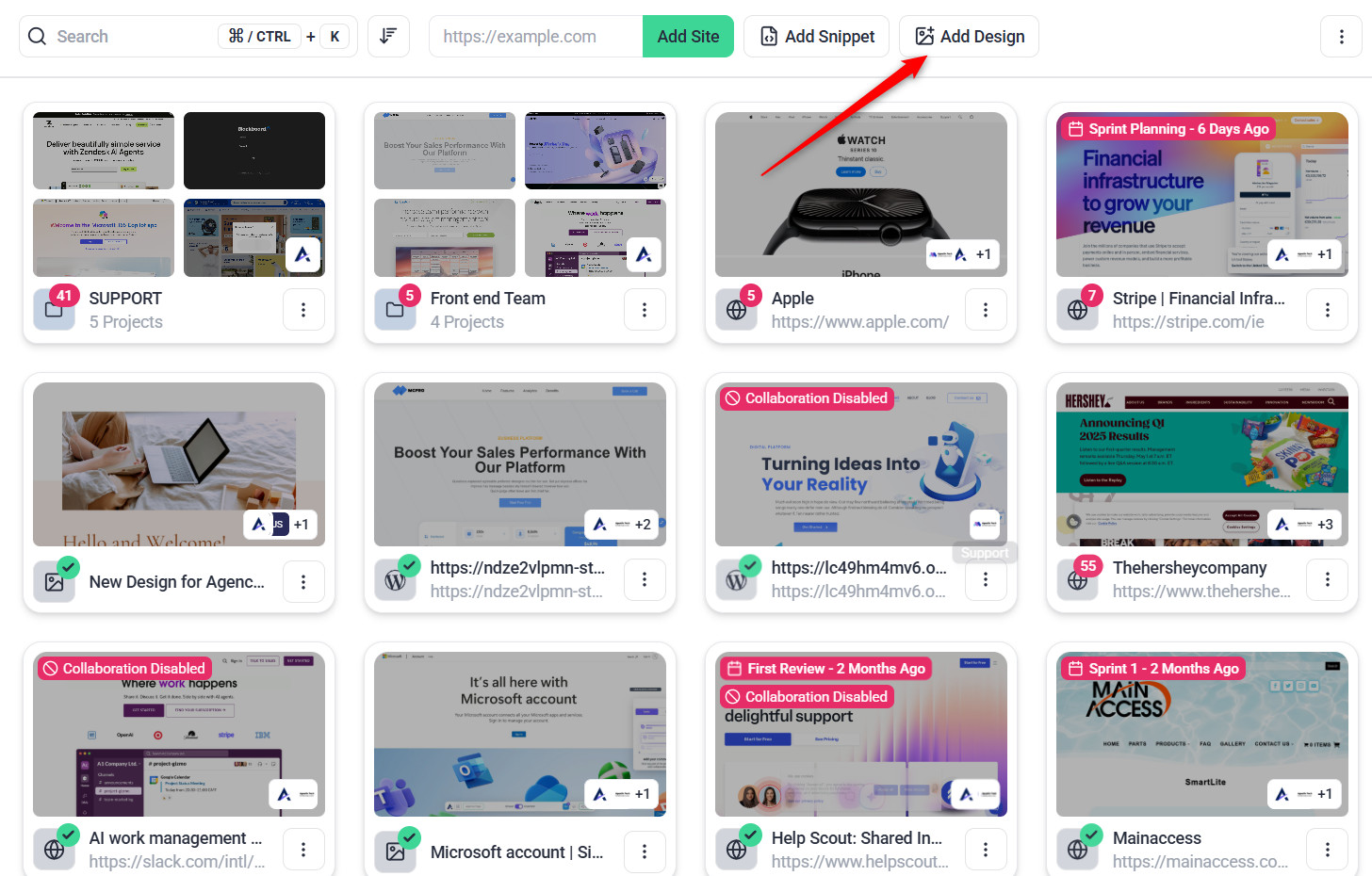
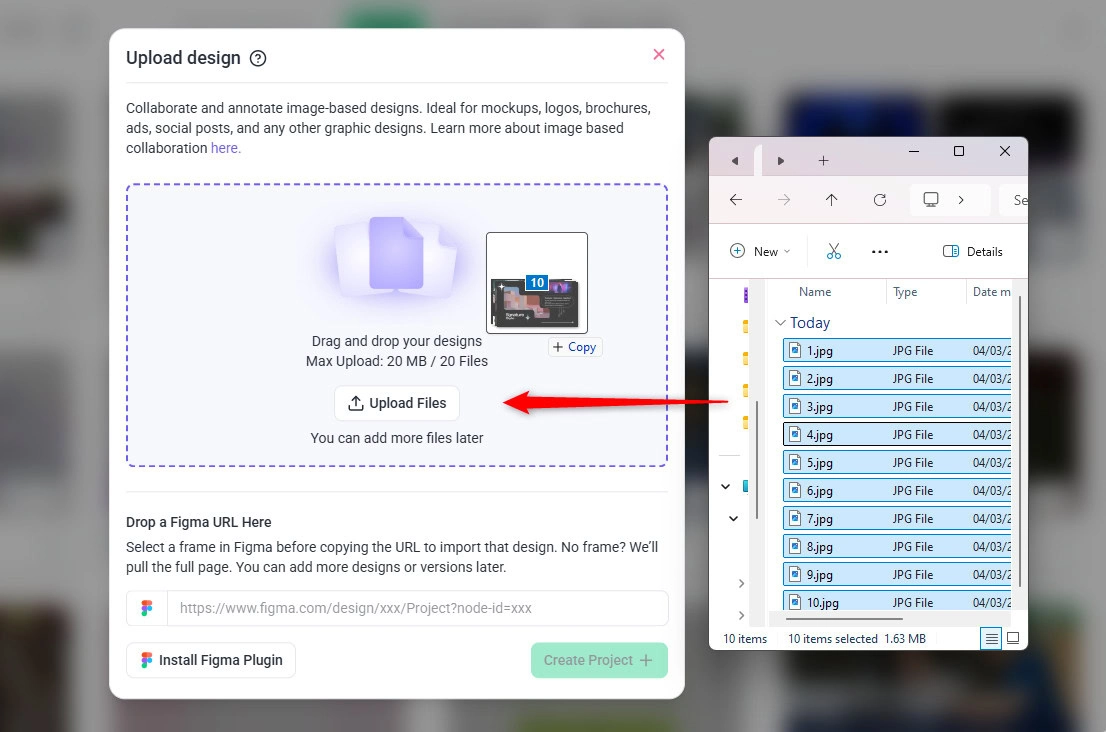
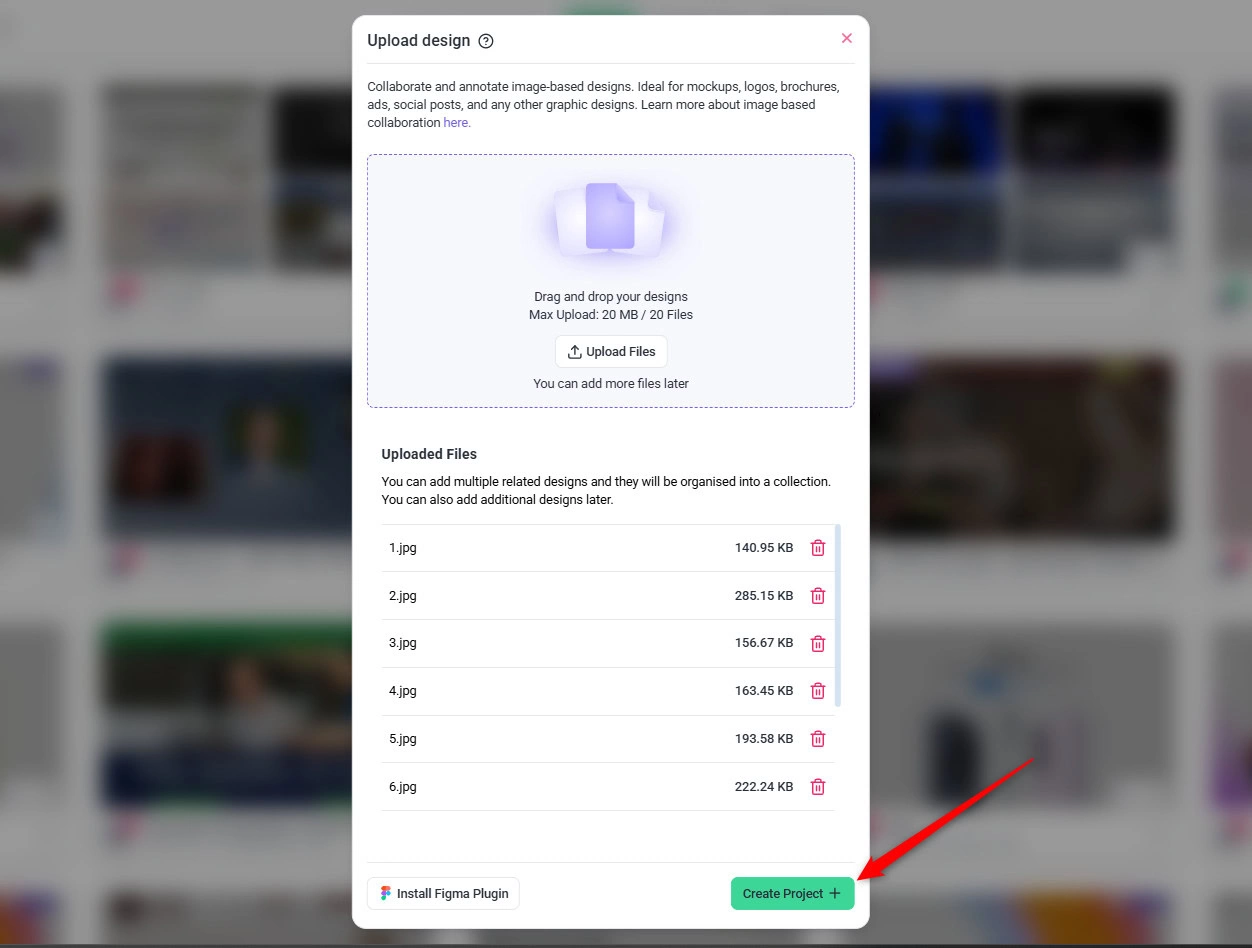
Tip: You may upload multiple files at once. You can drag and drop files or manually browse your computer.
Option B: Import from a Figma URL
If you already have a design open in Figma, you can paste the Figma URL directly into Atarim to quickly import the design.
This allows Atarim to automatically pull the selected frame or the entire page for feedback and collaboration.
Instructions:
- Open your design in Figma
- Select the frame you want reviewed (optional but recommended)
- Copy the Figma URL
- In Atarim, paste the link into the “Drop a Figma URL Here” field
- Click Create Project
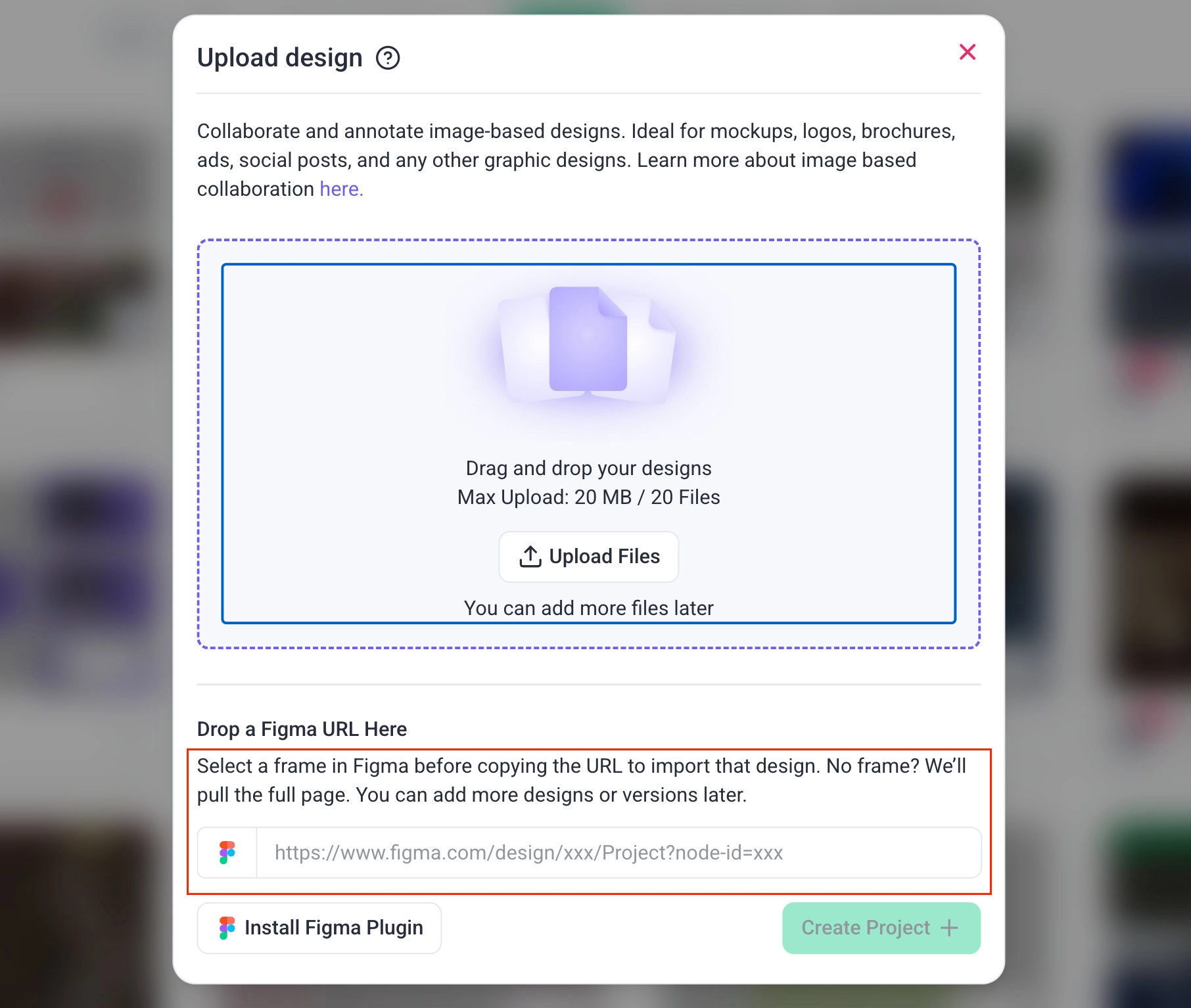
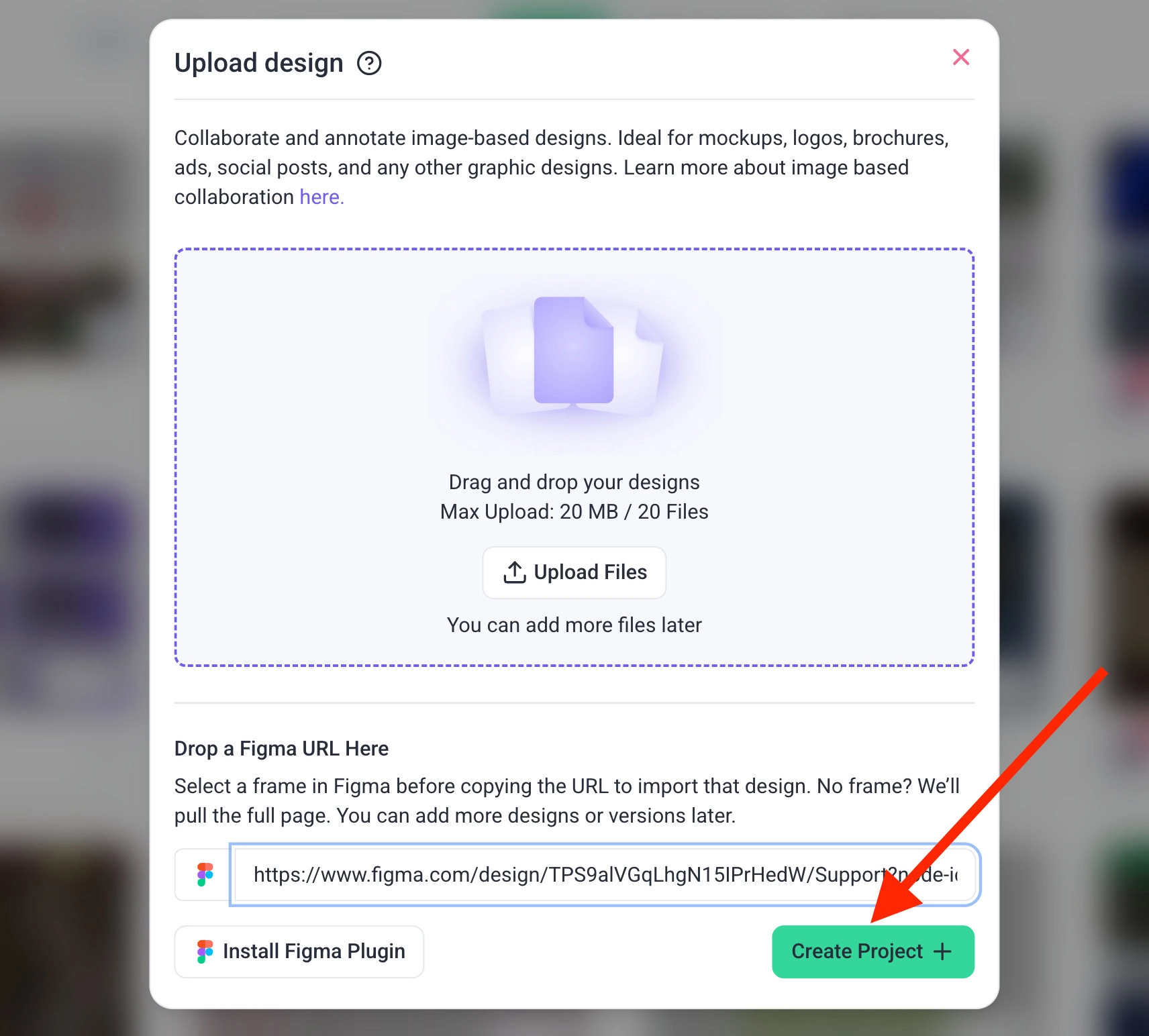
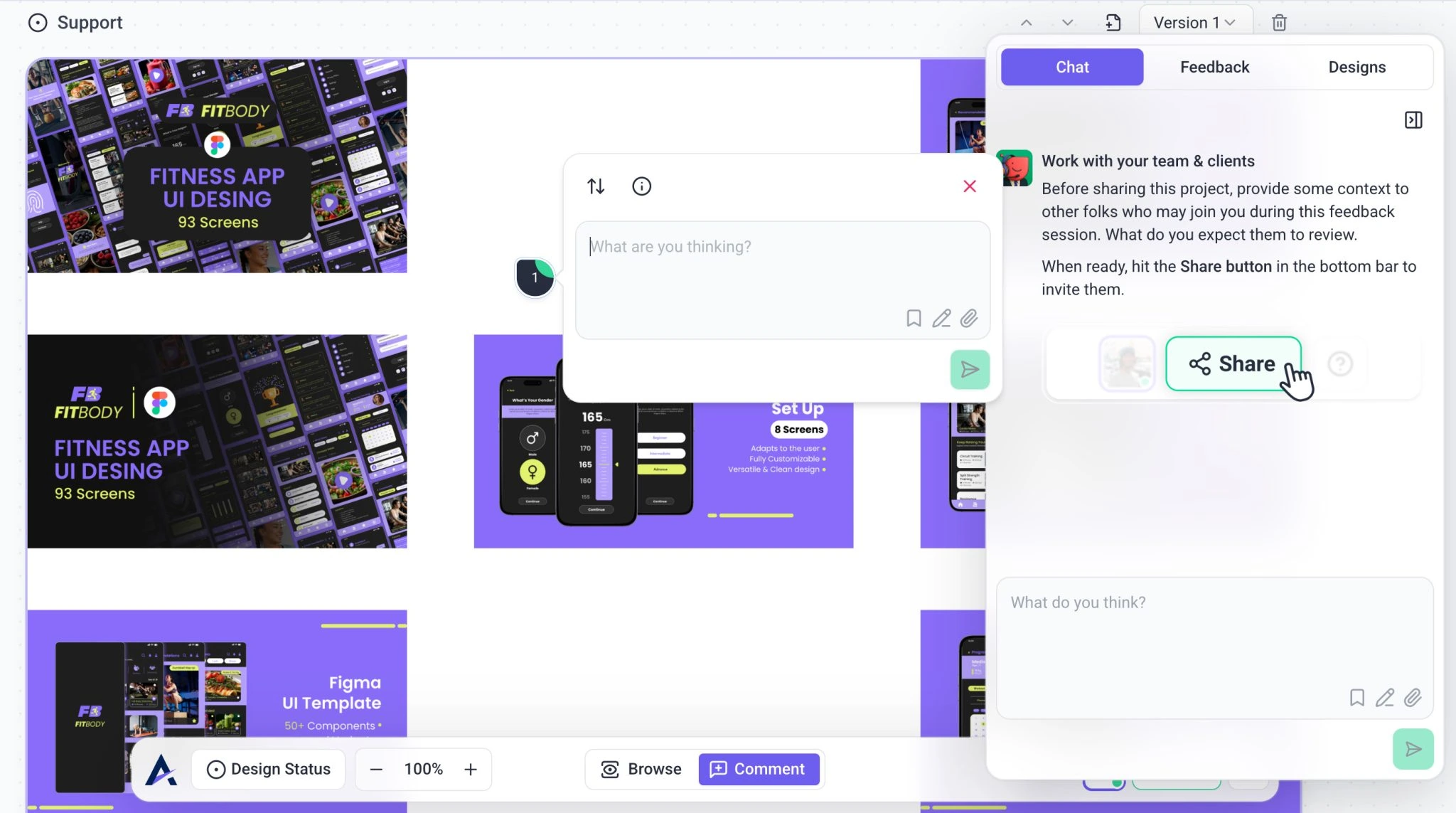
Atarim will automatically import the design so your team or clients can start leaving visual feedback.
Tip: Selecting a specific frame before copying the URL will import only that frame instead of the entire page. If no frame is selected in Figma, Atarim will import the full page canvas.
Option C: Using the Atarim Figma Plugin
Figma is designed for exploration, brainstorming, iterating, and refining ideas in an open canvas. Atarim, on the other hand, is built for structured approval and decision-making. Instead of spending 30 minutes cleaning up frames, organizing layers, and preparing a polished handoff inside Figma, you can select your finalized frames and move them into Atarim in under a minute, ready for clear, focused feedback. Learn More On How To Install The Atarim Figma Plugin
Instructions:
- Open your Figma file
- Go to Plugins → Atarim
- Select your Workspace
- Create or choose a Graphic Feedback project
- Select only the frames you want reviewed
- Click Share
This allows you to:
- Skip manual handoff preparation
- Avoid workspace clutter
- Present only finalized screens
Recommendation: Select only final frames for review — not your entire working canvas.
Step 2: Organizing Your Designs
Inside the Graphic Feedback project, you can:
- Rename designs
- Reorder designs
- Delete designs
- Add additional versions
- Track version history
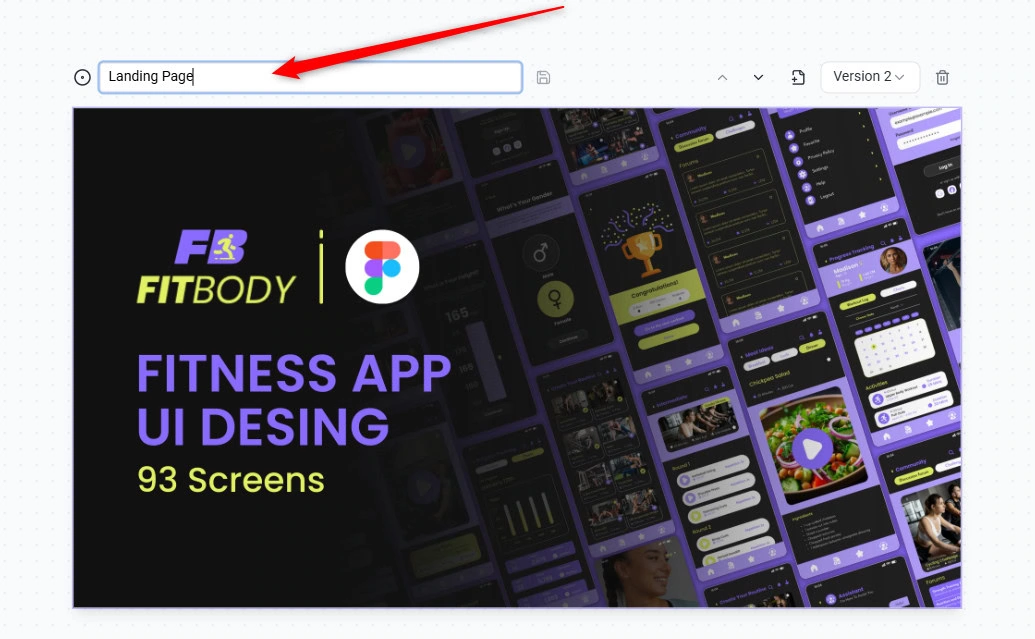
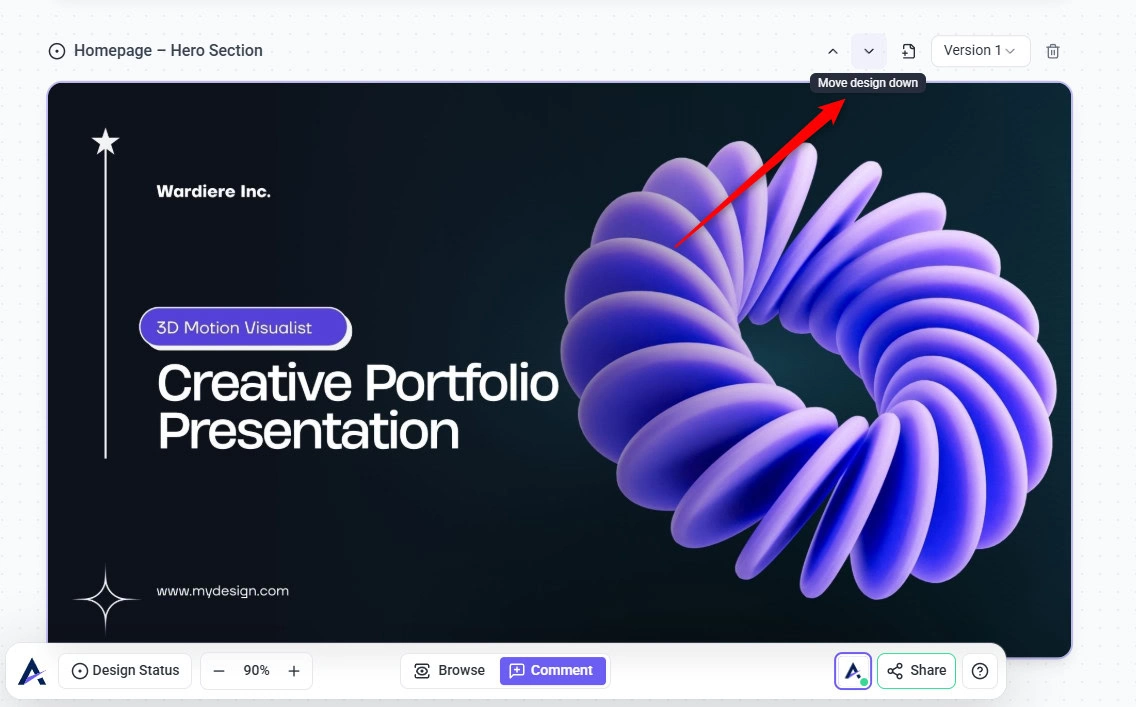
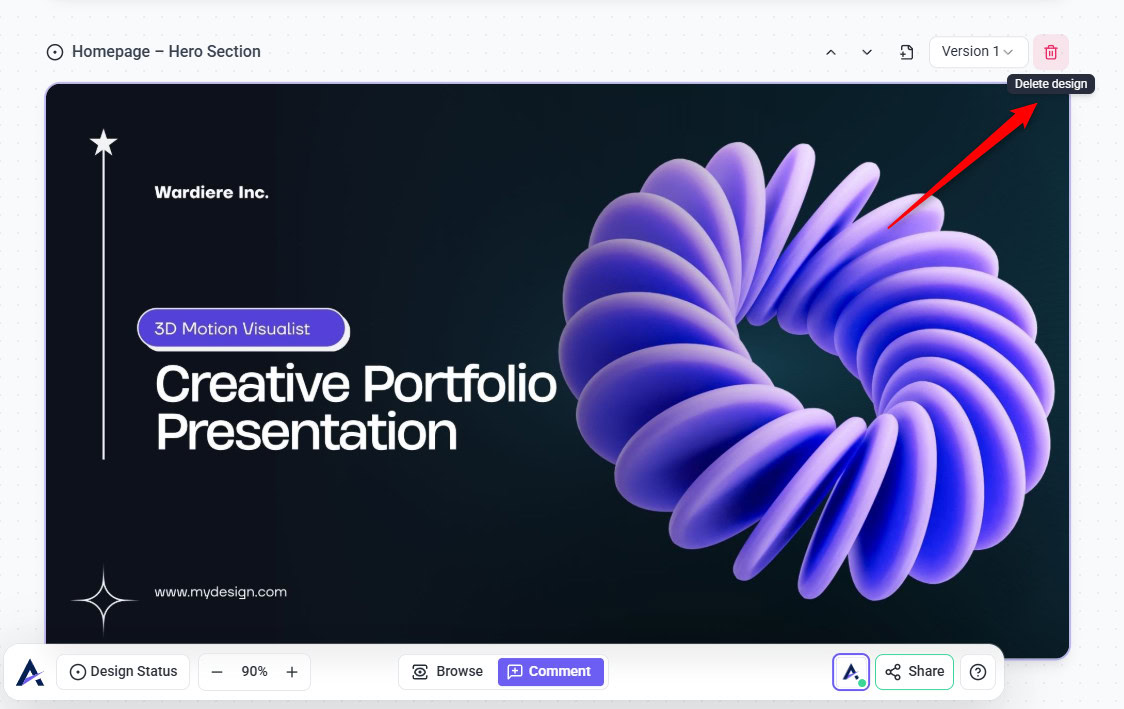
Tip: Use logical naming structure: Overview, Assets, Guidelines & Details. This creates a linear review experience.
Step 3: Version Control
Each design supports multiple versions.
To add a new version:
- Open your design
- Upload updated file
- It becomes Version 2, Version 3, etc.
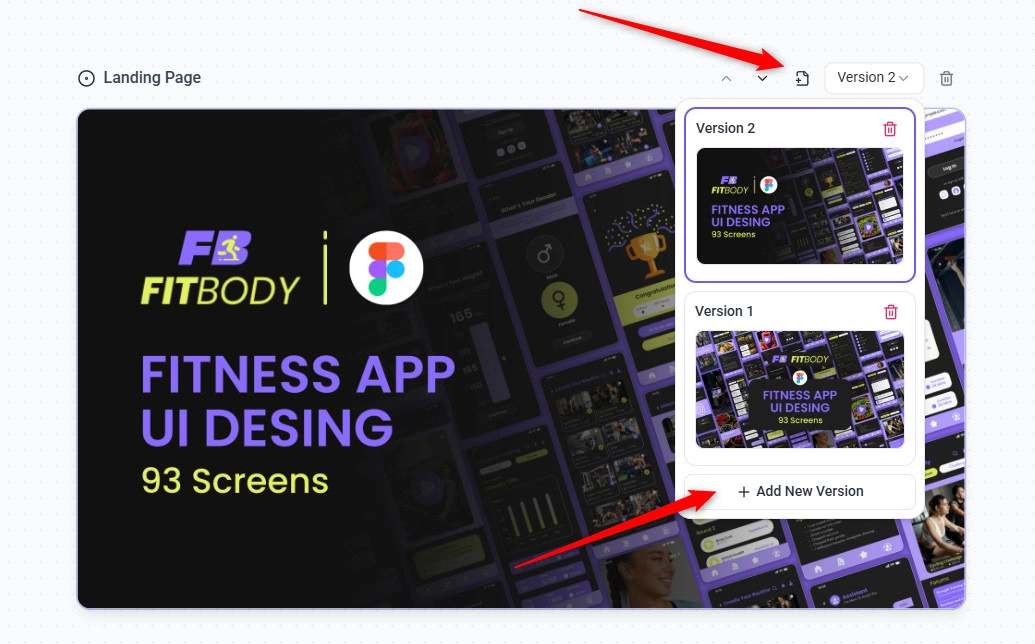
You can:
- Switch between versions
- Compare revision progress
- Show stakeholders how many rounds occurred
Note: Figma does not clearly track revision rounds in a presentable way. Atarim creates a “line in the sand” for each review cycle.
Step 4: Leaving Feedback
Click anywhere on the design to create a task.
Each task supports:
- Assigning to team members
- Setting priority
- Adding due dates
- Changing status
- Adding tags
- Internal notes (hidden from guests)
- Threaded replies
- Visual annotation tools
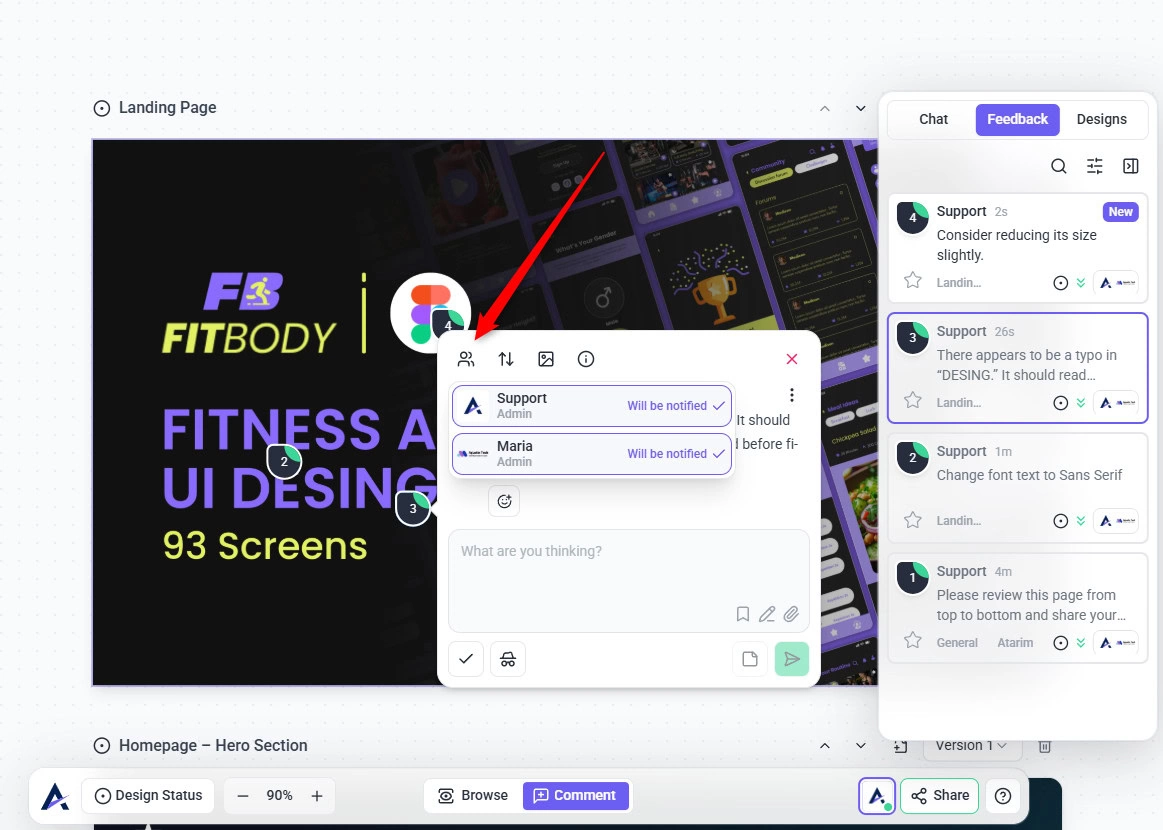
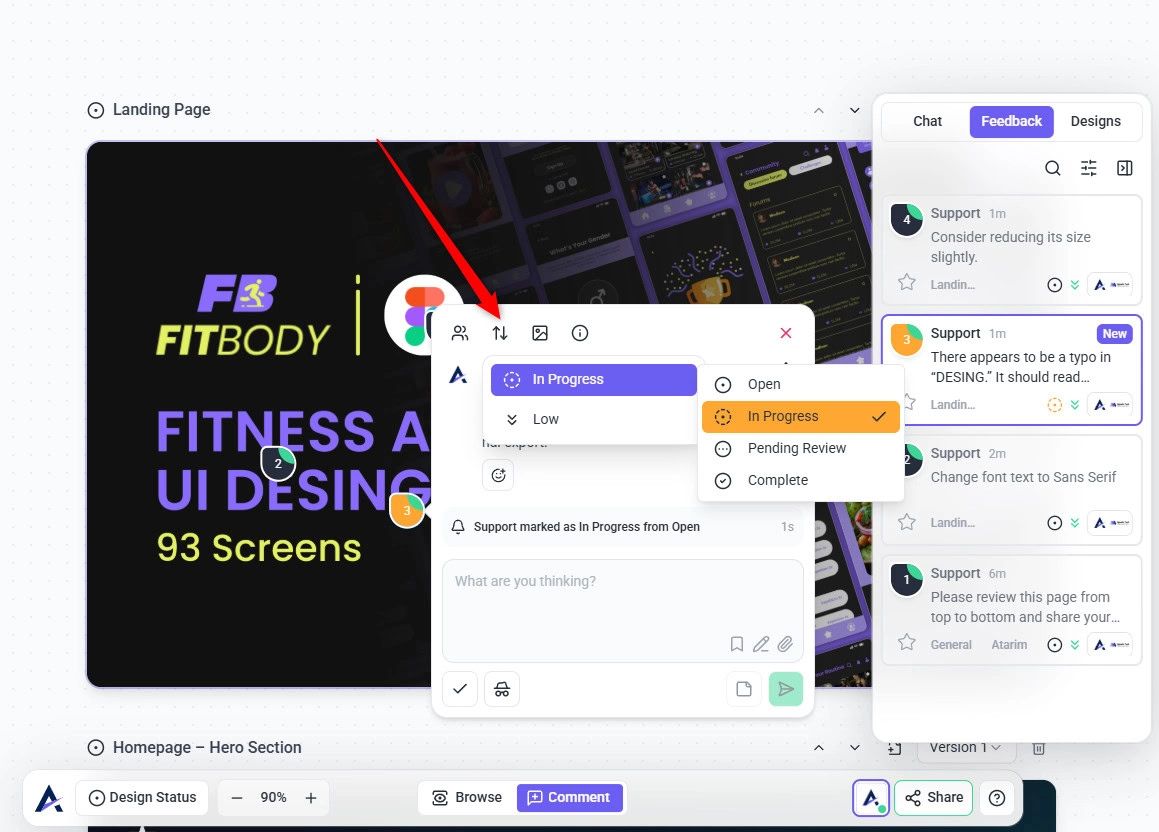
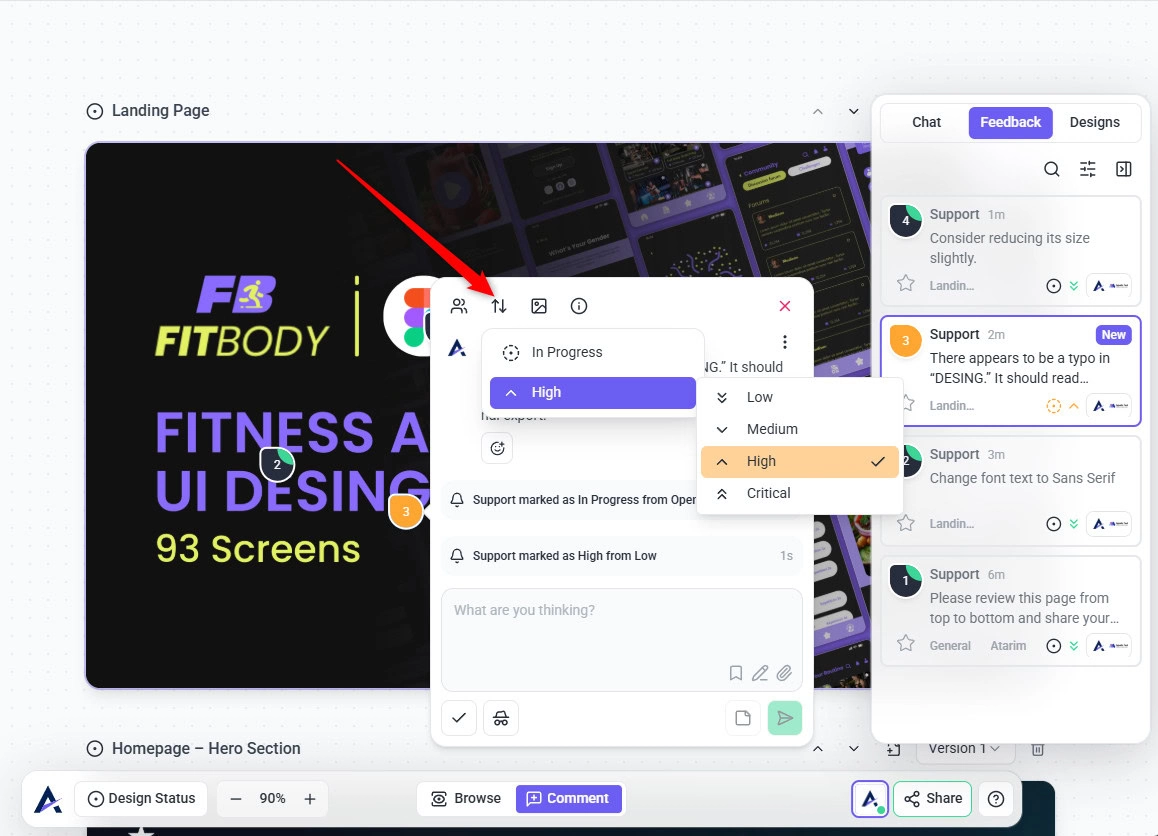
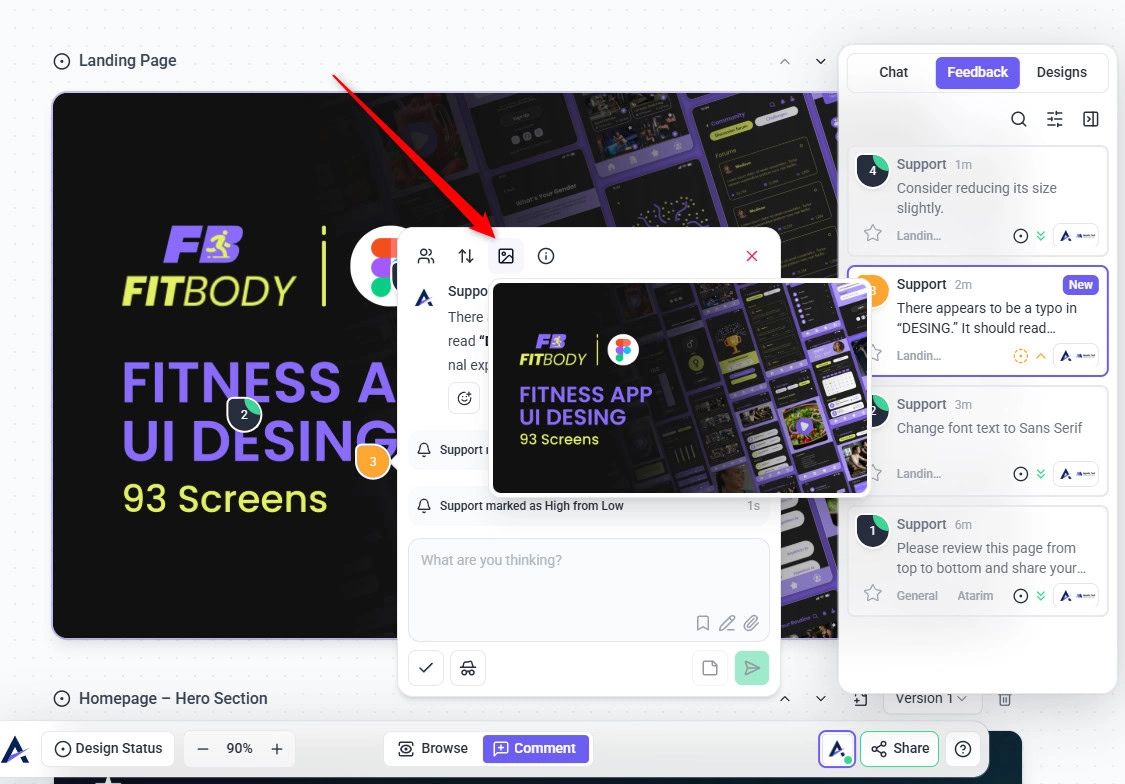
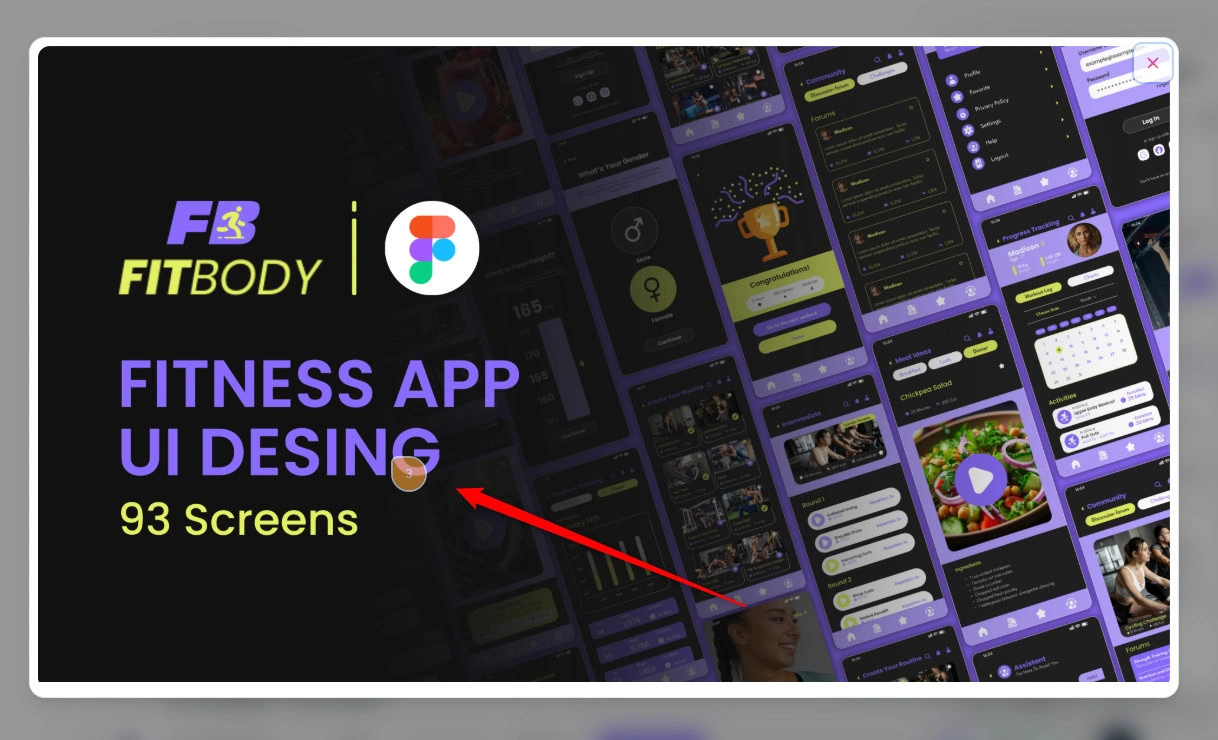
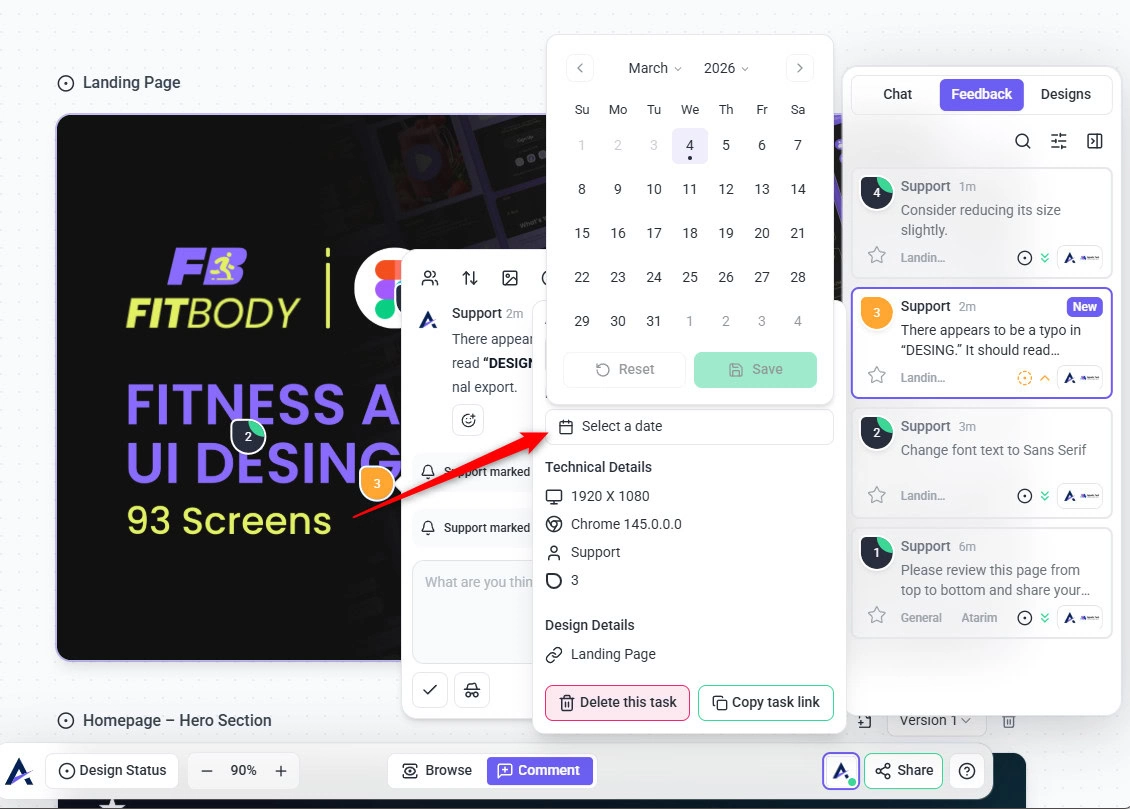
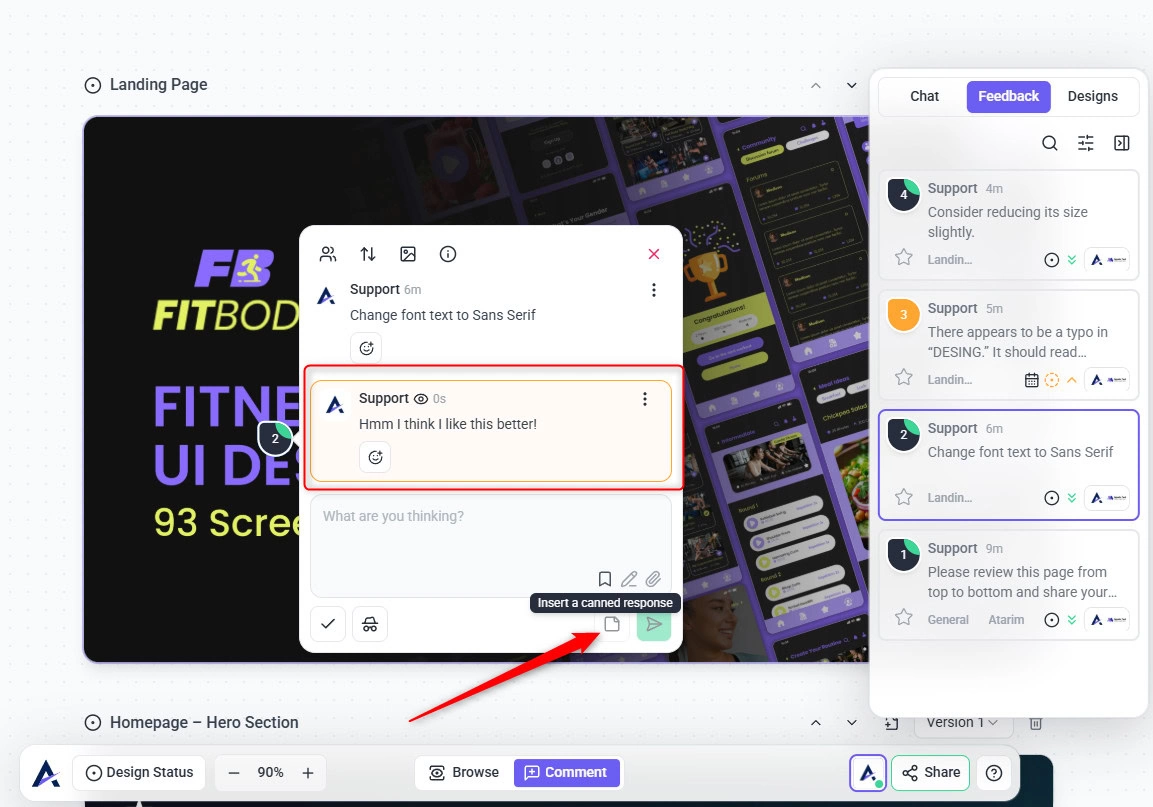
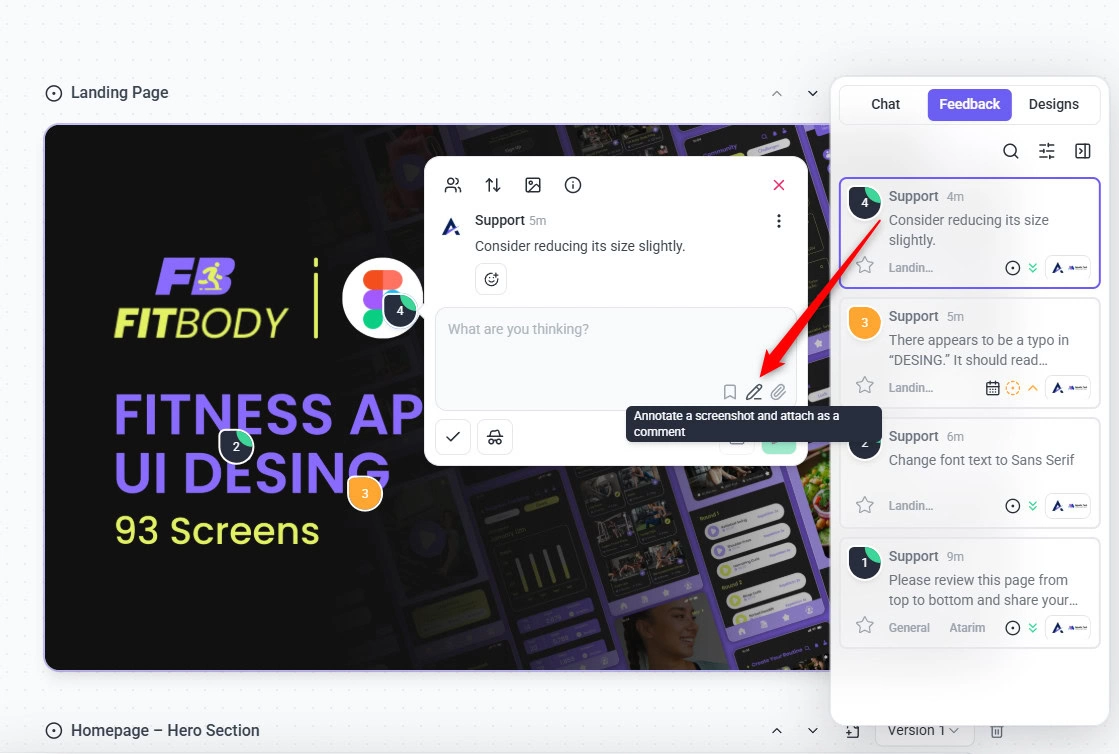
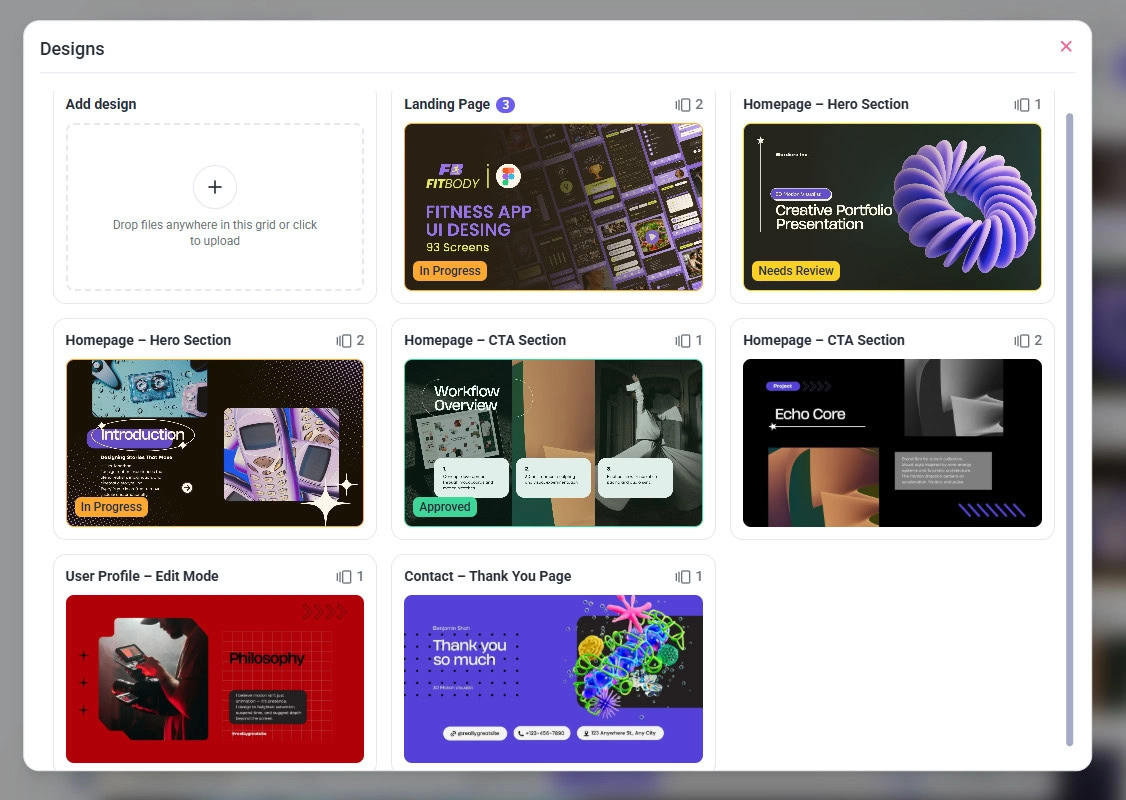
Tip: Each task is pinned directly to the exact location on the design, making it easy for designers and developers to see exactly what needs to be fixed.
Page Status Workflow
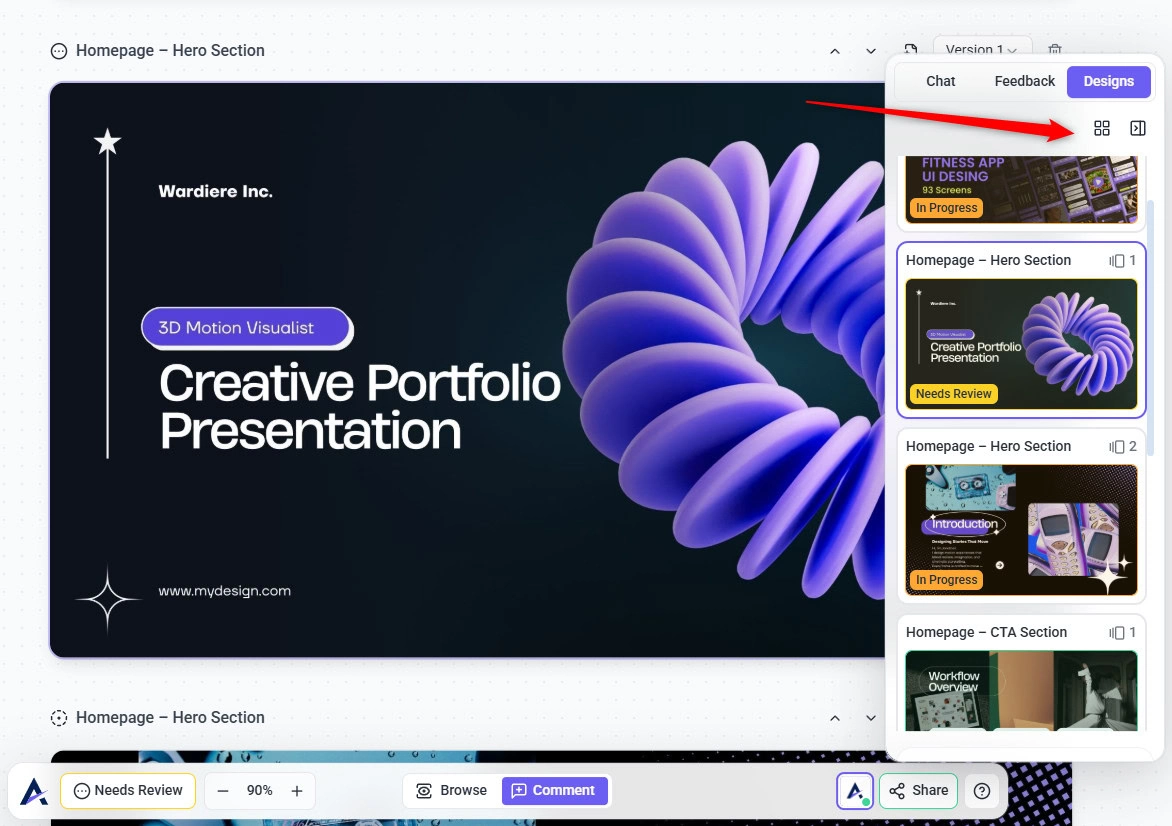
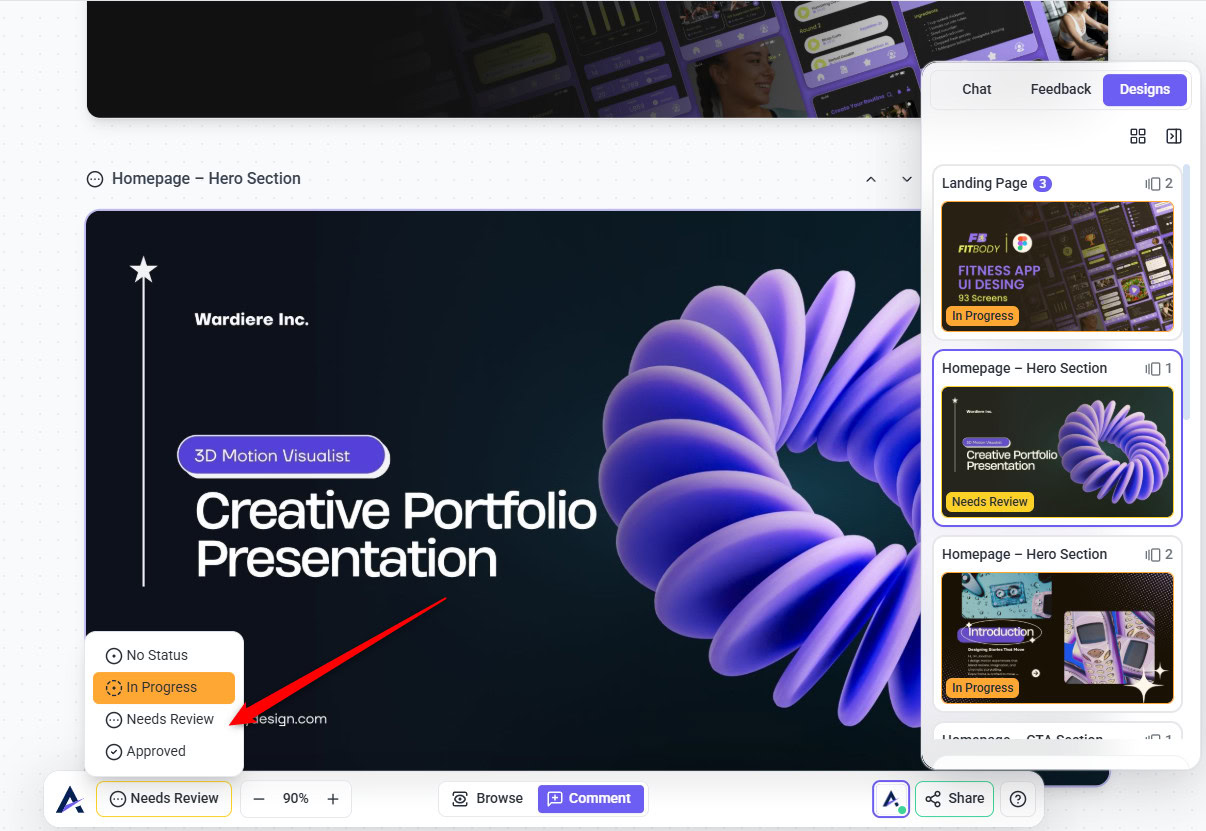
The Page Status feature now allows you to control the progress of each individual design inside a project.
This means every page (or screen) can have its own status — not just the overall project.
Internal users can set:
- In Progress
- Needs Review
- Approved
Guests / Clients see simplified options:
- Approved (Designs)
- Click When Done (Collaborate)
How the Workflow Works
Each design page in Atarim follows a simple review workflow that helps teams move from design to approval without confusion.
- Designer sets page to In Progress
- Once ready for feedback → sets to Needs Review
- After revisions are complete → mark as Approved
This creates a structured review lifecycle per page.
Warning: Avoid approving designs that still have unresolved high priority tasks, as this may cause important issues to be missed before development begins.
Chat Panel
The Chat panel replaces the traditional “General Comments” section and acts as the main communication area for the design review.
It helps structure conversations and ensures stakeholders understand what type of feedback is expected.
The Chat panel now:
- Displays the latest non-internal message to guests
- Acts as a structured introduction
- Provides review instructions
- Centralizes high-level discussion
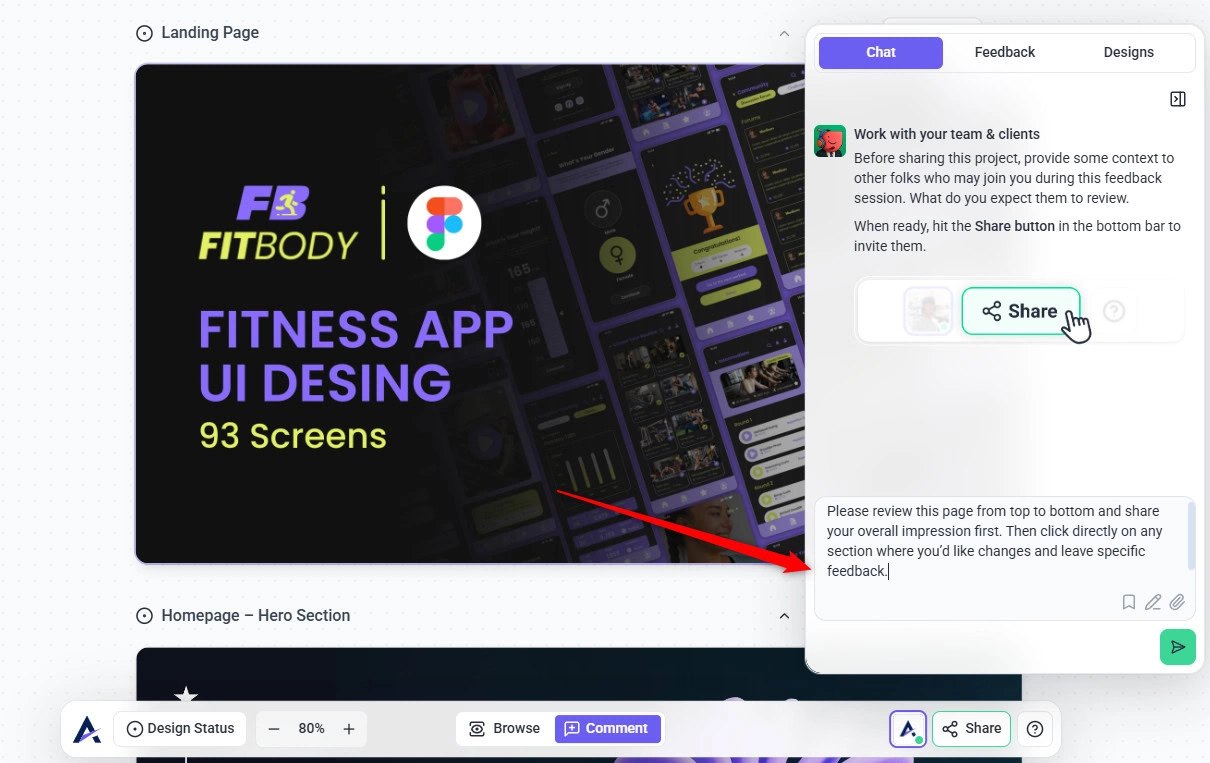
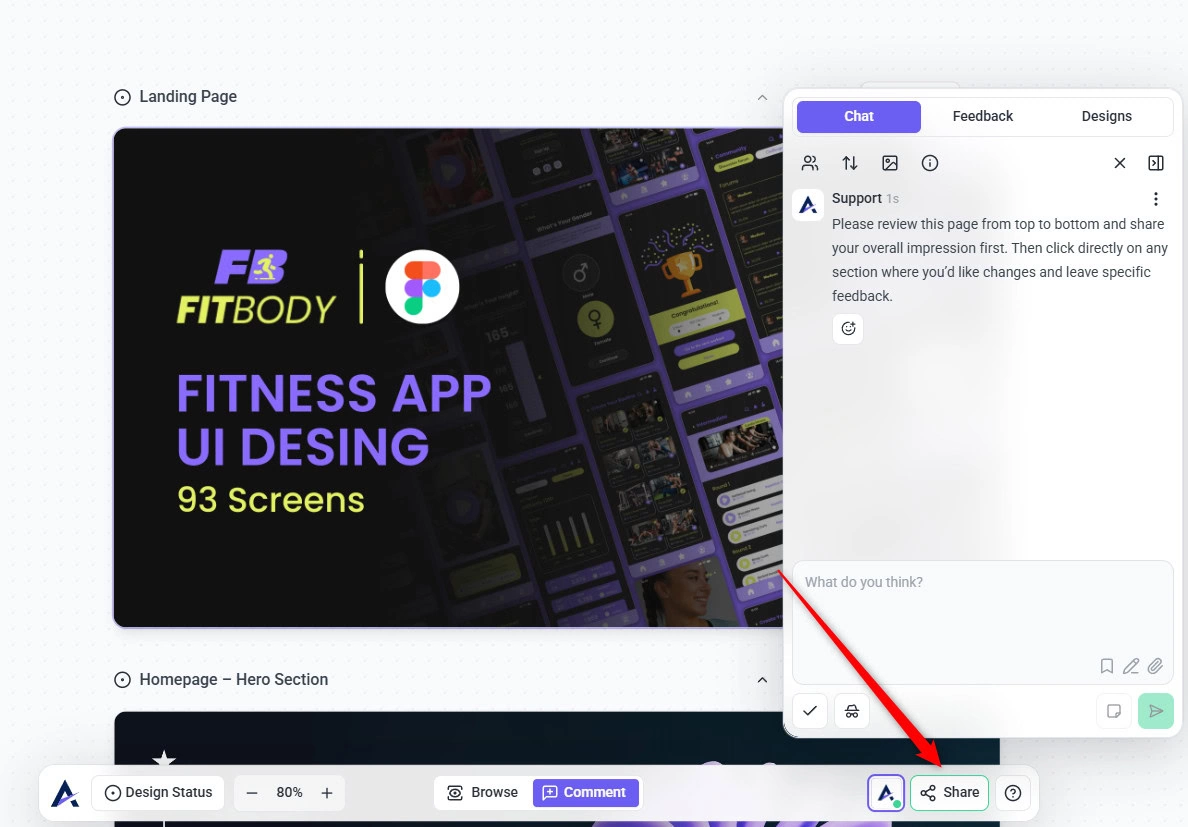
Recommendation: Use Chat to explain what feedback you expect before inviting stakeholders. If no intro message is added, a default client-facing message will appear automatically.
Why Use Atarim Instead of Figma Comments
While Figma is excellent for design exploration and iteration, it is not built for structured approval workflows. Atarim is purpose-built for feedback, accountability, and decision-making.
1. Faster Handoff Process
In Figma, preparing a file for review often requires cleaning up frames, organizing layers, renaming elements, and hiding exploratory work.
With Atarim, you simply select the finalized frames and push them into a Graphic Feedback project in seconds.
No manual cleanup. No duplicate review files. No wasted prep time.
2. Structured Task Management
Figma comments are basic discussion threads.
Atarim transforms feedback into actionable tasks with:
- Assigned team members
- Priority levels
- Due dates
- Status changes (In Progress, Needs Review, Approved)
- Tags for categorization
- Internal notes hidden from clients
- Threaded replies
Feedback becomes trackable work, not just conversation.
3. Clear Version Control
Figma does not clearly present revision rounds in a structured way for clients. Changes happen continuously inside the same canvas.
Atarim creates a clear review cycle by allowing you to:
- Upload new versions
- Keep previous versions accessible
- Switch between versions
- Show stakeholders how many revision rounds occurred
Each version becomes a “line in the sand” for that approval stage.
4. Linear Review Experience
Figma is an open canvas built for exploration.
Atarim is designed for structured review:
- Screens are presented in order
- Each page has its own status
- Feedback is pinned visually to exact locations
- Clients follow a clear top-to-bottom review flow
This reduces confusion and keeps reviews focused.
5. Client-Friendly Guest Experience
Figma requires accounts and exposes a full design environment.
Atarim allows guests to:
- Enter name and email once
- Leave feedback without creating an account
- See a simplified interface
- Focus only on reviewing
Less friction means faster feedback cycles.
6. Permission & Control
With Atarim, you can control:
- Who can comment
- Who can approve
- Internal vs external visibility
- Workspace-level or project-level permissions
Figma comments do not provide this level of structured control for approval workflows.
7. Automation & Integrations
Atarim integrates with tools like Jira and Asana, allowing tasks to sync automatically into your project management workflow.
This bridges the gap between feedback and execution.
8. White Label & Branding
You can customize branding, colors, and external links for clients — turning the review experience into your own branded collaboration portal.
FAQs
You can upload PDFs, PSDs, AI files, DWG floor plans, PNGs, JPGs, and import Figma frames using the Atarim plugin.
Yes, the new tool allows you to collaborate on presentations, mockups, ad creatives, social media designs, and even DWG floor plans.
You can upload new versions of a design while keeping previous versions accessible for comparison and revision tracking.
No, clients only need to enter their name and email once to receive notifications without creating an account.