Best Practices for Client Onboarding and Collaboration
Get a client leaving useful feedback in their first session — and keep it that way.
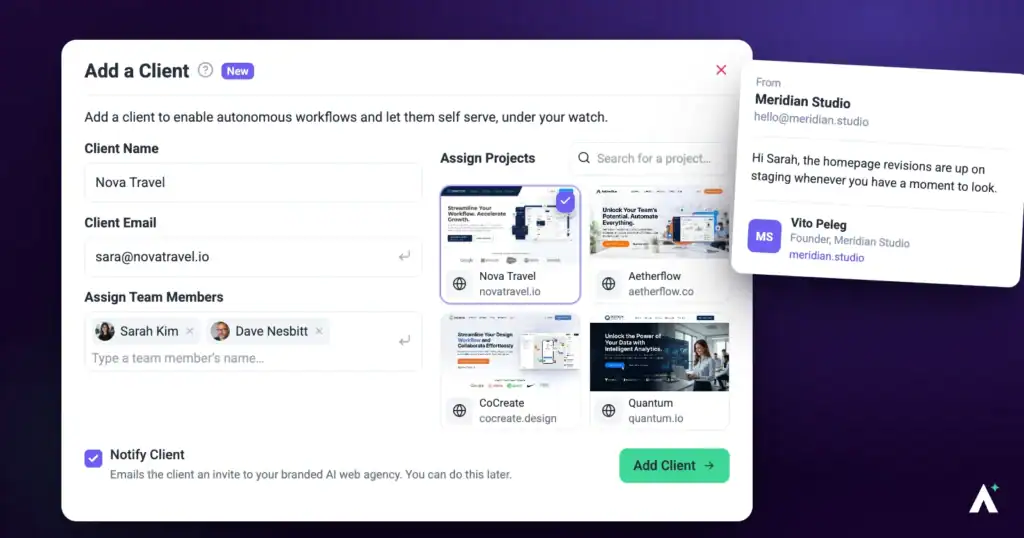
Onboarding decides how the rest of a project goes. A client who understands how to leave feedback in their first session gives you specific, actionable comments for months. One who doesn’t sends emails saying “the header looks wrong” and you spend the project translating.
On a project anyone with the link can open, clients need no account — the link is the whole handover.
Let Clients Comment Directly on the Page
This is the single change that improves feedback quality most. Instead of describing where something is, the client points at it.
Instructions:
- Open the webpage or design in Atarim.
- Select the part of the page that needs attention.
- Leave a comment or create a task. Atarim captures a screenshot automatically and links the task to that exact element.

Invite Them Properly
Clients need no account to leave feedback, which removes the usual excuse for replying by email instead.
Instructions:
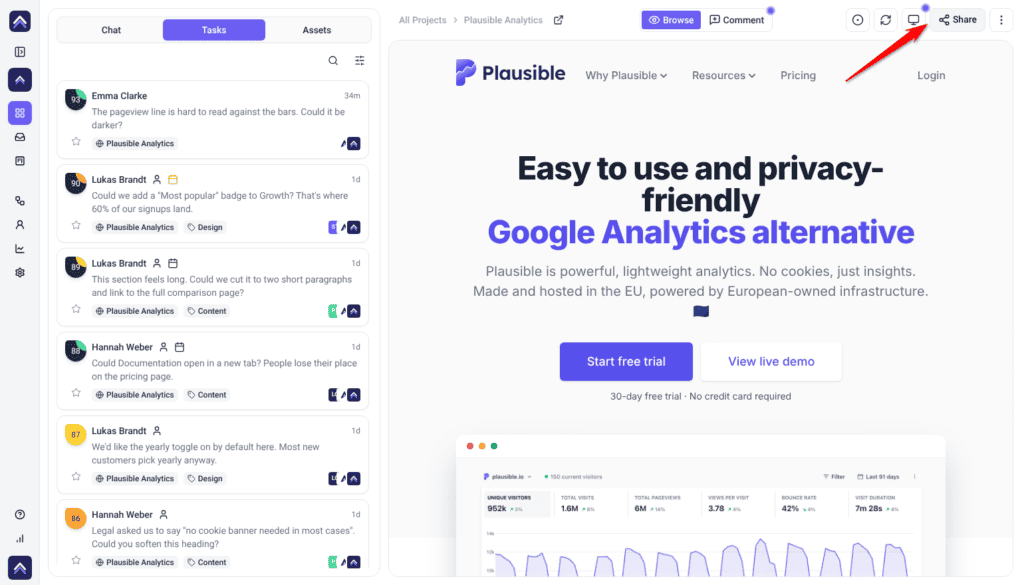
- Open the project and use the share control in the collaboration view.
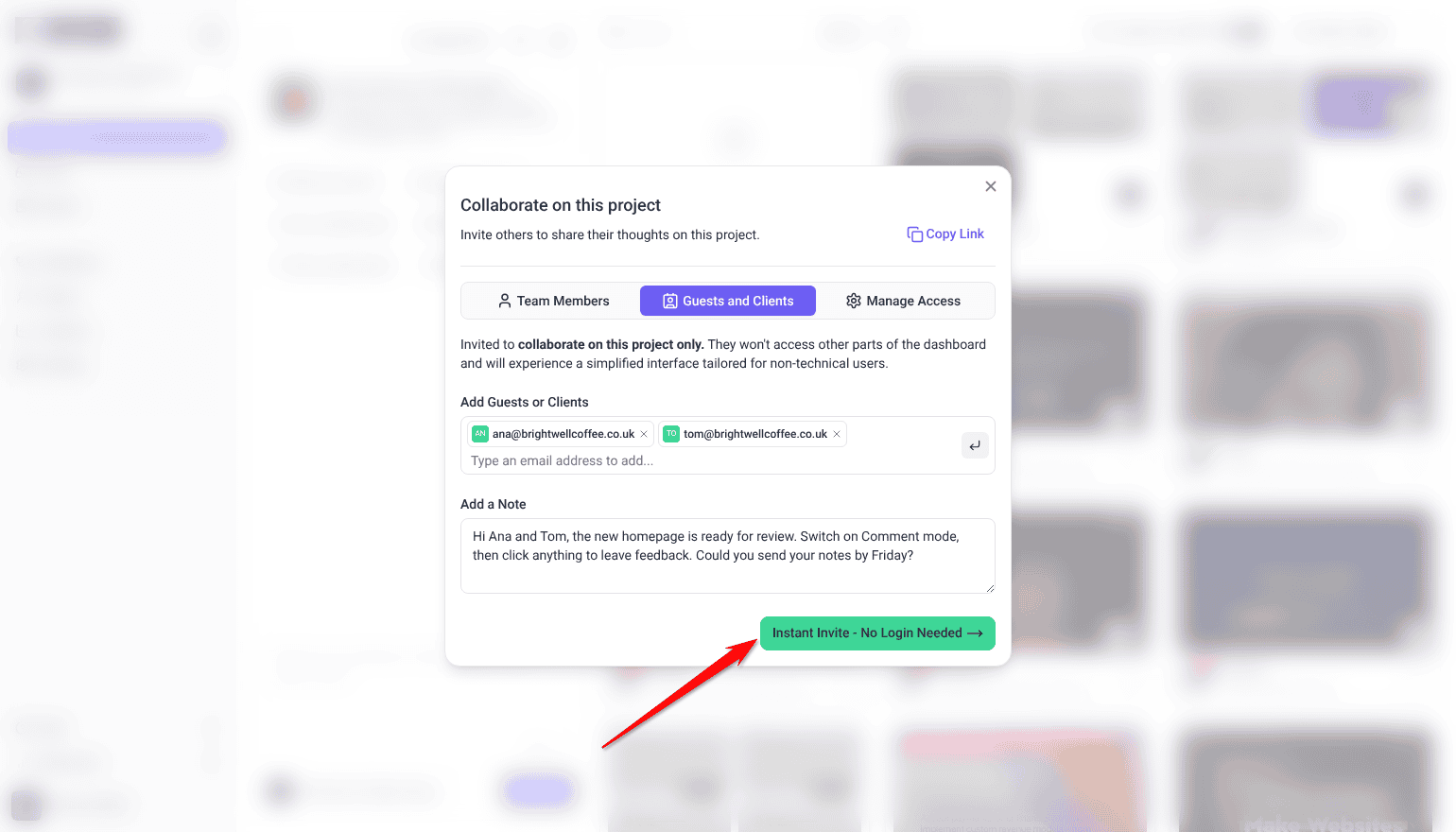
- Invite the client from Guests and Clients, or copy the link and send it yourself. The link works without an account while General Access under Manage Access is set to Anyone with the link.
- Tell them what you’d like reviewed and by when.
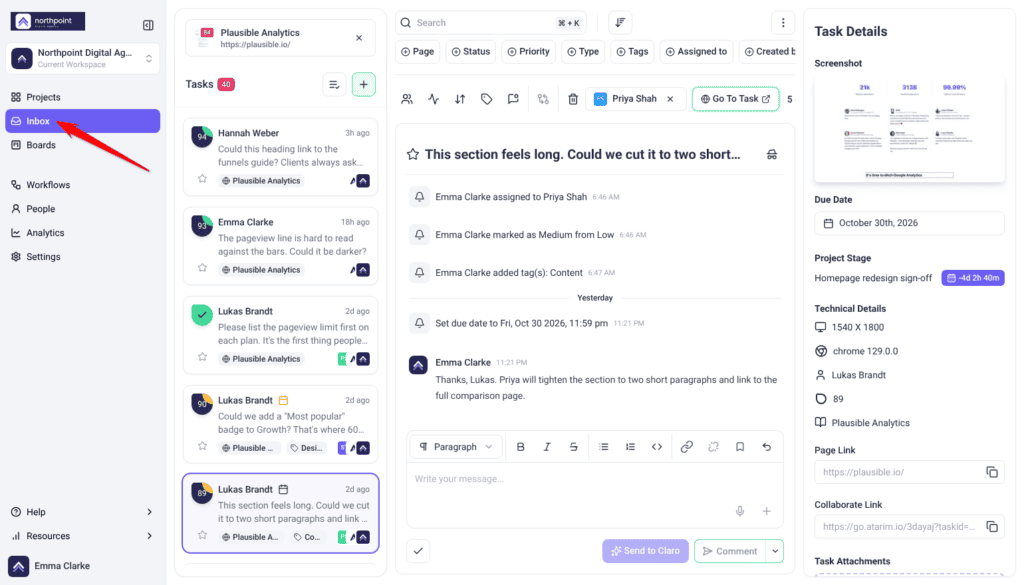
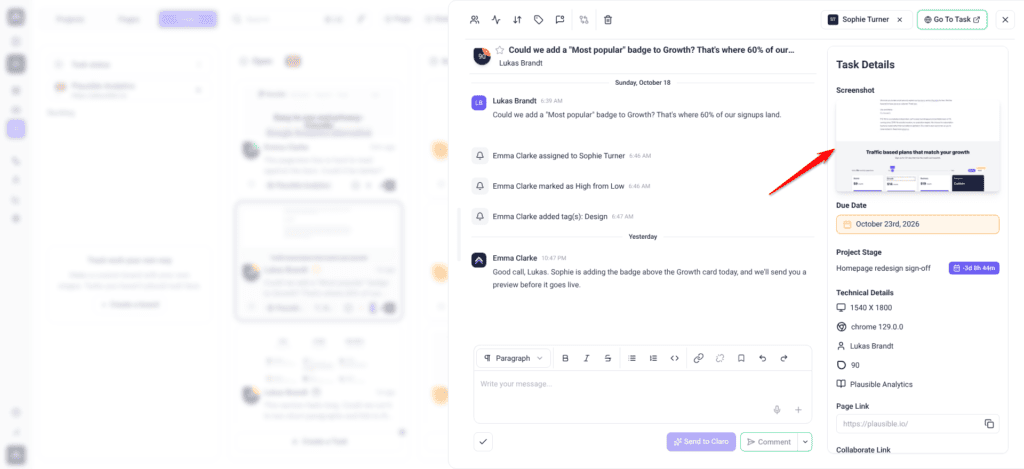
What Arrives with Each Task
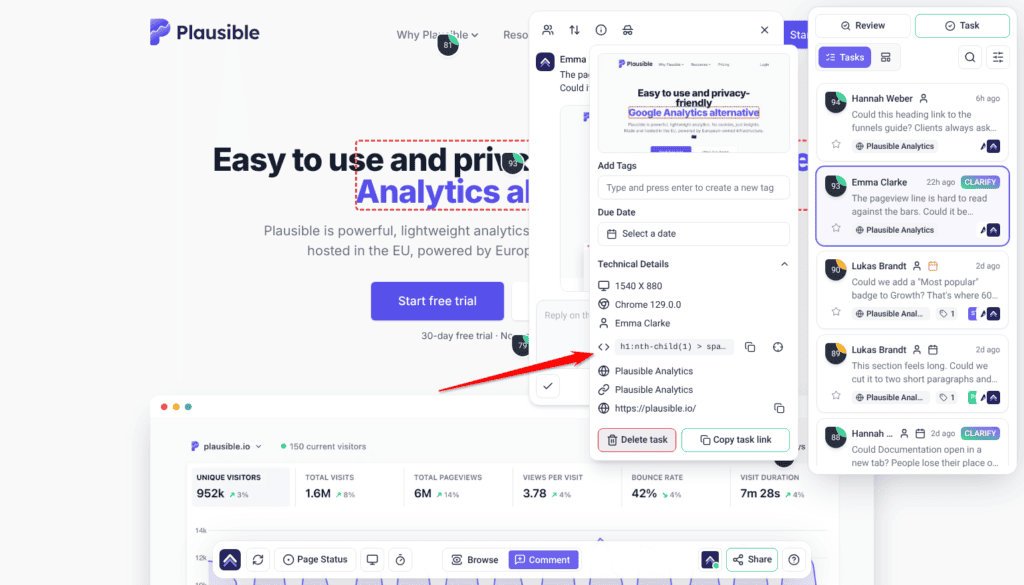
Every task carries context automatically, so you’re not asking the client follow-up questions about their setup.
| Captured | Why it matters |
|---|---|
| Screenshot | Shows exactly what they were looking at, including anything since changed. |
| Page URL | Takes you straight to the right page. |
| Element reference | Points at the specific thing, not the general area. |
| Browser and screen size | Explains issues that only occur on certain setups. |
Review all of this from the Inbox, from Boards, or on the project front end.
Get Feedback on Every Device
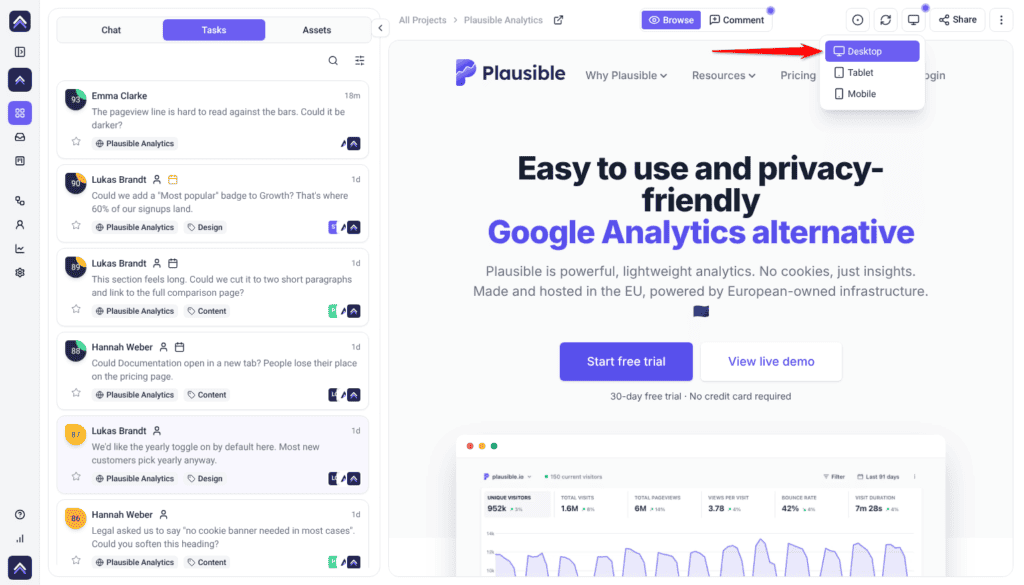
Clients review on whatever they happen to open, so ask for each breakpoint explicitly.
Instructions:
- Use the device control in the Collaborate toolbar to switch between Desktop, Tablet and Mobile. It’s a paid feature, so if the device menu is missing, your plan doesn’t include it.
- Ask the client to review each format rather than just the one they opened.
Keep the Incoming Work Organized
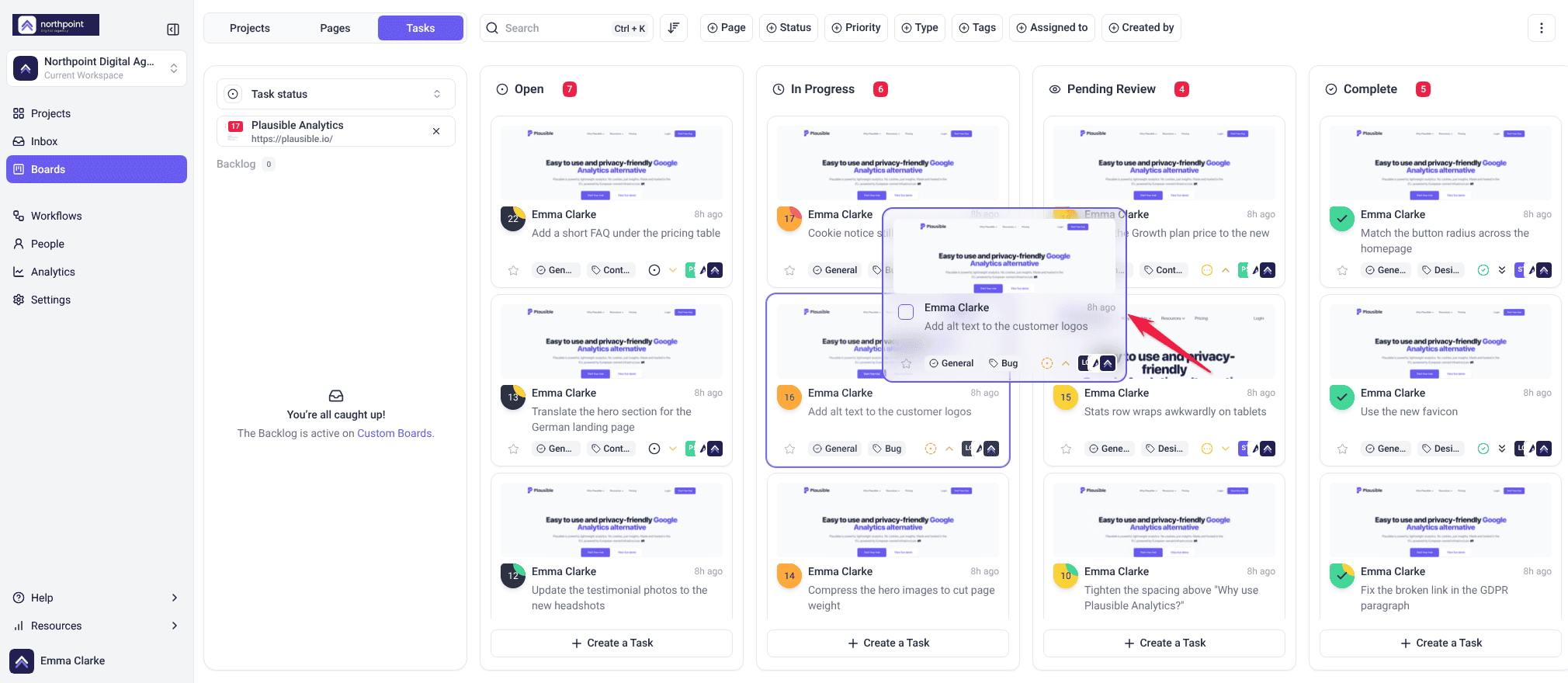
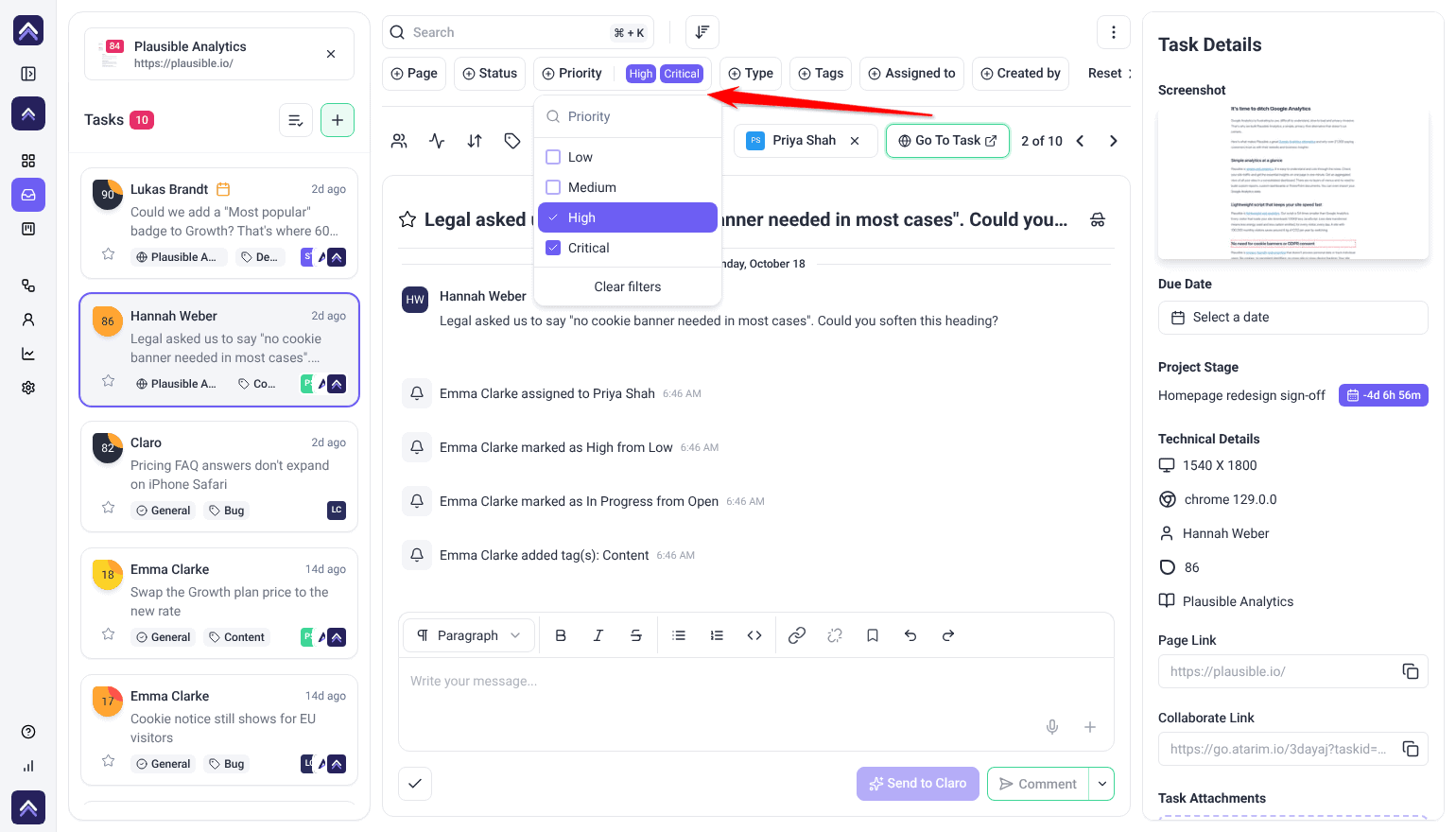
Client feedback tends to arrive all at once and in no order, so sorting it on arrival is what keeps it actionable.
Instructions:
- Categorize tasks by urgency, status and tags as they arrive.
- Assign an owner and a deadline.
- Review the Inbox regularly so nothing sits unseen.
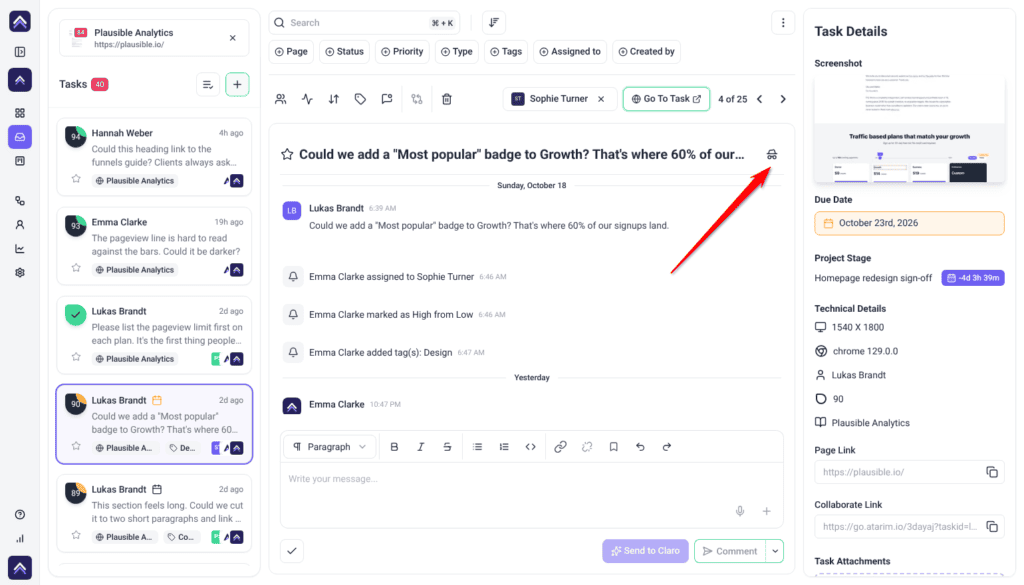
Keep Team Discussion Away from the Client
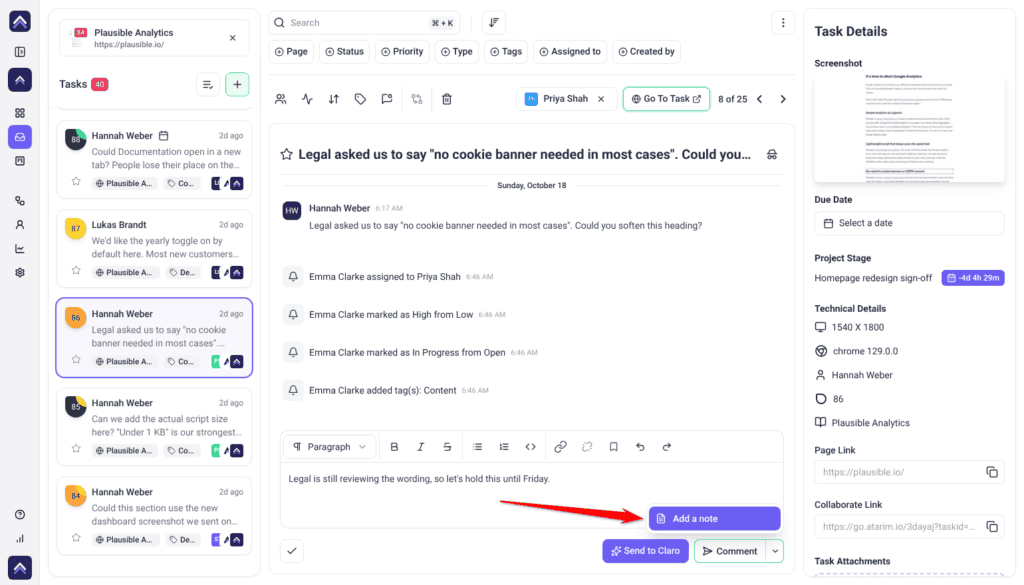
Clients see their own feedback and your replies. They shouldn’t see your QA notes or internal debates — and that’s what internal tasks and private notes are for.
Share the Plan
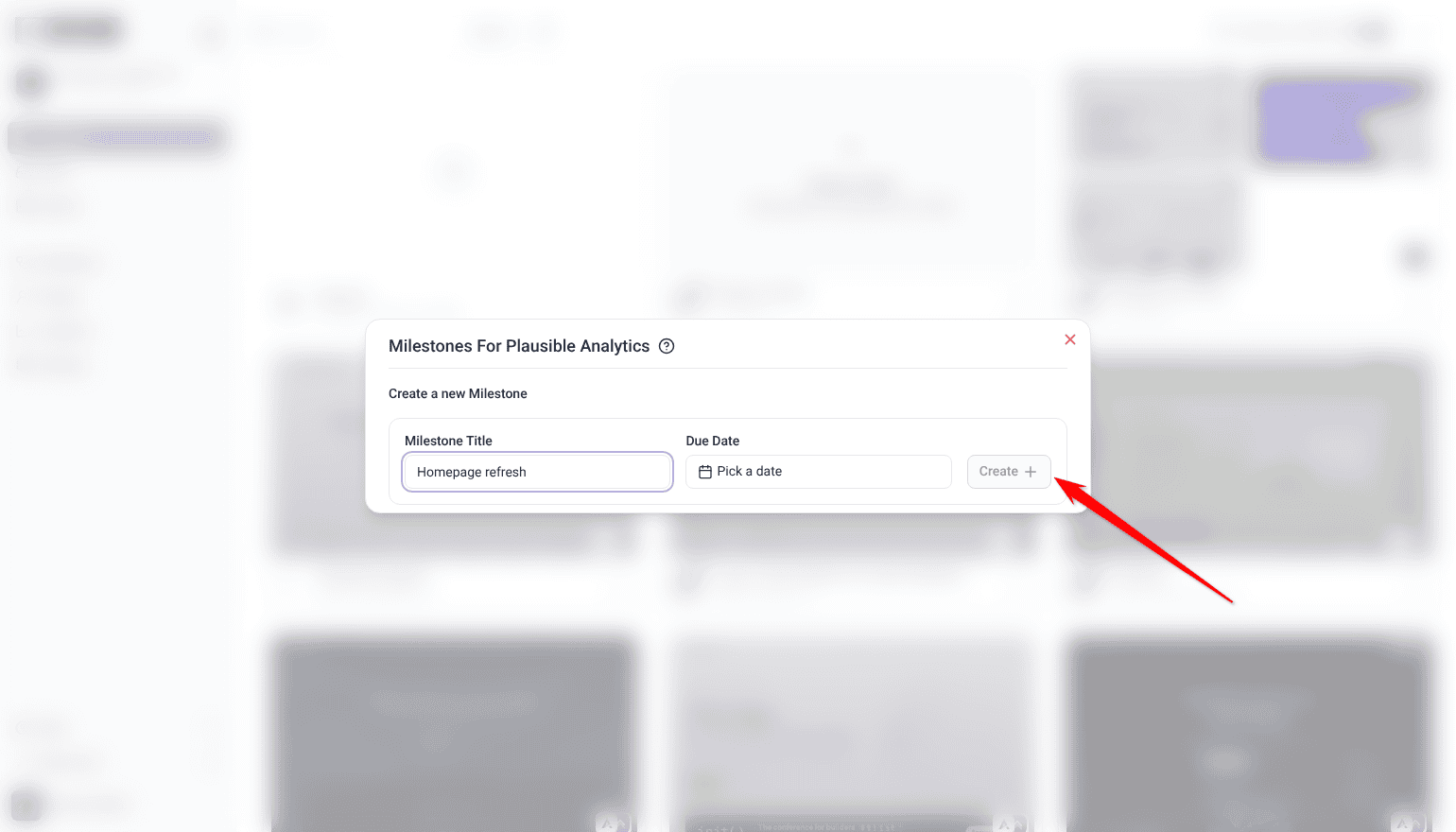
- Set project stages that reflect how the work actually runs: on the project’s card, open the ⋮ menu and select Set Project Stages. Stages are a paid feature, and the option only appears for roles allowed to set them.
- Share them with the client so they can see where things stand.
- Track progress from the project page or from Collaborate.

FAQs
How do I onboard a new client?
Share the project link and walk them through leaving one comment. Point them at the Help Center for anything further.
Do clients need an account?
No, while the project’s General Access is set to Anyone with the link. If you restrict it to Only people with access, invite each reviewer from Share › Guests and Clients.
How do I track task status?
Use Boards to see progress and update statuses, or the Inbox for incoming feedback.
What gets captured with each task?
A screenshot, the page URL, the element referenced, and technical details such as browser and screen size.
Can clients see our internal discussion?
No, provided it’s in internal tasks or private notes. Both are hidden from clients and guests.
Do clients need the Chrome extension?
No. It’s for your team — particularly staging sites and pages behind a login.
Will clients be told when a stage changes?
A client who has an Atarim account and is on the project is emailed like anyone else assigned to it — creating or completing a stage sends an email, and so do the due-date reminders. A client reviewing through a share link without an account is not emailed at all, so tell them directly.
Common issues
- The client says clicking does nothing — Comment mode isn’t on. Ask them to select it before clicking the page.
- The client never got the invitation — check the address, ask them to look in spam, or just send them the link directly.
- Tasks arrive without screenshots — the automatic screenshot is controlled by View Auto Screenshot on tasks in Settings → Workspace Permissions, or the project’s own Project Permissions.
- Feedback is still vague — walk them through leaving one comment on a call. It’s faster than another written explanation.
- Mobile problems surface late — ask for feedback on each device format explicitly. Clients default to desktop.
- The client saw something internal — use internal tasks and notes for team-only discussion.
- The client keeps asking for status — share project stages and tell them where to look.
Conclusion
Good onboarding is mostly one thing: getting the client to leave their first comment on the page rather than in an email. Everything else — context, screenshots, device coverage, organized tasks — follows from that.
Spend five minutes showing them, be explicit about Comment mode, and keep internal discussion internal. Discover Best Practices For Client Communication
Tips & best practices
- Walk clients through their first comment live rather than sending instructions.
- Mention Comment mode explicitly in your handover message.
- Update clients on progress proactively — it builds trust and reduces status chasing.
- Ask for feedback on mobile as well as desktop.
- Triage and assign tasks as they arrive, not weekly.
- Keep team discussion in internal tasks and notes.
- Agree client roles at kickoff rather than adjusting later.