Unlock Efficiency: Simplify Task and Project Views with Atarim Filters
Cut a long list down to the handful you can act on now.
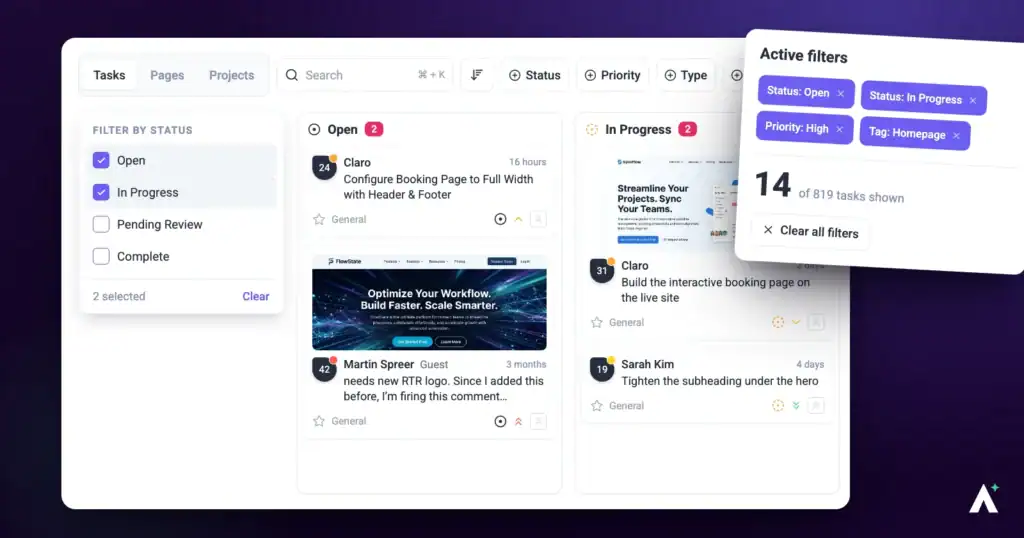
A long task list isn’t a problem until you need to decide what to do next. Filters turn it into a short one — and because they’re per person, you can narrow aggressively without affecting anyone else.
Filters are per person — yours don’t change anyone else’s view.
Where Filters Live
| Screen | Where to find them | What you can narrow by |
|---|---|---|
| Projects | The Filter and sort button next to Search | Project type, plus sorting. |
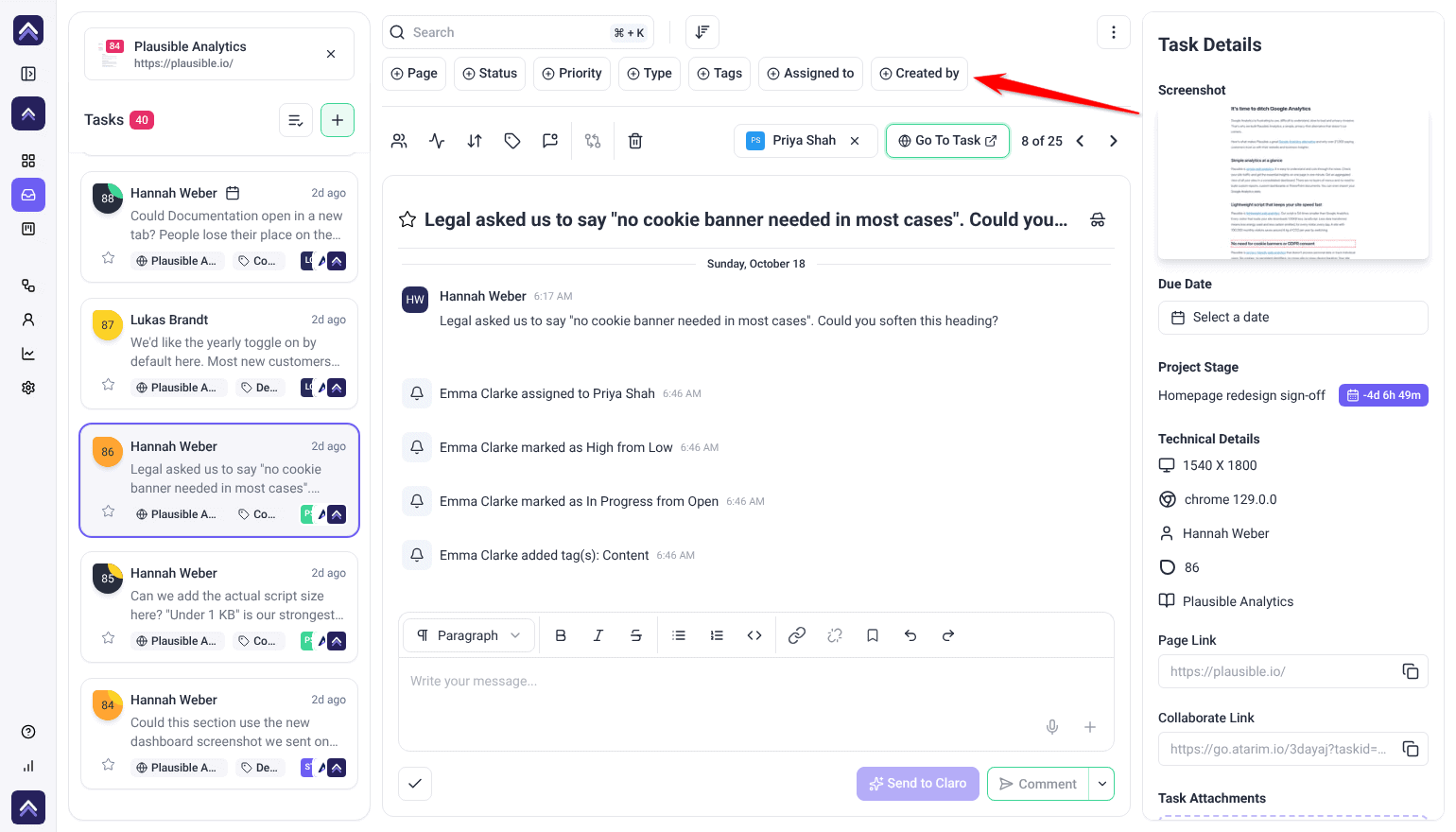
| Inbox | Top toolbar or sidebar | Status, priority, task type and tags. With one project selected, also page, assignee and creator. |
| Boards | Top toolbar | The same task filters on the Tasks tab. The Pages and Projects tabs have their own. |
Filtering the Projects Screen
These filters narrow the project grid rather than the tasks inside it — task filters are a separate set.
Instructions:
- Open the Projects screen.
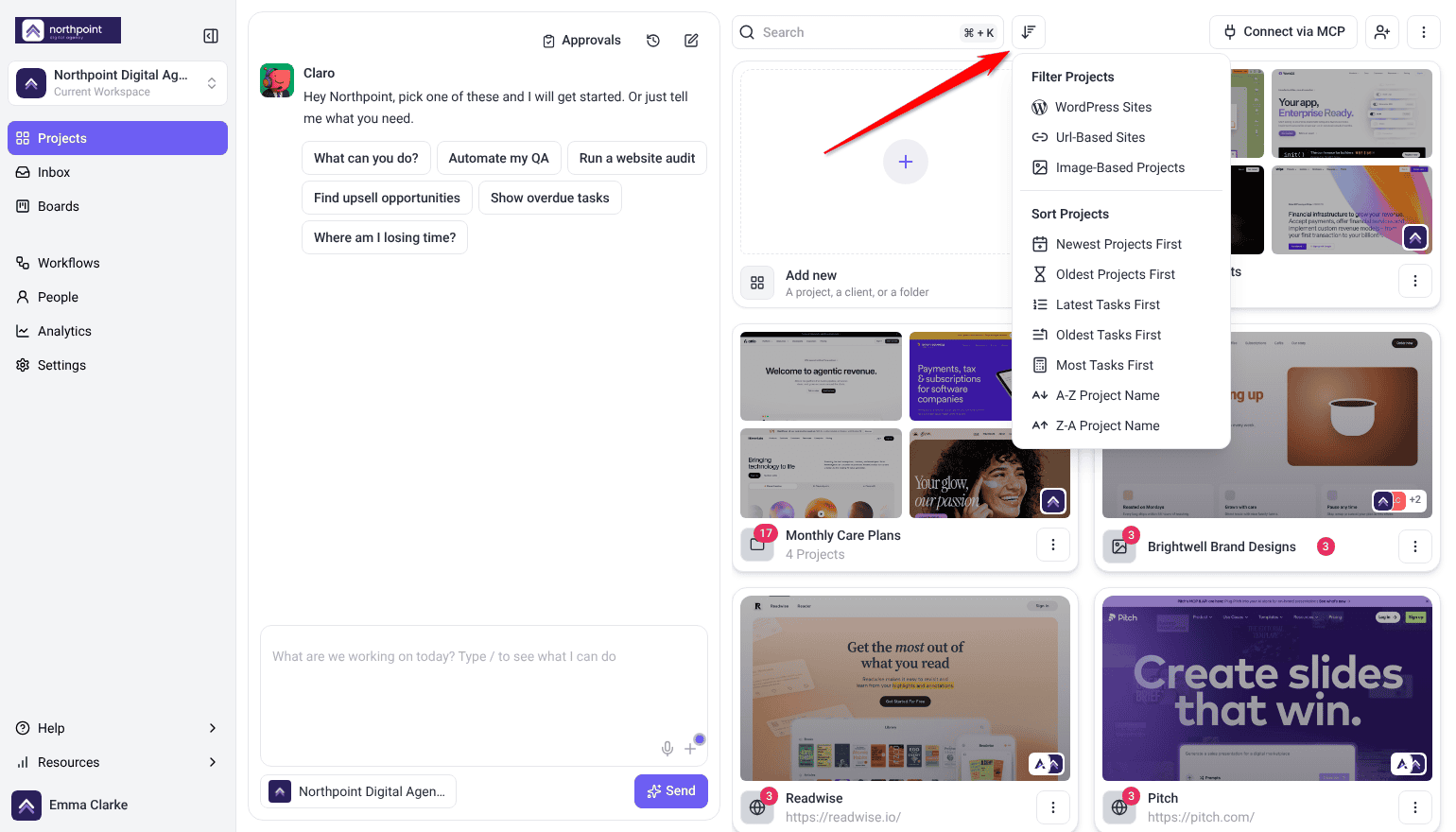
- Select Filter and sort next to Search. Under Filter Projects, narrow by project type: WordPress Sites, Url-Based Sites or Image-Based Projects.
- Under Sort Projects, apply a sort: newest or oldest projects, latest or oldest tasks, most tasks, or alphabetical.
Filtering Tasks in the Inbox and Boards
By status
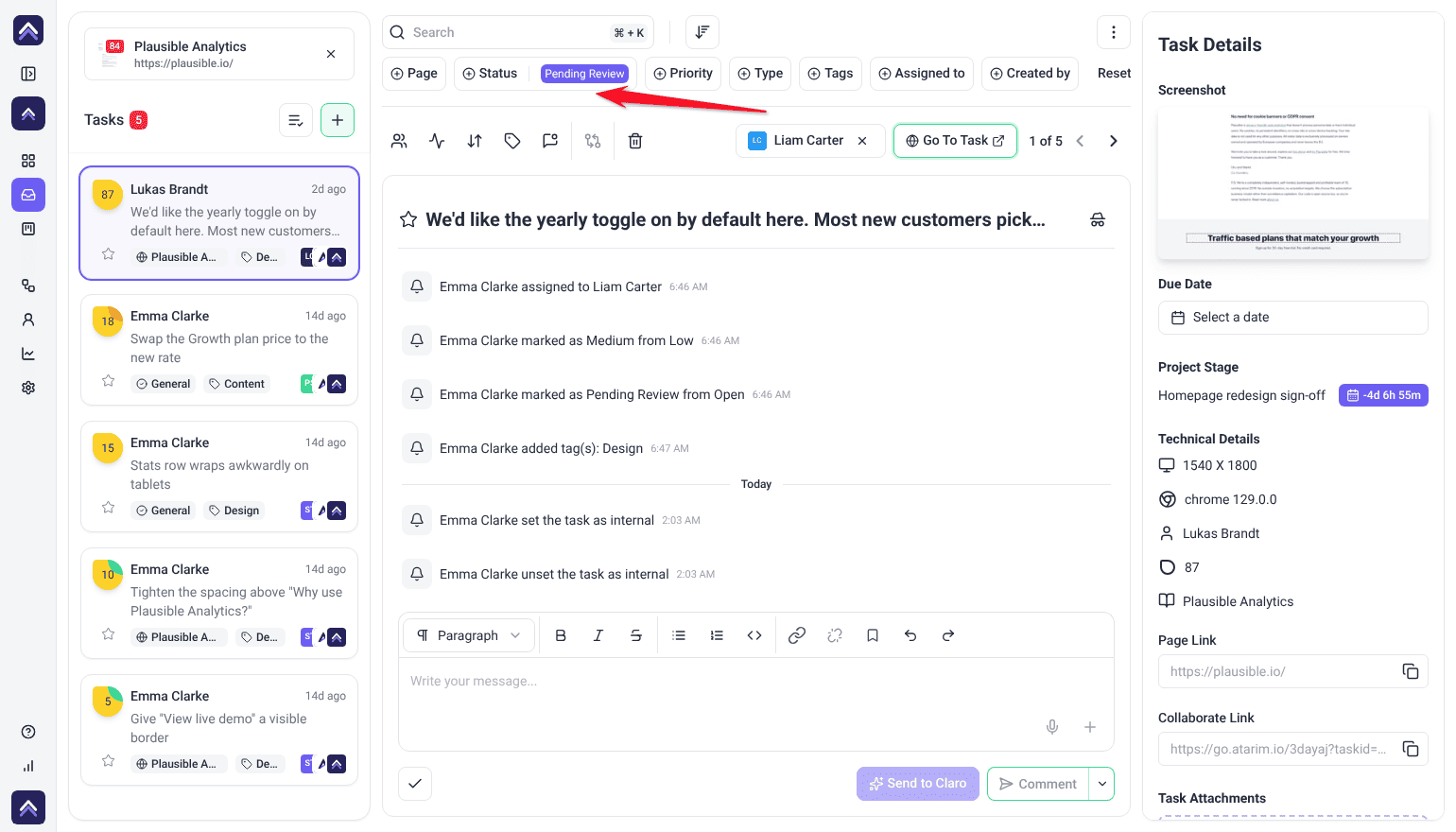
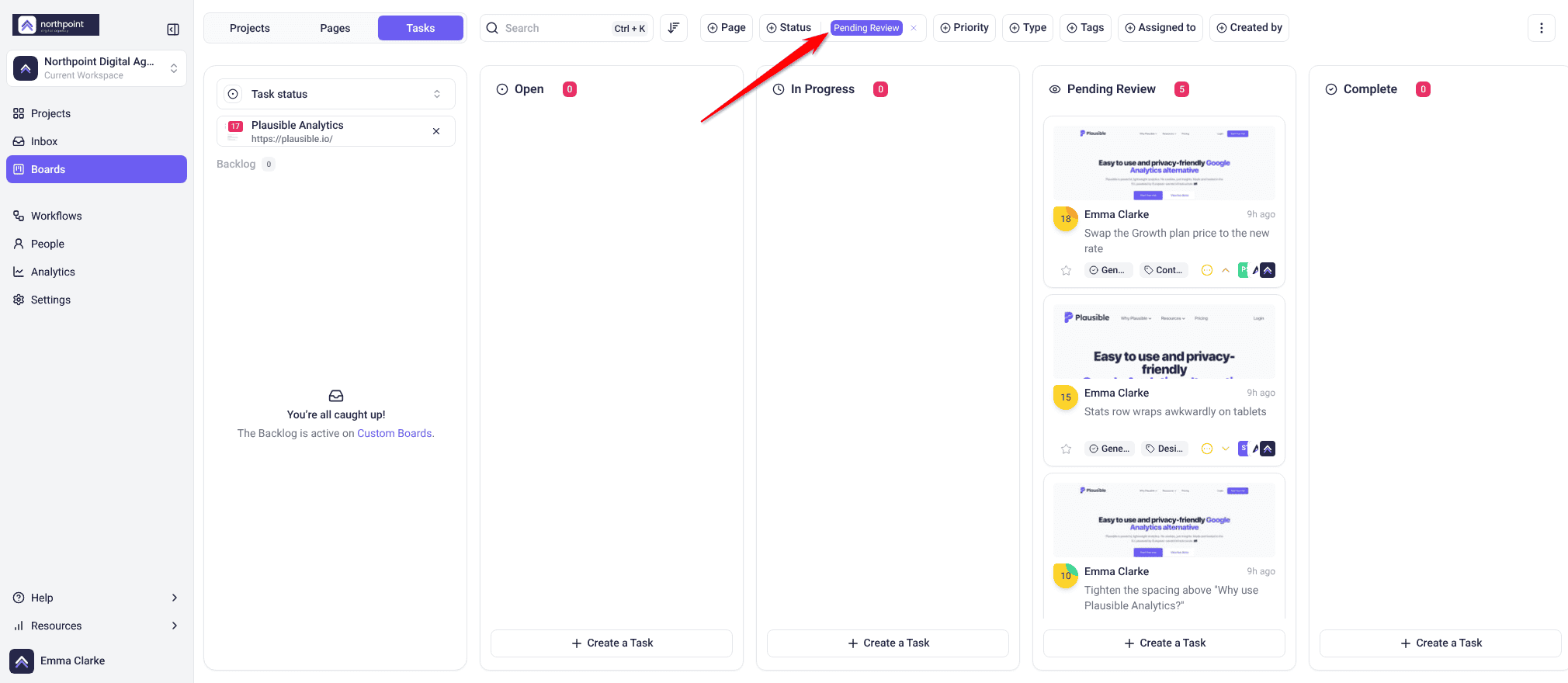
Narrow to Open, In Progress, Pending Review or Complete. Filtering to Pending Review is the fastest way to see everything waiting on someone else.
By priority
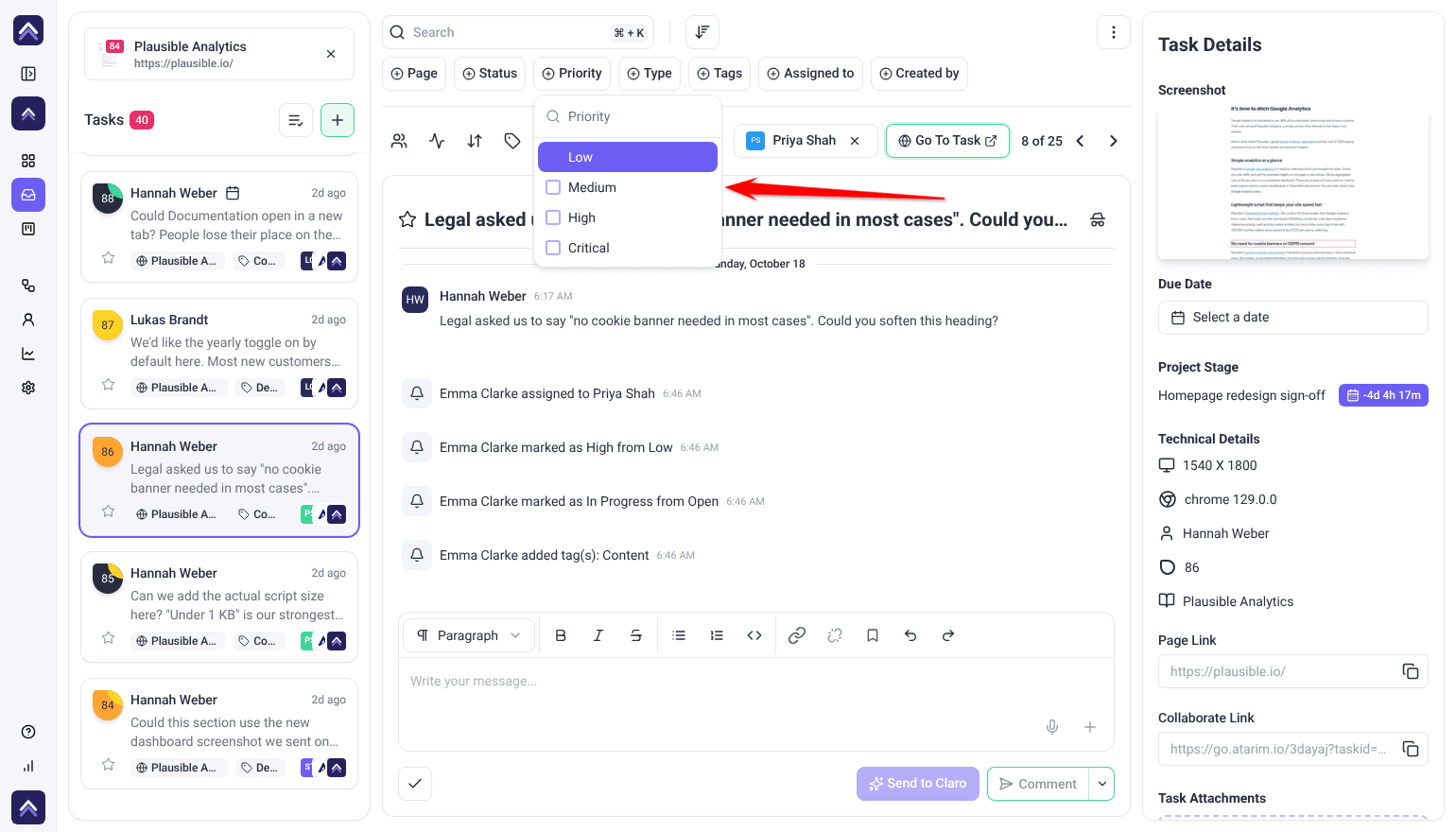
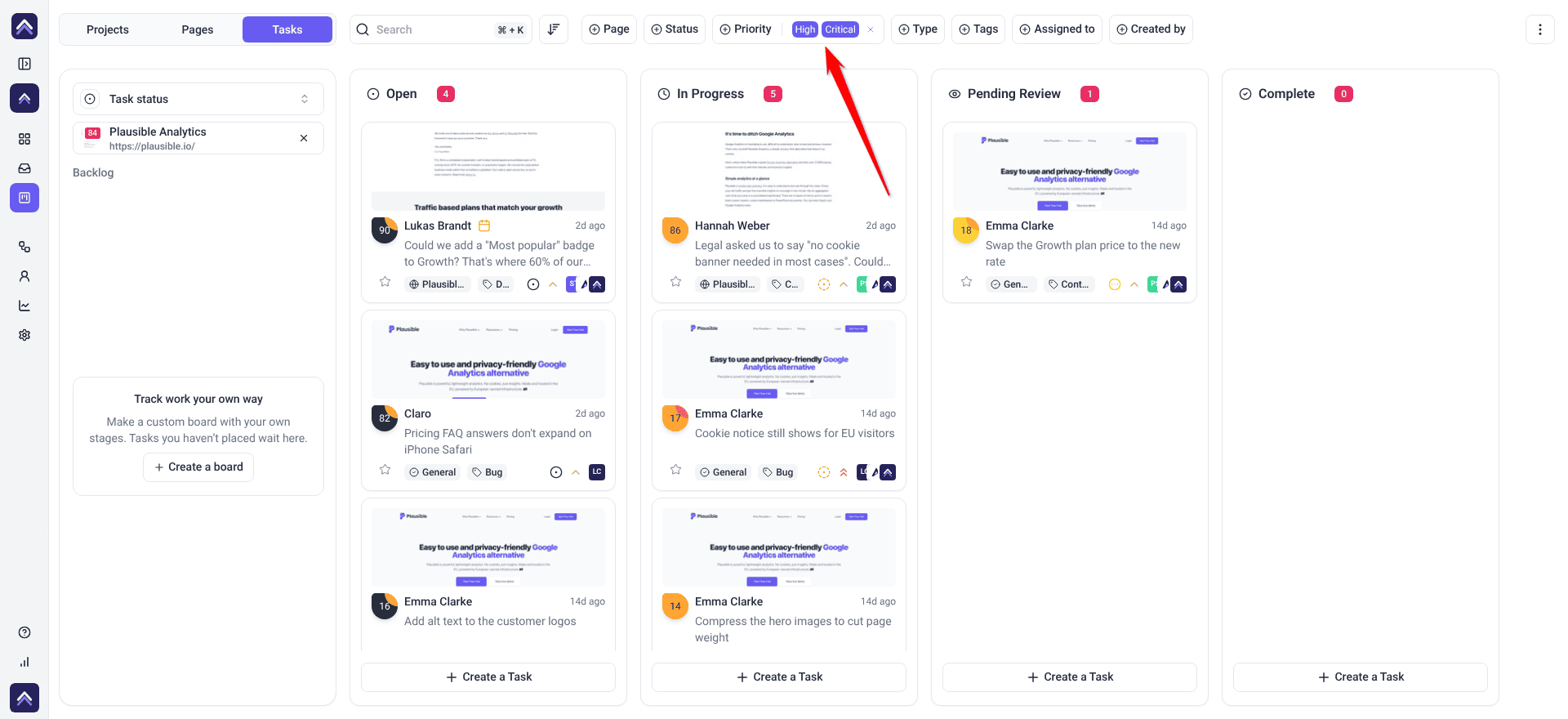
Narrow to Low, Medium, High or Critical. Working down from Critical is how you decide what happens next.
By task type
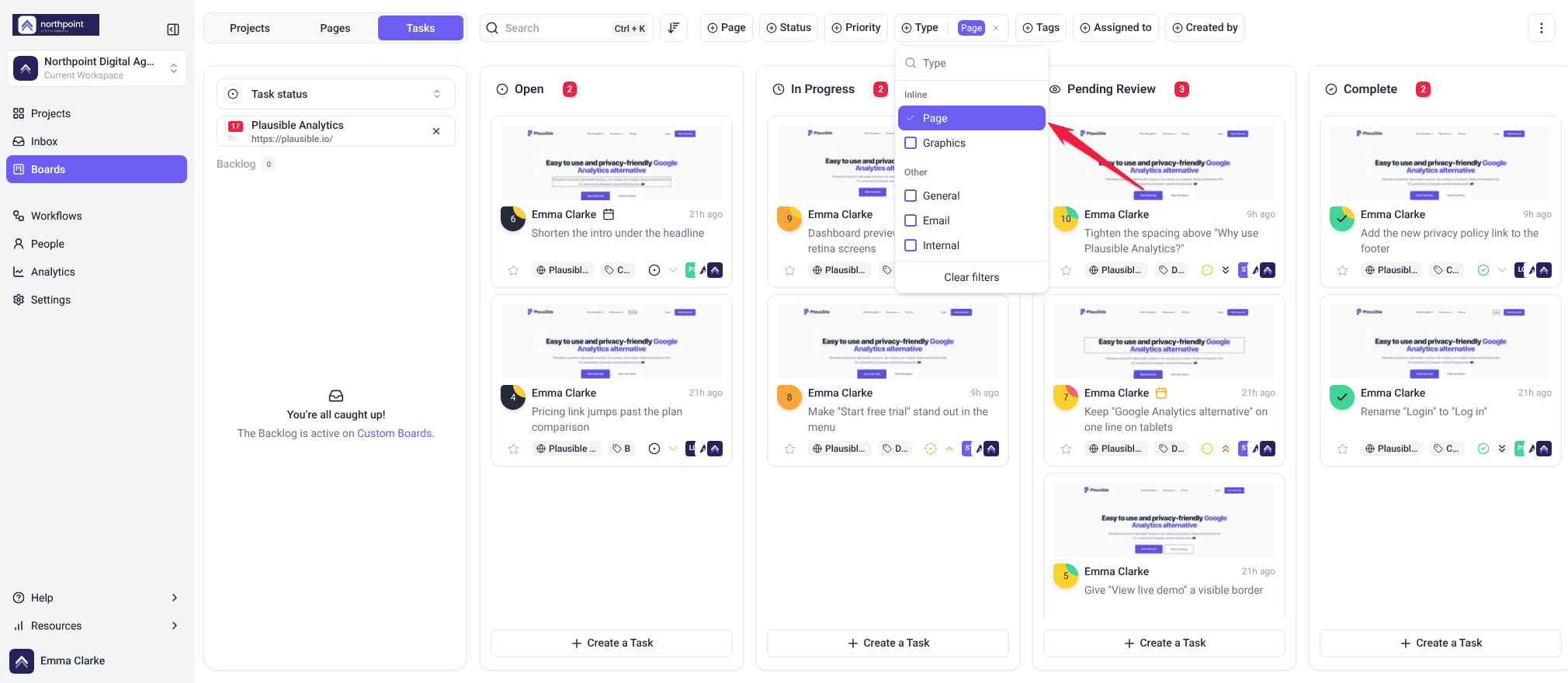
| Type | What it covers |
|---|---|
| Page | Feedback pinned to an element on a web page. Listed under Inline. |
| Graphics | Feedback pinned to a spot on a design. Listed under Inline. |
| General | A task about a whole page rather than one element, such as one created with A task for the whole page. Listed under Other. |
| Internal | Tasks marked internal, hidden from clients and guests. Listed under Other. |
| Tasks created from emails that arrive in your Inbox. Listed under Other. |

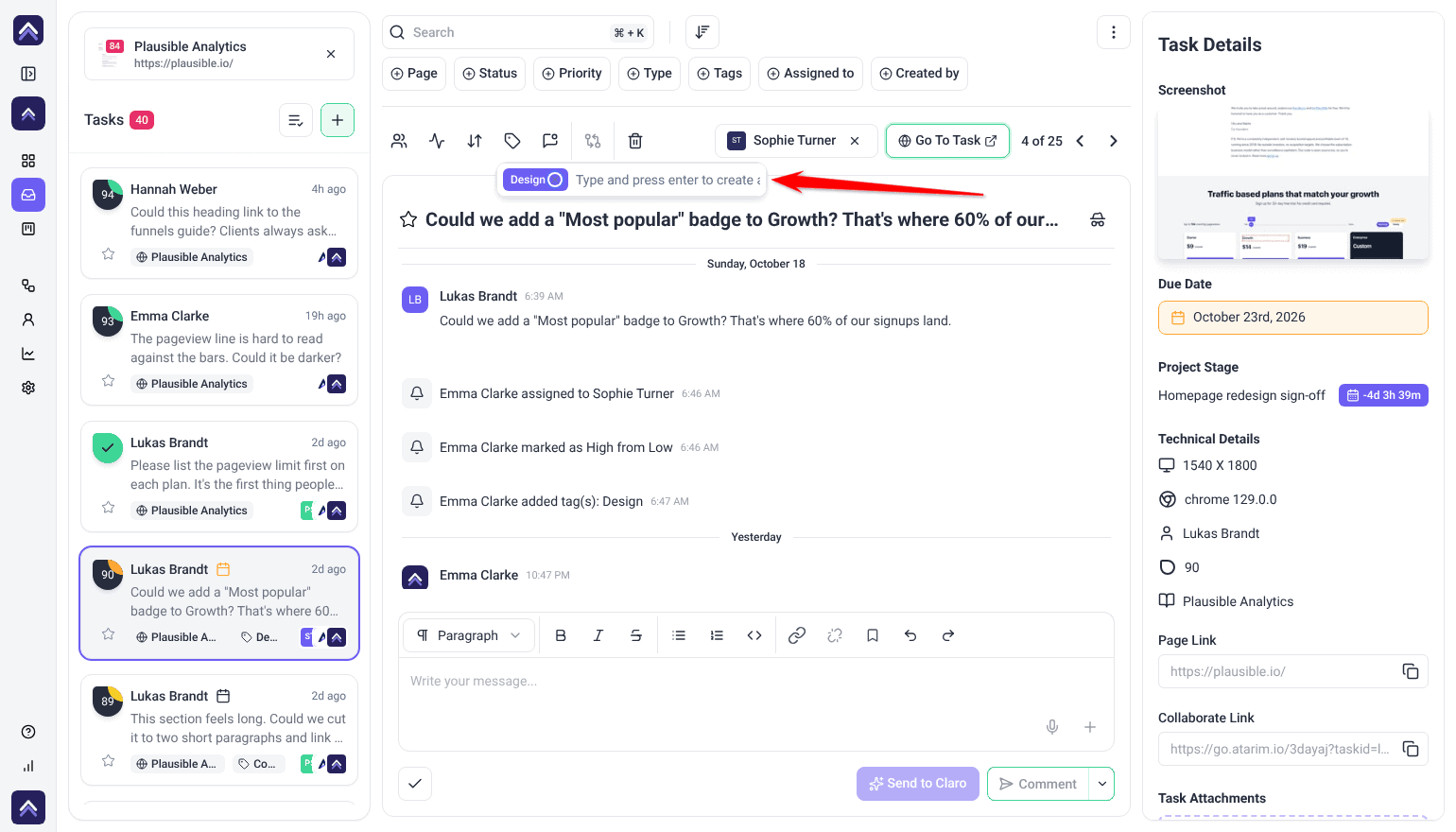
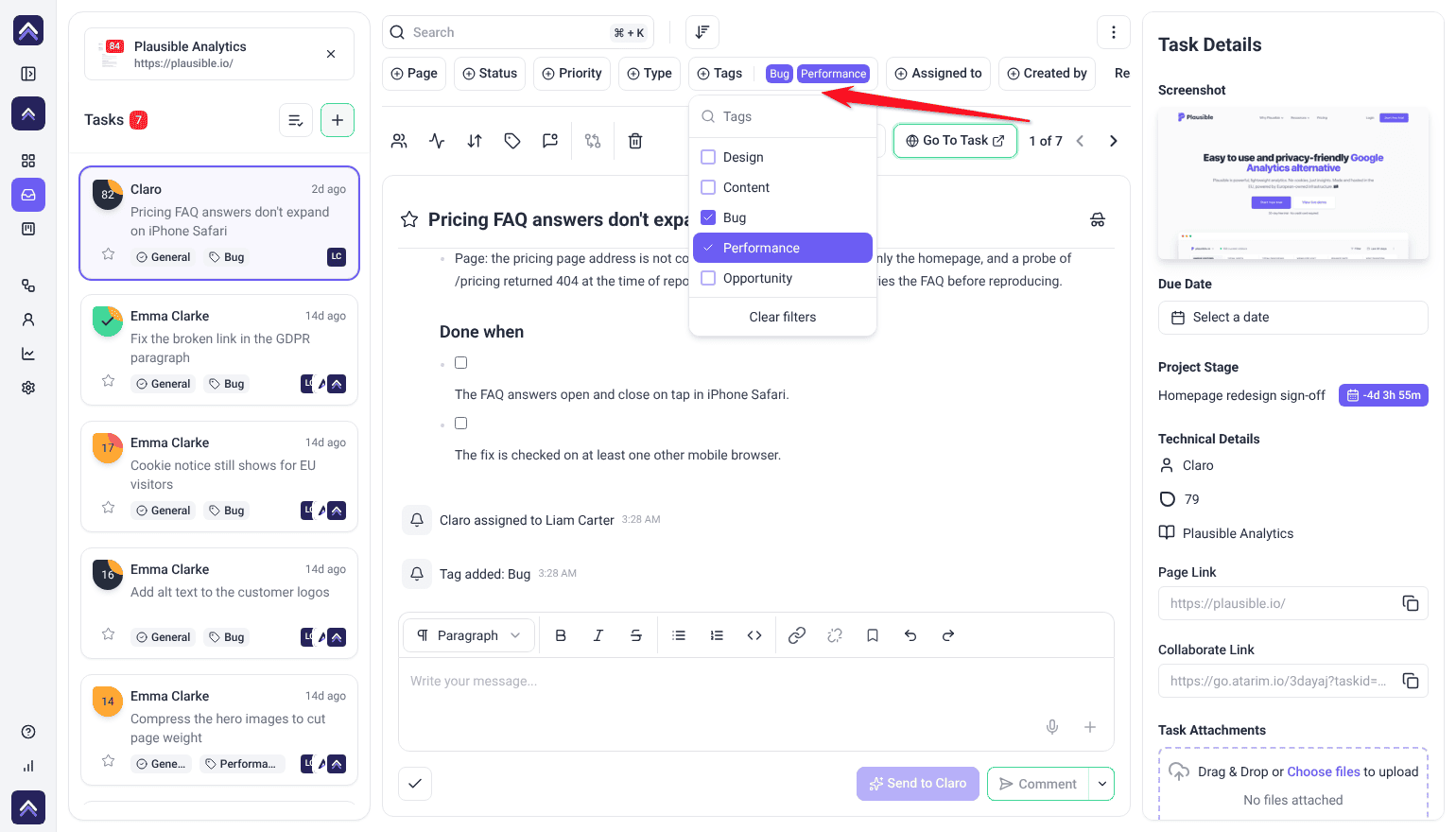
By tag
Narrow by any tag your team has applied. Tags cover what status and priority can’t — components, stakeholders, or workflow stages beyond the four statuses.
Combining Filters
Filters compose, which is where they earn their keep.
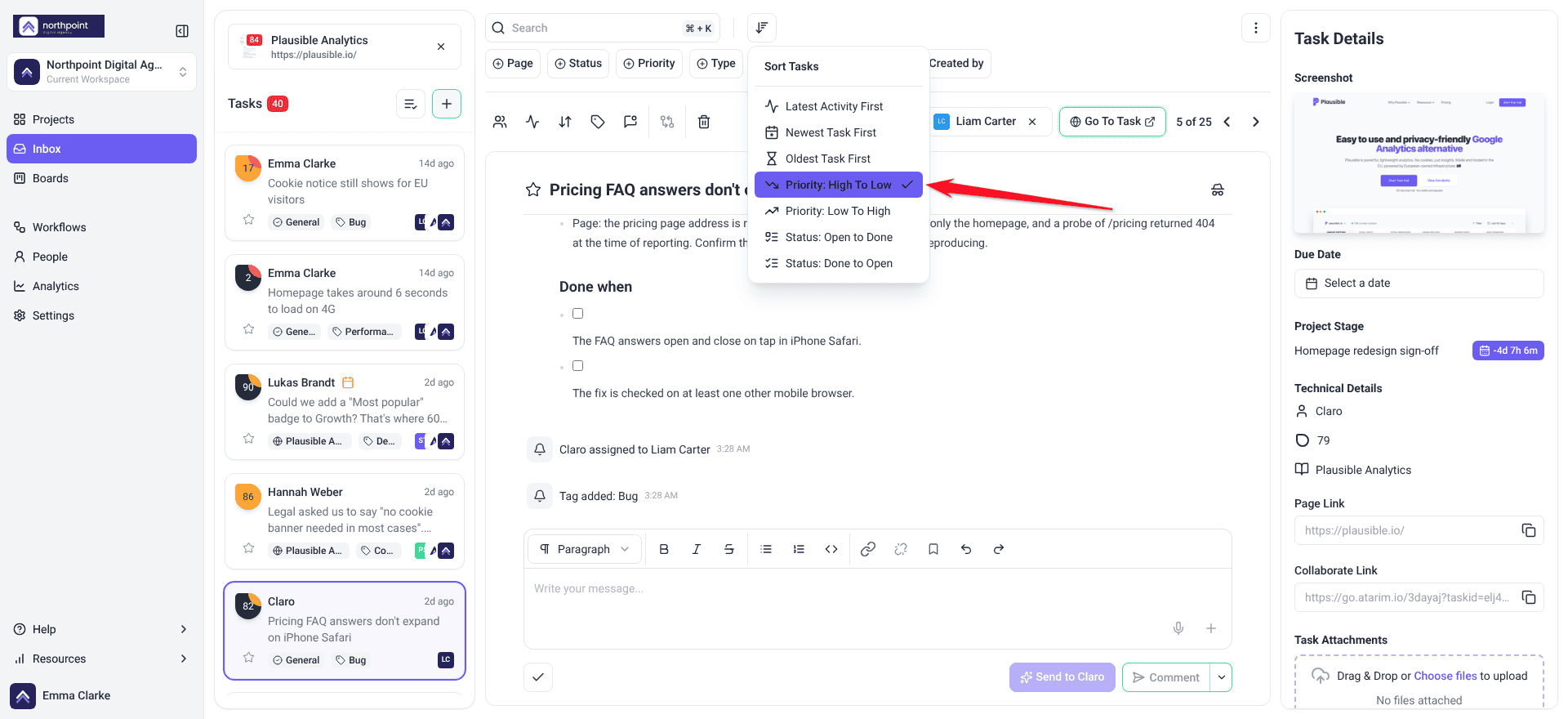
- Your work, most urgent first — in one project, filter by assignee and sort by priority.
- What’s been waiting longest — filter by Pending Review, sort oldest first.
- One area of a project — filter by a component tag and Open status.
- Page work for a developer — filter by task type Page and High or Critical priority.
FAQs
Can I save filter settings?
Not currently. Filters can be reapplied quickly, but there’s no saved view.
Do filters work across projects?
Yes. In the Inbox and Boards you can filter across all projects or focus on one.
Do my filters affect my team?
No. Filters are per person and don’t change anyone else’s view.
What happens if nothing matches?
You’ll see an empty list. Check the criteria or clear the filters.
What are the priority levels?
Low, Medium, High and Critical.
What task types can I filter by?
Page, Graphics, Internal, General and Email.
Common issues
- The list is empty — nothing matches. Check the criteria, or clear filters to see everything again.
- You expected a saved view — saved filter views aren’t supported yet. Reapply the combination manually.
- A colleague sees different tasks — expected. Filters are per person.
- You can’t find a task you know exists — a filter is probably still applied from earlier. Clear them and search again.
- Filtering by tag returns nothing — confirm the tag is applied to tasks in the projects you’re viewing.
- Too many results to be useful — add a second filter. Status plus priority narrows fast.
Conclusion
Filters are how a long list becomes a decision. Status tells you what’s waiting, priority tells you what’s next, and task type and tags narrow to the work you’re actually doing today.
They’re per person, so filter as aggressively as you like — nobody else’s view changes. Discover Optimizing Task Management For Large Teams
Tips & best practices
- Match filters to your role — designers to Graphics work, developers to Page tasks.
- Combine two filters rather than scrolling a single one.
- Sort projects by most tasks to find where work has piled up.
- Clear filters when a task seems to have vanished.
- Drop tags that duplicate a built-in field.
- Settle on a few combinations you reuse rather than rebuilding each time.