Boards: Projects, Pages and Tasks
Move projects, pages and tasks through columns you can see, build boards around your own stages, and update dozens of tasks at once.
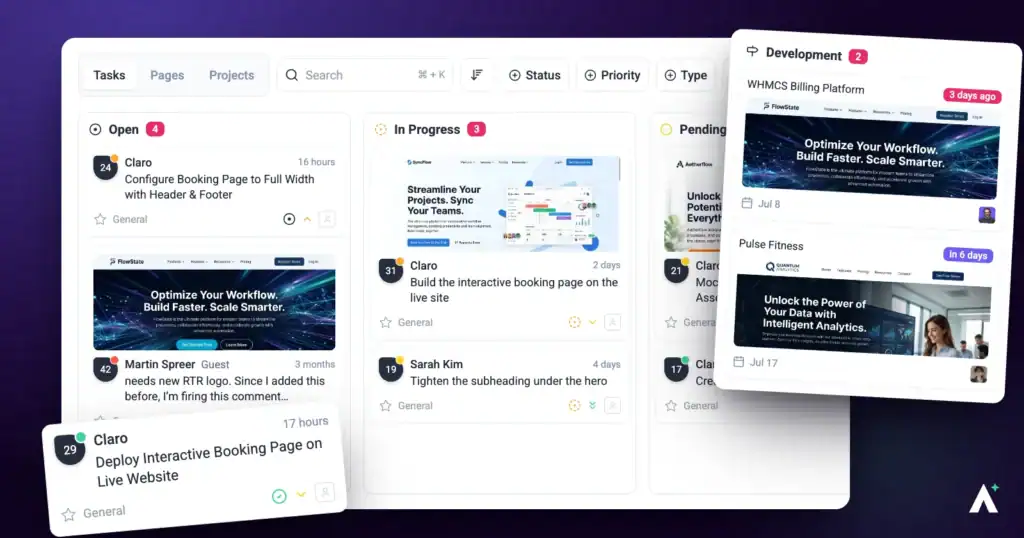
Boards show your work as cards in columns, with a tab each for Projects, Pages and Tasks. Dragging a card into another column moves the work along: it can change a task’s status or priority, set a page’s status, or start a project’s clock in a new stage. This article covers the three kinds of board, moving cards, building your own boards, and working through tasks in bulk.
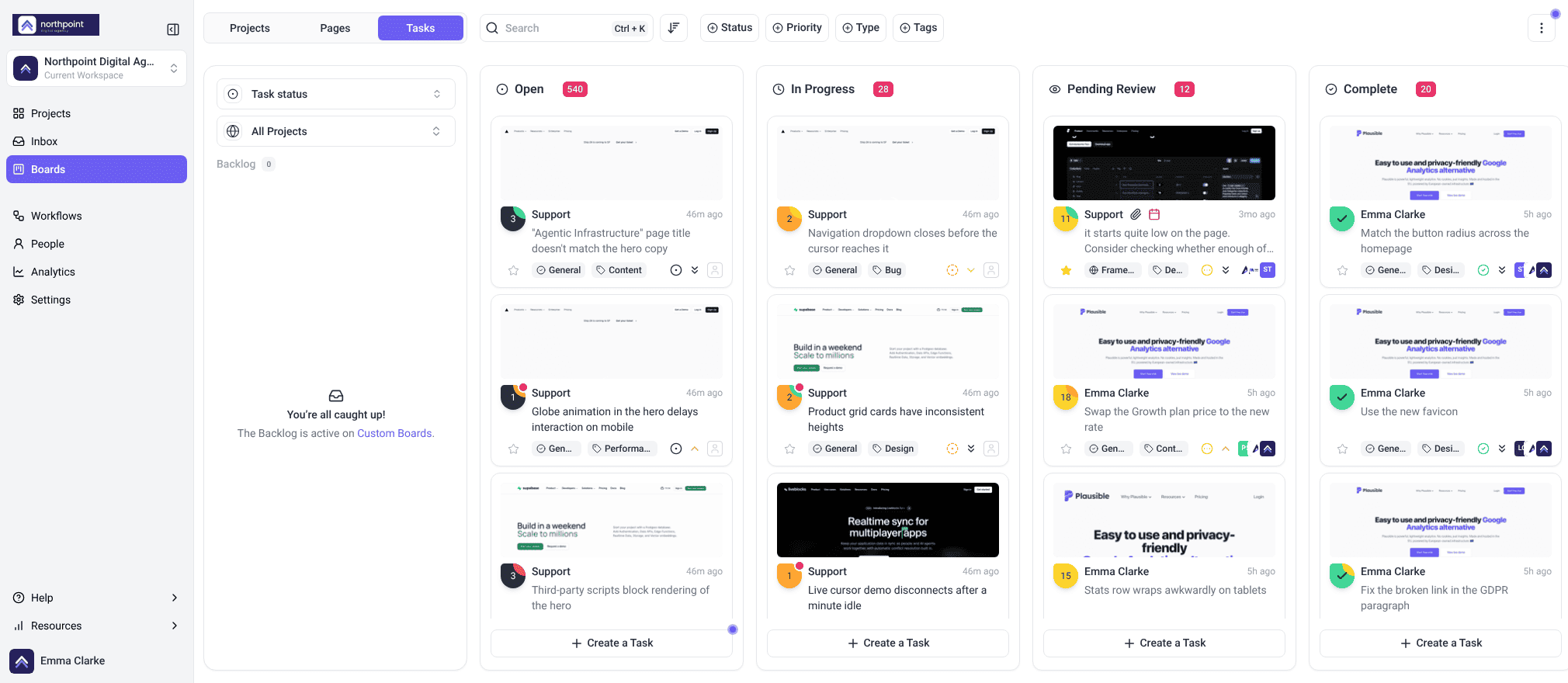
Three kinds of boards
Boards has three tabs at the top, and each tab has its own boards. The cards, the built-in boards and what a column can do all depend on the tab.
| Tab | Cards are | Built-in boards | A column can |
|---|---|---|---|
| Projects | Your projects | None. An Owner or Administrator builds the first one. | Carry a countdown: how long a project should spend in that stage |
| Pages | The pages of your projects | Page status: In Progress, Needs Review, Approved | Set a page’s status when its card is dropped in |
| Tasks | Tasks | Task status and Task priority | Set a task’s status or priority when its card is dropped in |
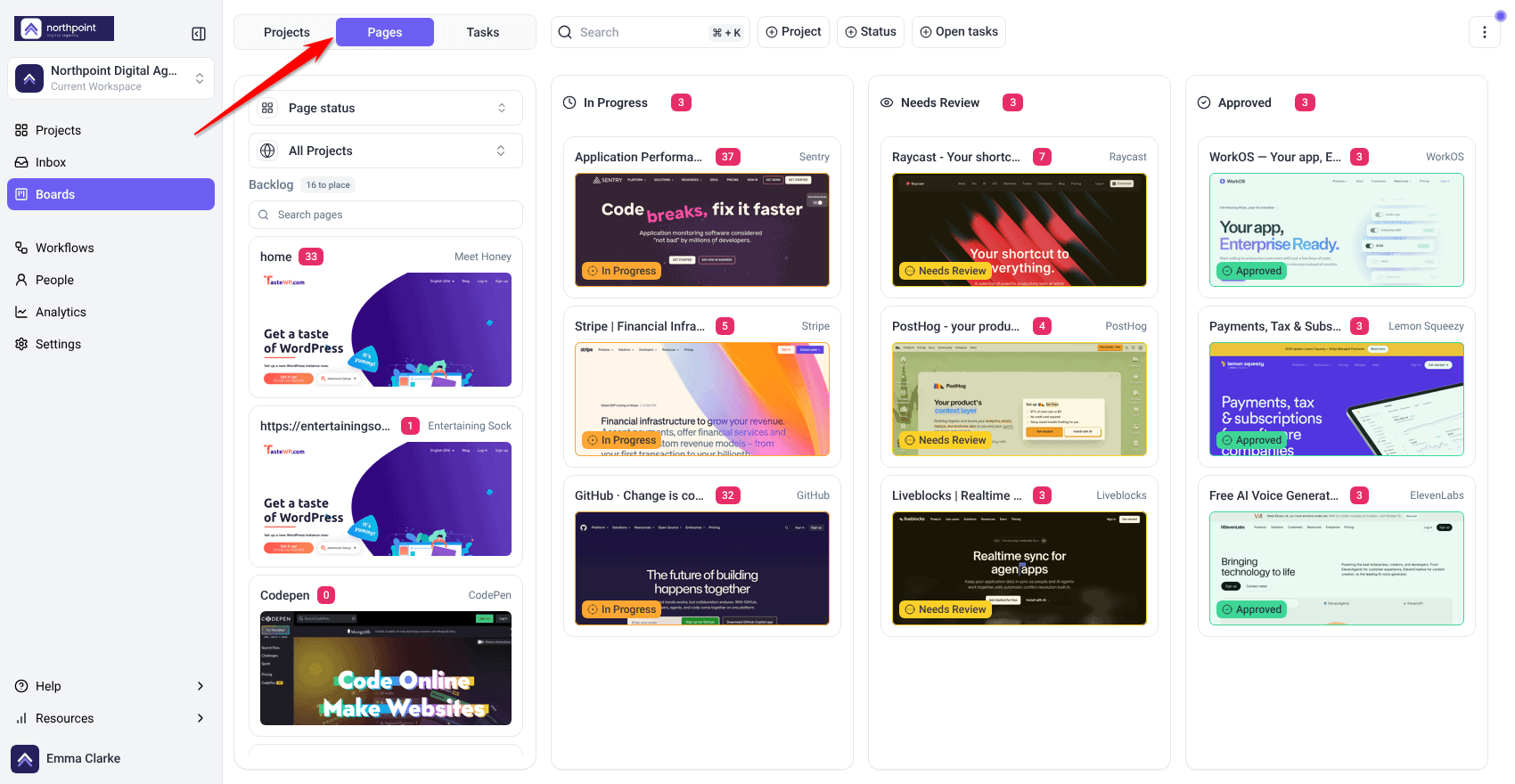
Every board on the Pages tab has a Backlog, including Page status, where pages with no status wait. Dragging a page back to the Backlog clears its status.
Instructions:
- Select Boards in the left navigation. It opens on the Tasks tab.
- Select the tab for what you want to see: Projects, Pages or Tasks.
- Pick a board from the board picker at the top of the left panel.
- On Pages or Tasks, choose a project in the project selector, or All Projects to see every project at once. All Projects only appears if your role allows it. The Projects tab always shows every project.
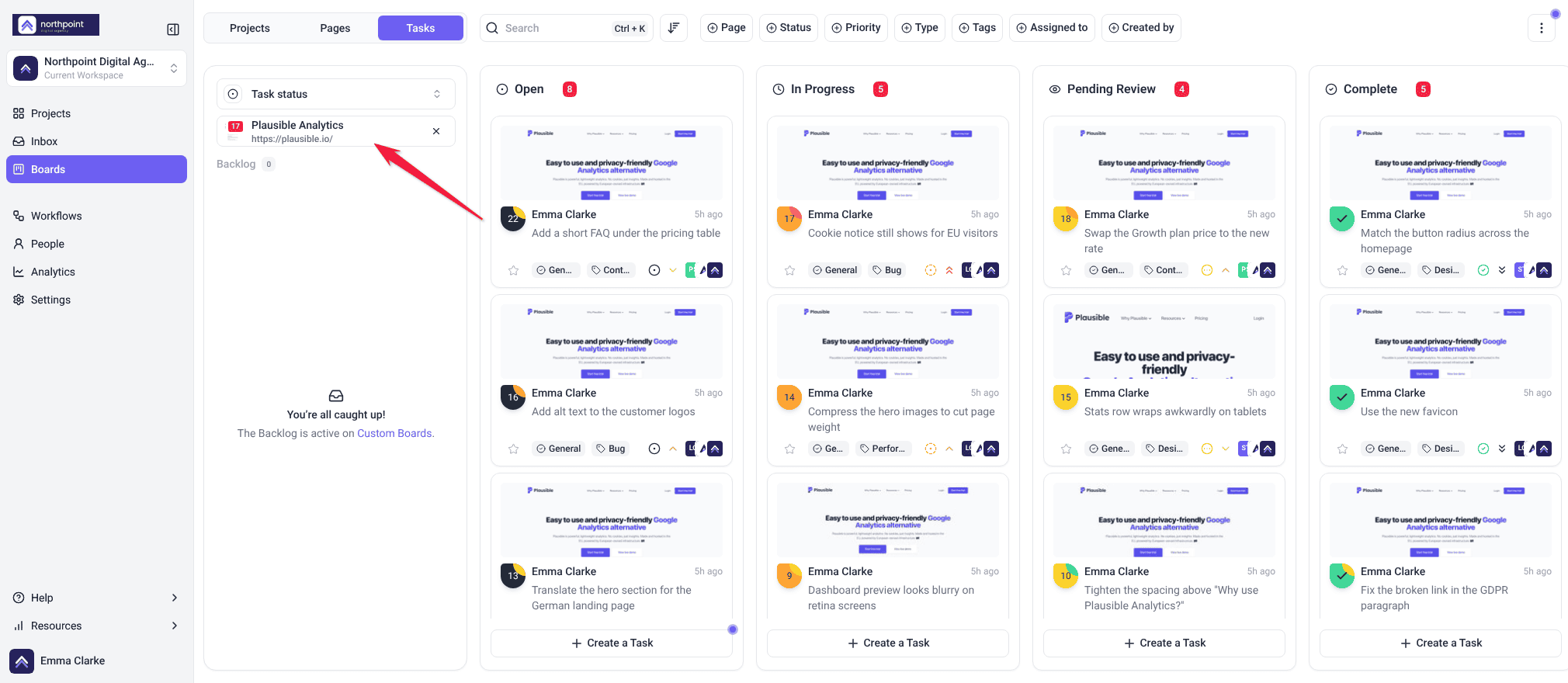
Moving cards
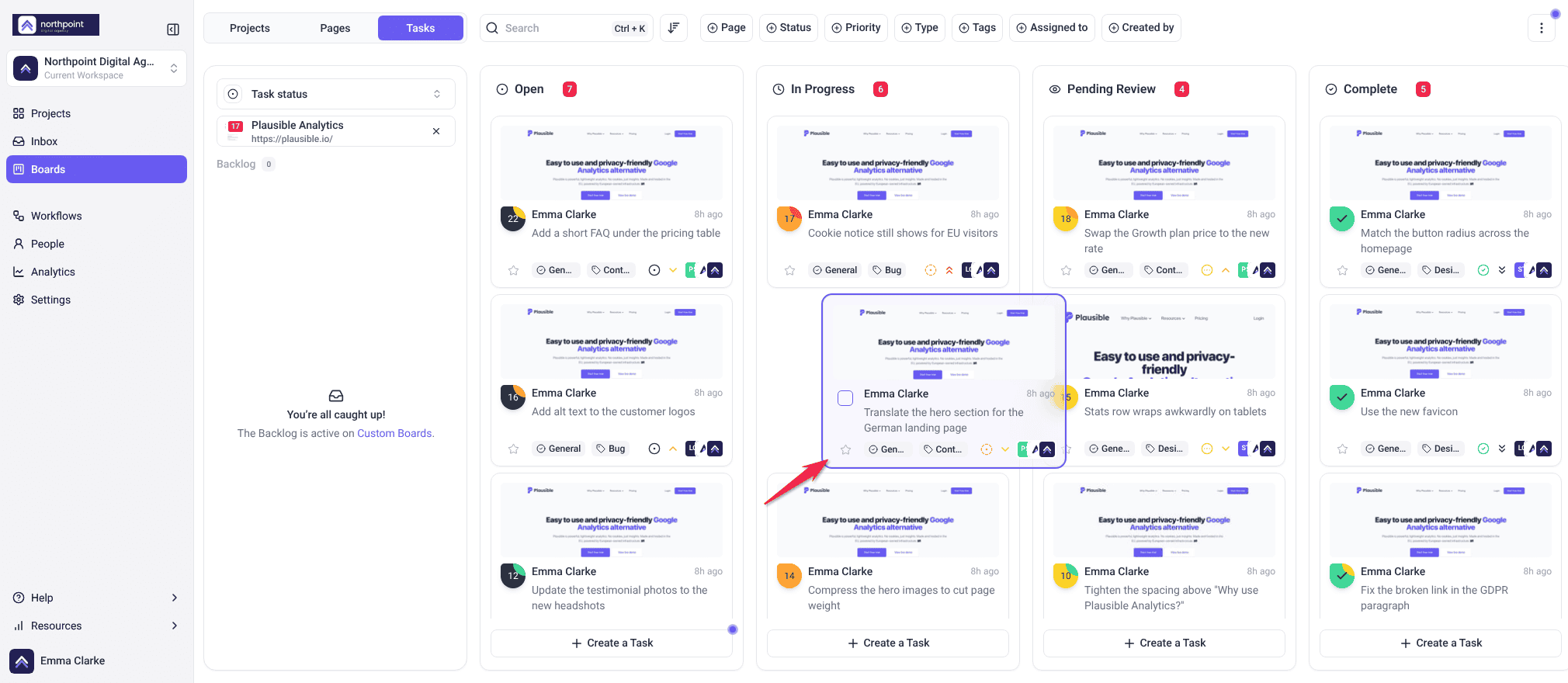
Dragging is how work moves on a board. Every drop saves straight away, so there is nothing to save afterwards. What a drop changes depends on the board.
| On | Dropping a card into a column |
|---|---|
| Task status or Task priority | Changes the task’s status or priority |
| Page status | Changes the page’s status |
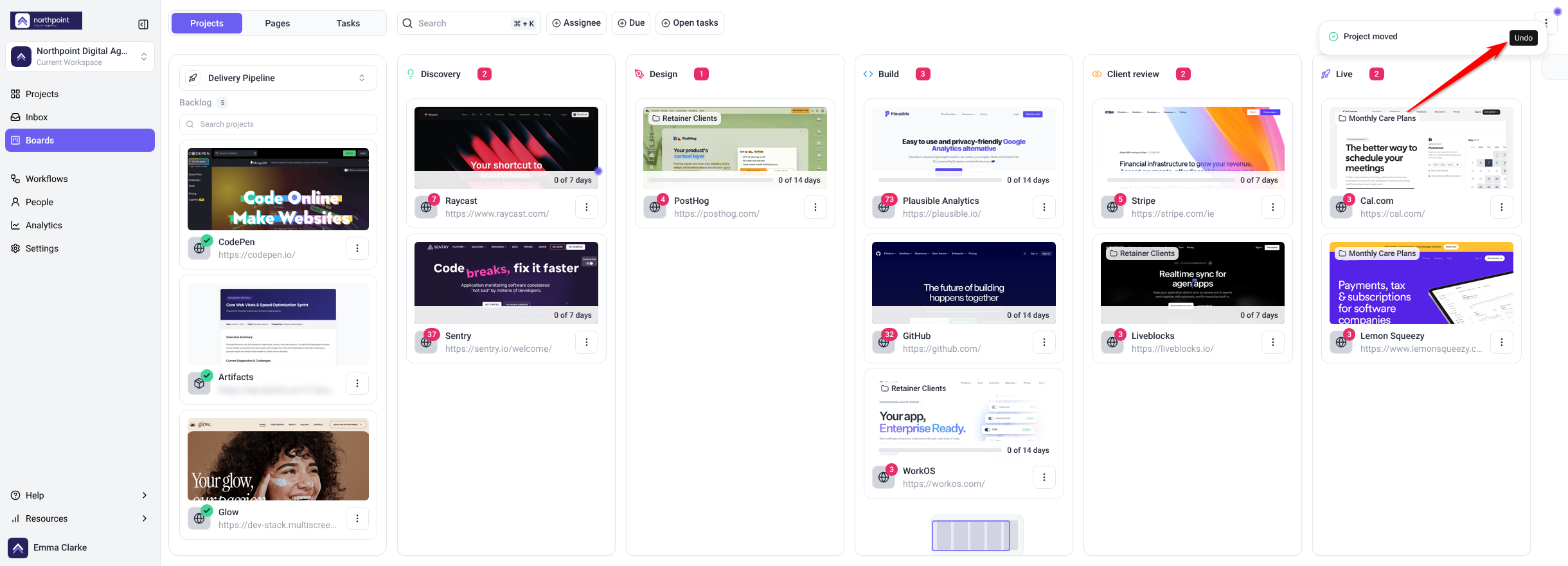
| A board you built | Sets whatever the column’s Assignment says, or nothing for a column set to None. On a Projects board it moves the project to that stage and starts its countdown again. |
Instructions:
- Drag a card to another column and drop it where the gap opens.
- On the Tasks tab, to move several cards at once, select them first (see Updating many tasks at once), then drag one of them.
- If a task on Task status or Task priority has subtasks with it, Atarim asks Move the subtasks as well? Choose Move all to move them together, Just this card, or Cancel.
Changing a task’s status or priority from a board, and a page’s status, needs a plan that includes them. Without it, an upgrade prompt appears and nothing changes.
Changing the order in a column
On a board you built, drag a card up or down within its column to change its place. The new order is saved for everyone. On Task status and Task priority, use Sort Tasks instead: Latest Activity First, Newest Task First, Oldest Task First, by priority, or by status.
Task status and Task priority
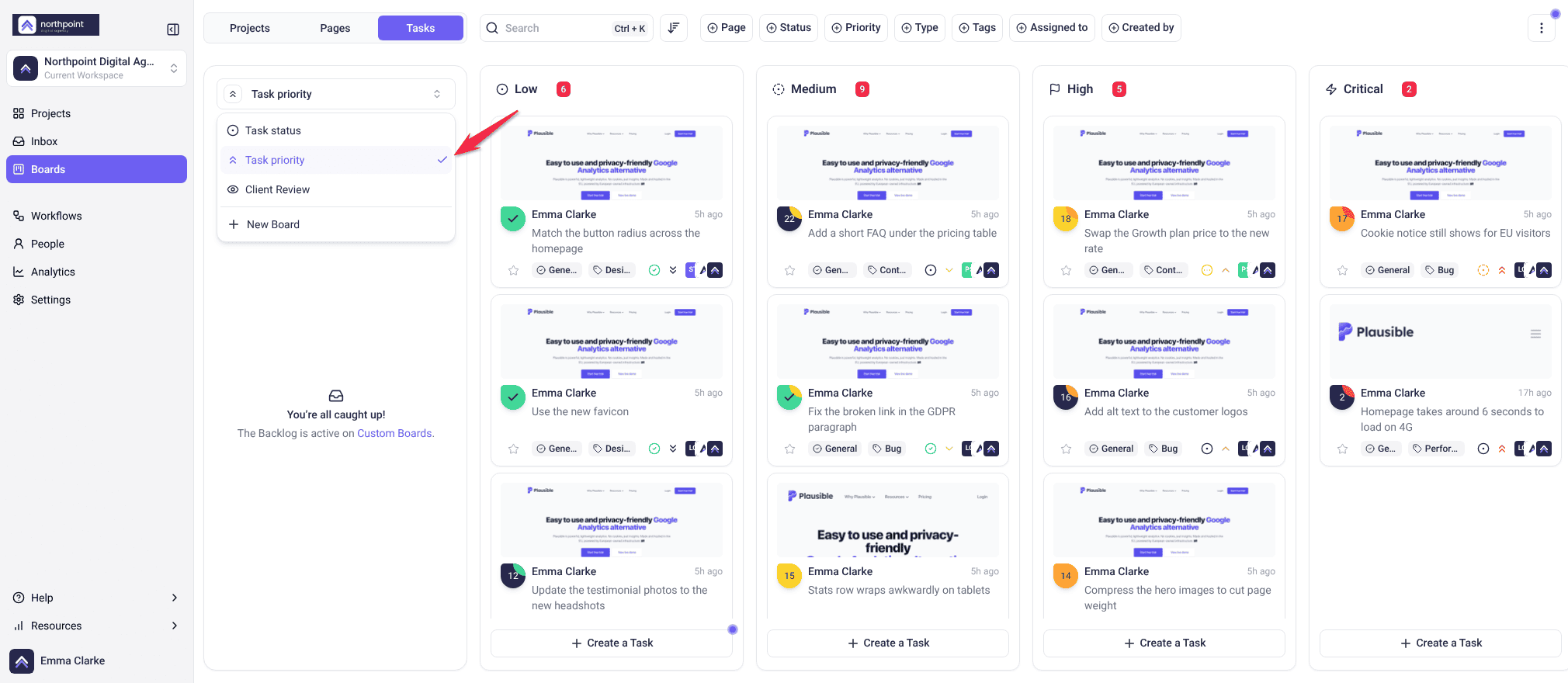
The Tasks tab comes with two built-in boards that show the same tasks two ways. Switching between them changes what the columns mean without touching a single task. Pick one in the board picker at the top of the left panel.
| Board | Columns | Use it to answer |
|---|---|---|
| Task status | Open, In Progress, Pending Review, Complete | “Where is everything up to?” |
| Task priority | Low, Medium, High, Critical | “What matters most right now?” |
Building your own boards
Besides the built-in boards, Owners and Administrators can build boards with their own columns. A board belongs to the whole workspace, so everyone who opens it sees the same columns, and each board sits under one tab.
Create a board
Instructions:
- Select Boards in the left navigation, then the tab for what the board shows: Projects, Pages or Tasks.
- Open the board picker at the top of the left panel and select New Board. On a tab with no boards yet, the same form appears in the middle of the screen as Create your first board.
- Name the board and pick an icon. Tick Set as default board if you want it to open first on this tab.
- Select Create Board.
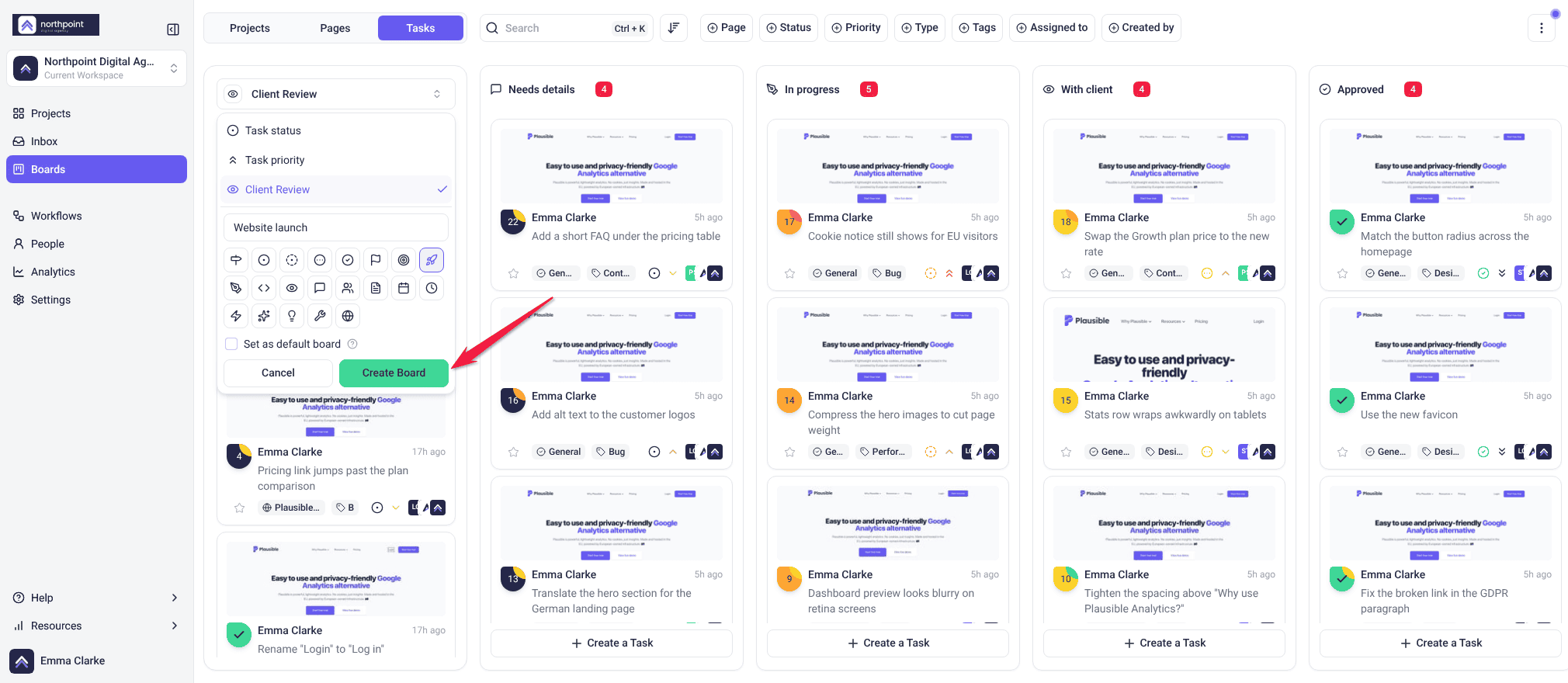
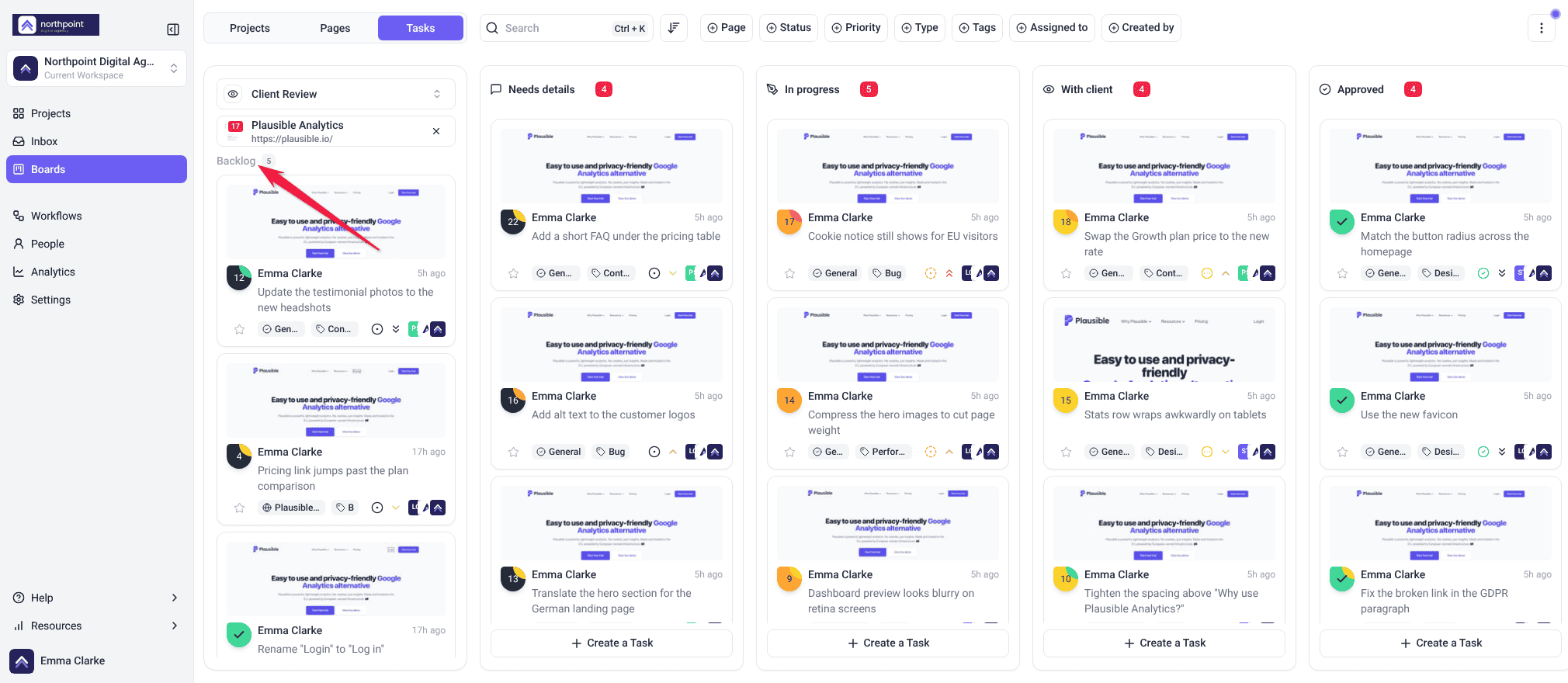
A new board starts with no columns. Once you add the first one, every card that isn’t on the board yet waits in the Backlog in the left panel, with a count beside it. On the Projects and Pages tabs, the Backlog also has a search box.
Add columns
Instructions:
- Select Add a Column at the end of the board.
- Enter a Name, then pick an icon and a color.
- On a Tasks or Pages board, under Assignment, choose what a card dropped into this column should change, such as a status or a priority. Leave it as None to group cards without changing anything.
- On a Projects board, set a Countdown instead: pick 3d, 7d, 14d or 30d, or set your own number of days under Custom. Tick Count working days only to skip Saturdays and Sundays. Skip the countdown for a column projects should rest in, such as Live or Done.
- Select Add column.
- Drag cards from the Backlog into your columns.
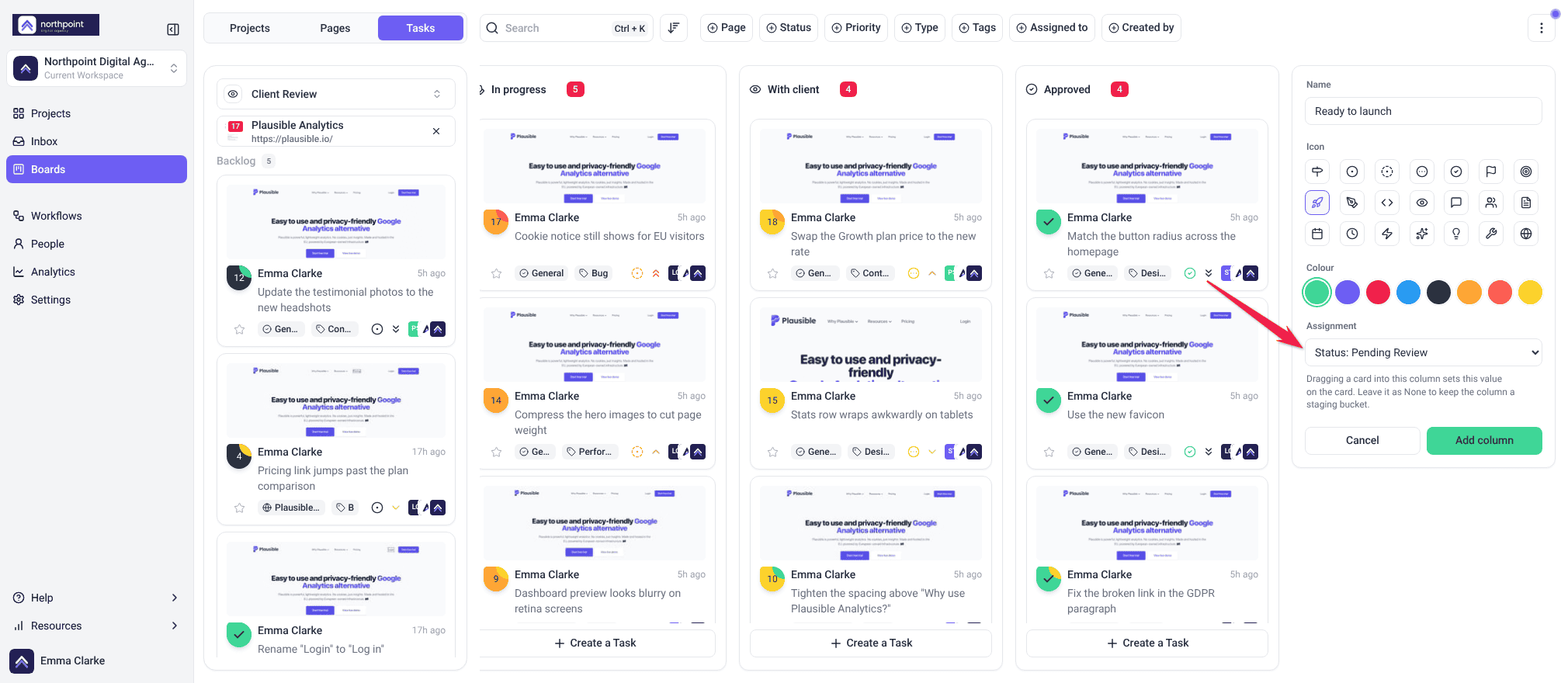
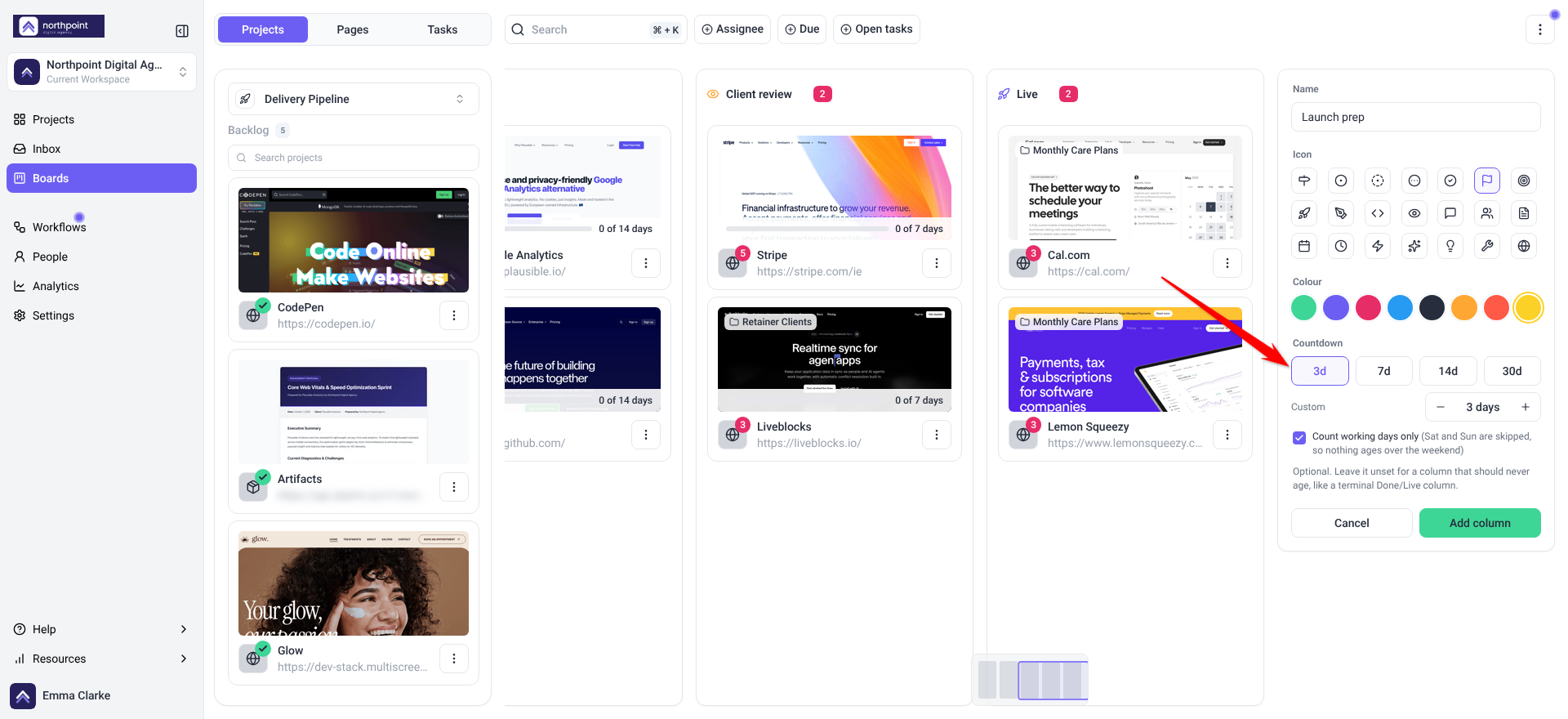
A column without an assignment only holds the card, so the same task can sit in different places on different boards. On a Pages board, a status assignment needs a plan with page approvals. Without it, the column only holds cards.
To rename a board, hover over it in the board picker and select the pencil icon. To remove a column, open its menu and select Delete column: its cards go back to the Backlog, and nothing else changes. To remove a whole board, select ⋮ › Delete Board. Its columns go with it, and the cards keep their status. The built-in boards can’t be renamed or deleted.
Choose the board that opens first
Select ⋮ › Default Board and pick a board. Each tab has its own default, and it is your own setting, so teammates can choose differently. Until you choose, the Tasks tab opens on Task status and the other tabs on their first board.
Countdowns on a Projects board
On a Projects board, a column’s countdown is how long a project should spend in that stage. Each card in the column shows how far along it is, such as 3 of 7 days. The chip turns orange as time runs short and red once it runs out, when it reads, for example, 2 days over. Moving a card to another column starts its clock again, and a column without a countdown shows no chip. Nothing about the project itself changes.
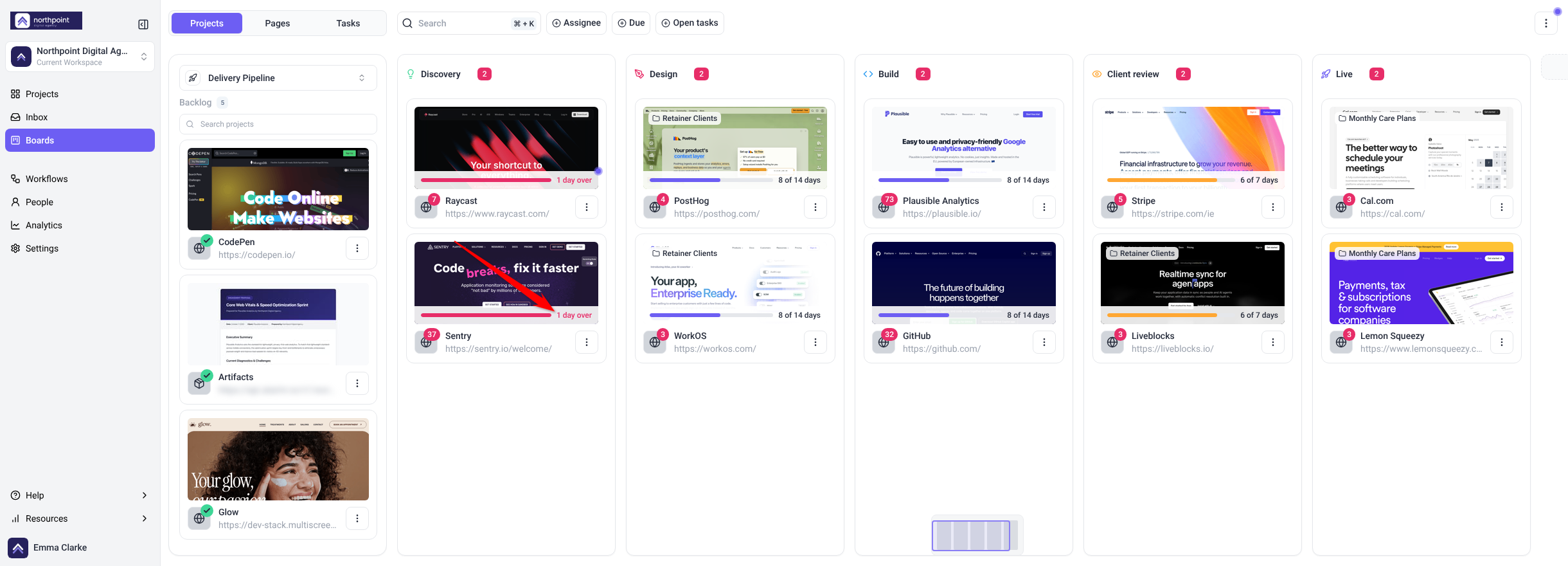
The chip shows when Milestone Progress and Screenshot are on in Customize View, which they are by default.
Updating many tasks at once
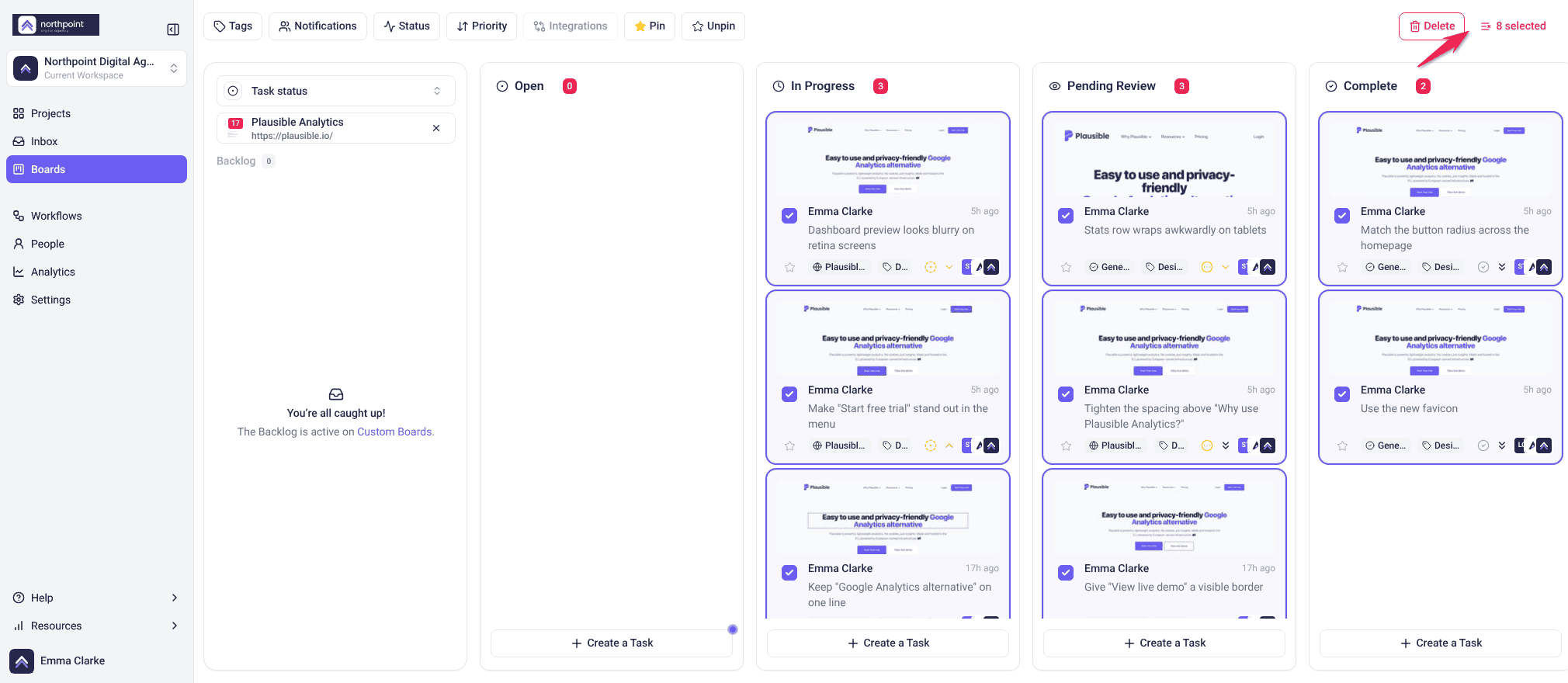
Bulk actions are the reason Boards beats a list when work arrives in volume. Rather than opening forty tasks after a client review, you select them on the Tasks tab and change them together.
Instructions:
- Hover over a card and tick its checkbox. Once one card is selected, selecting other cards adds them too.
- Apply a change from the toolbar that replaces the top bar. It applies to every selected task.
- When you’re finished, select the count, for example 12 selected, to clear the selection.
| Toolbar | What it does |
|---|---|
| Tags | Applies tags to everything selected. |
| Notifications | Adds people to be notified. Pick a single project first; it is greyed out on All Projects. |
| Status | Moves every selected task to the same status. |
| Priority | Sets the same priority across the selection. |
| Integrations | Sends the selected tasks to Jira, if it is connected. It needs a plan with native integrations and stays greyed out until an integration is switched on. This tool is being retired, so use Workflows for new automations. |
| Pin / Unpin | Pins the selected tasks, or removes the pin. |
| Delete | Removes the selected tasks. Only roles that are allowed to delete tasks can use it. |
Narrowing what the board shows
Filters make a busy board readable and bulk changes safe. Each tab has its own, and they need a plan that includes them. To clear one, select the × on its chip, or Clear filters inside it.
| Tab | Filters |
|---|---|
| Tasks | Status, Priority, Type (General, Page, Graphics, Email, Internal) and Tags. With one project selected, also Page, Assigned to and Created by. |
| Pages | Project (on All Projects), Status and Open tasks |
| Projects | Assignee (including Unassigned), Due (Overdue, Due this week, Due later, No due date) and Open tasks |
The More Actions menu
The ⋮ button at the top right of the board, labeled More Actions, holds Customize View and Default Board on every tab, Import Tasks and Export Tasks on the Tasks tab, and Delete Board on a board you built. What you see depends on your role: Team Members and Collaborators don’t see Import Tasks or Export Tasks by default.
Customize View chooses which details the cards on a board show, for everyone in the workspace. It is for those who can manage boards. On the Tasks tab it needs a plan that includes it.
| Tab | Card details you can show or hide |
|---|---|
| Tasks | Auto-Screenshot, Full Name, User Role, Relative Date, Favourite, Task Type, Task Tags, Task Status, Task Priority, Page/Design Name, Project Name, Project URL, Page URL, Assigned To |
| Pages | Screenshot, Open Task Count, Project Name, Page Status |
| Projects | Screenshot, Open Task Count, Project URL, Milestone Progress, Folder/Client Name |
Importing tasks
Import Tasks brings a task list in from a project management tool you have connected. It needs a plan that includes native integrations. Only tools that are connected and switched on in Settings → Integrations are listed. With none connected, the board offers Connect an integration instead.
Instructions:
- Select ⋮ › Import Tasks, then the tool, for example Import from Trello.
- Choose where the tasks come from. The pickers are named after the tool, as in the table below.
- Under Projects, choose the Atarim project to import into.
- Under Assign User, choose who the imported tasks are assigned to. The list shows the people on that project.
- Tick any options you want (see below), then select Import Tasks. The button stays greyed out until every picker is filled in.
| Menu item | Where the tasks come from |
|---|---|
| Import from Asana | Asana Boards, then Asana List |
| Import from Basecamp | BaseCamp Boards, then BaseCamp List |
| Import from ClickUp | ClickUp Folders, then ClickUp List |
| Import from Jira | Jira Projects |
| Import from Monday | Monday Boards, then Monday Groups |
| Import from TeamWork | Teamwork Projects, then Teamwork List |
| Import from Trello | Trello Boards, then Trello List |
- Create all tasks as Internal Tasks (not visible to clients) keeps the imported tasks away from clients. Tick it for an internal backlog.
- Sync tasks (for future changes) is for keeping the imported tasks linked for future changes. Not every tool supports it yet.
Exporting tasks
Export Tasks saves your tasks as a spreadsheet. Board filters don’t carry over, so you choose what to include in the export window.
Instructions:
- Select ⋮ › Export Tasks. The Export Tasks to CSV/Excel window opens.
- Under Export File Type, choose Excel or CSV.
- Under Task Status and Task Urgency, deselect anything you want to leave out. Everything is selected to start with.
- Select Export.
With one project open, the file downloads straight away. With All Projects, Atarim prepares the file in the background and emails you a download link when it is ready. Only Owners and Administrators can export all projects at once, and each workspace can start one all-projects export every 30 minutes.
Working with a task card
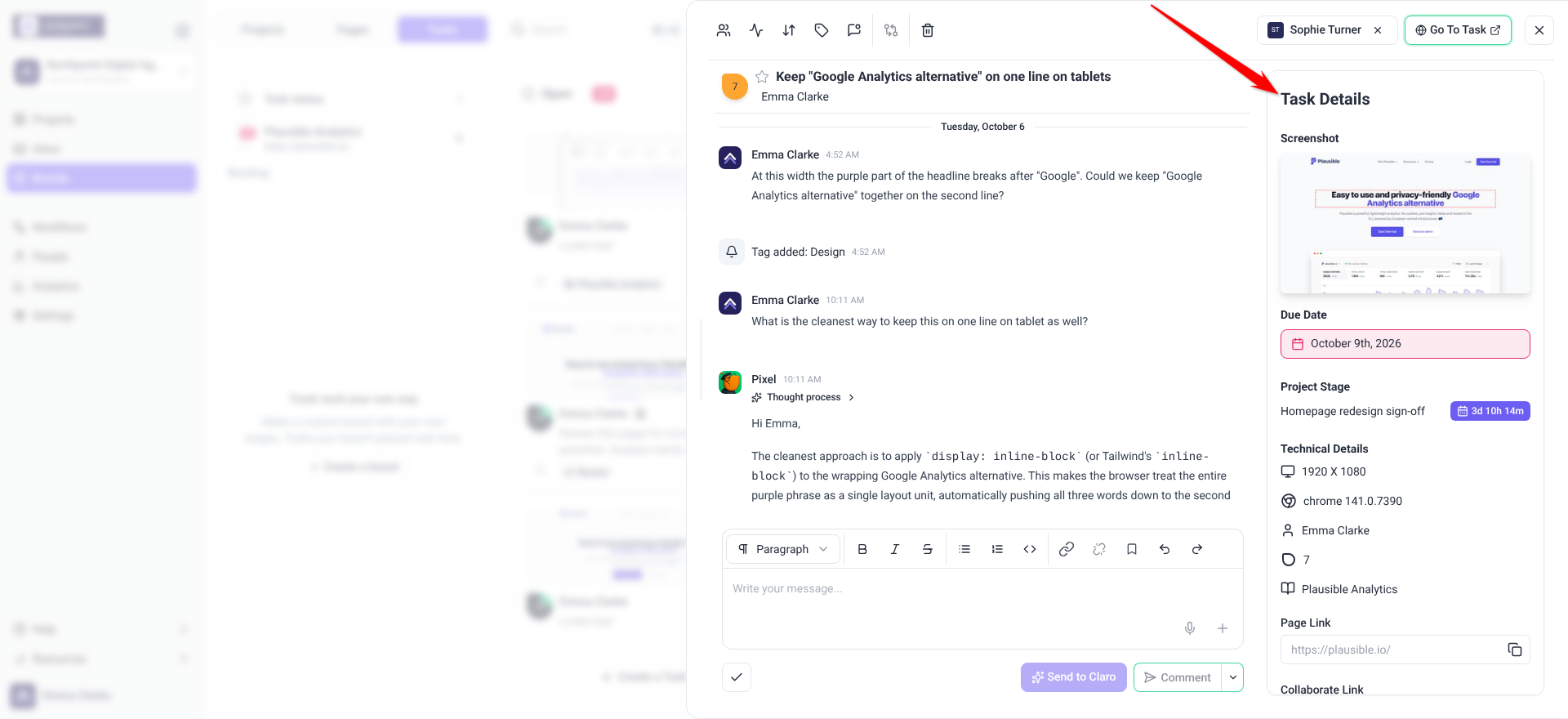
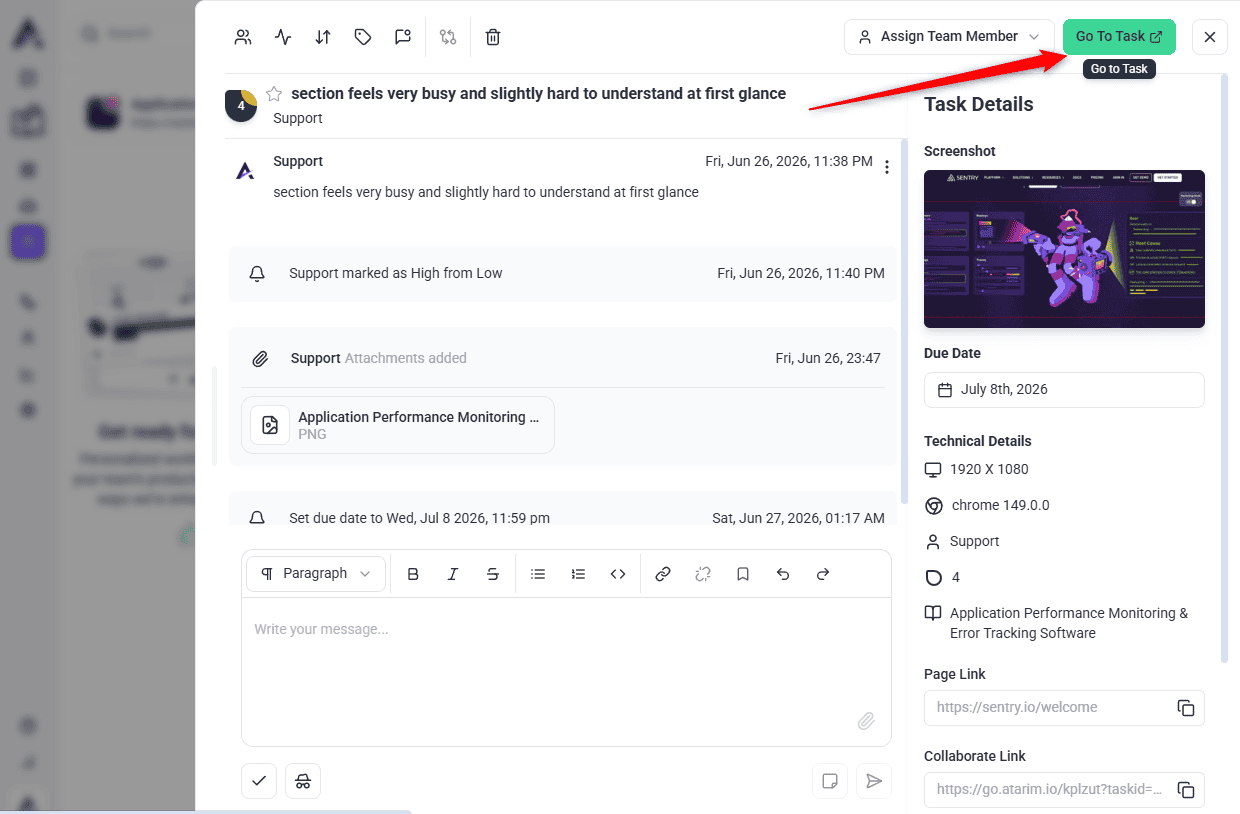
Selecting a card opens the task in a panel beside the board, with the same conversation and details as the Inbox, so you can make changes and carry on without navigating away.
| From the panel you can | Notes |
|---|---|
| Change status, priority and tags | Applies immediately. |
| Assign or reassign people | The assignee sees it in their own filtered view. |
| Reply, or add an internal note | Internal notes are visible to your team, not to clients. To add one, select the arrow beside Comment, then Add a note. |
| Attach files | Images and documents. |
| See subtasks | A card with subtasks shows how many; expand it and select one to open it. |
| Check the details | Due Date, Project Stage (the project’s current stage and the time left, when the project has stages), Technical Details (screen size, browser, who created it, task ID and page name), Page Link and Collaborate Link. |
Go To Task takes you to the page the task was raised on, in a new tab, so you can see the thing being described rather than reading about it. For email tasks it opens the project instead.
Page reviews on the board
When a page review produces several findings, they do not scatter across the board as unrelated cards. They stay grouped under the review they came from, so a single review reads as one item with its findings beneath it rather than twenty separate tasks.
Selecting the review opens its findings together, which keeps the board readable after an AI review has run across a site. Findings that sit in a different column from their review show as their own cards, marked Subtask.
Known limitations
- Undo lasts a moment. The Undo button goes when the message after a drop disappears. After that, drag the card back.
- Bulk delete cannot be undone. You are asked to confirm first, but once confirmed there is no way back.
- Selecting several cards works on the Tasks tab only. Page and project cards move one at a time.
- Built-in boards keep their columns. On Task status, Task priority and Page status you can’t add or remove columns. Build your own board for different ones.
- Boards are workspace-scoped. You cannot see another workspace’s projects, pages or tasks here.
FAQs
Can I add my own columns?
Yes. Owners and Administrators can build a board with their own columns: open the board picker and select New Board. The built-in Task status, Task priority and Page status boards keep their columns.
What does the countdown do?
On a Projects board, a column’s countdown is how long a project should spend in that stage. Each card shows how far along it is, turns orange as the time runs short and red once it passes, and starts again when the card moves to another column. Nothing about the project itself changes.
Can I undo a move?
Yes. Once a move has saved, a message such as Project moved appears with an Undo button. Select it within a few seconds to put the card back, along with anything the move changed. Moving several tasks at once on Task status or Task priority has no Undo, so drag them back yourself.
What is the difference between Boards and Inbox?
They show the same tasks, and selecting one opens the same conversation and details in both. Boards is visual and built for moving work along, and it adds boards for pages and projects. Inbox is a list and better for reading through detail.
Can I see several projects on one board?
On the Projects tab, yes: every project is on the board. On Pages and Tasks, it is all of them or one of them. The selector holds a single project at a time; to see everything together, choose the All Projects entry at the top of it. That entry needs the all-projects permission, so it will not be there for every role.
Does moving a card notify anyone?
Status changes are recorded against the task and can notify people or start a workflow, depending on your notification settings and the workflows you have running.
Can I undo a bulk change?
Not as a single action. Status, priority, and tag changes can be reapplied. Bulk delete asks you to confirm first, but once confirmed it is permanent.
Can clients access the board?
No. Boards are for your team: Owners, Administrators and Team Members. Clients and collaborators who open Boards see Boards are for your team and work through the feedback on the site itself.
Why do some cards seem to belong together?
Findings from a page review stay grouped under the review that produced them, rather than appearing as unrelated tasks.
Common issues
- Boards is missing from the sidebar. Your role doesn’t include Boards. Ask an administrator about your role.
- The board is empty. Check the tab and the project, then clear your filters. A filter left on from an earlier session is the usual cause.
- A task is missing. It may be filtered out, in another project, or in another workspace. Clear filters first.
- Columns are named Low, Medium, High, Critical. You are on Task priority. Choose Task status in the board picker if you wanted progress.
- Dragging changed the wrong thing. Check which board you are on. Task status sets status, Task priority sets priority, and a board you built sets whatever the column’s assignment says.
- A drag did not stick. If an upgrade prompt appeared, your plan doesn’t include changing status, priority or page status from a board. If you saw Could not move the task, reload the board and try again.
- There is no checkbox on a page or project card. Selecting several cards works on the Tasks tab only.
- Cards are waiting in the Backlog. On a board you built, every card starts in the Backlog. Drag it into a column to place it.
- A project card shows no countdown. Its column has no countdown, or Milestone Progress or Screenshot is switched off in Customize View. Turn both on to see the chip.
- A bulk change applied to more than you expected. Check the count, for example 12 selected, before applying a change. Narrow the filters before selecting.
- Many similar cards appeared at once. A page review has run. Its findings are grouped under the review rather than being unrelated tasks.
Conclusion
Boards are where work moves: projects through your delivery stages, pages through review, and tasks from open to complete. Build one board for each way your team works, and let the columns do the reporting.
How tasks themselves are created, assigned and tracked is covered separately.
Explore Tracking Task Progress
Tips & best practices
- Give each Projects column a countdown that matches how long that stage really takes, and skip it for Live or Done.
- Switch to Task priority straight after a client review and drag cards to triage.
- Filter before you select. A narrow board makes it easy to pick exactly the cards you mean.
- Pick one project, then filter by Created by to see everything one client raised.
- Set a default board on each tab so it opens on the board you use most.
- Keep tags consistent across the team. Bulk tagging is only as useful as the tags you agree on.