Introduction to Atarim: Overview and Benefits
From visual feedback tool to AI-assisted web agency platform — what Atarim V5 does today, and who it's for.
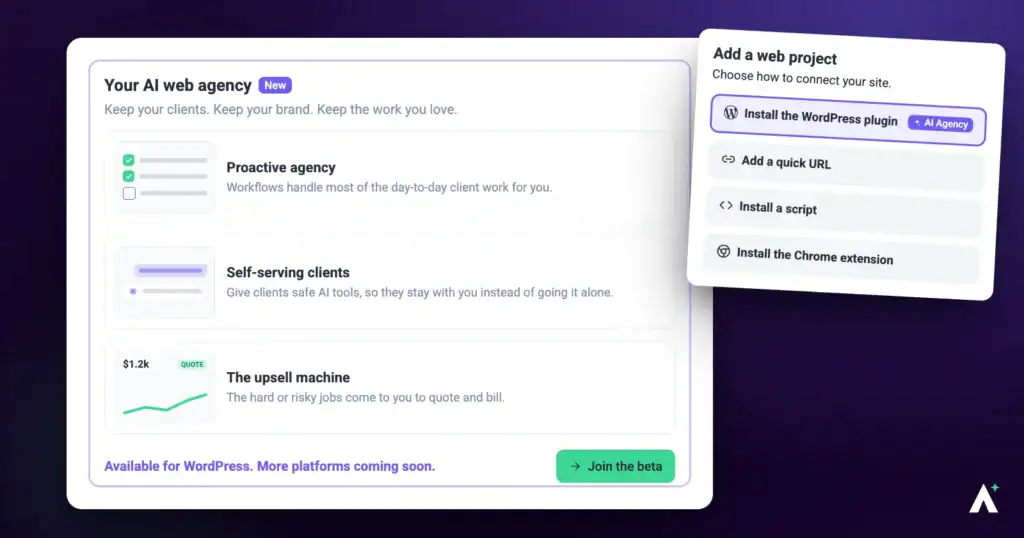
Atarim has grown from a visual feedback tool into a platform with an AI layer built on top of it. What you see depends on who you are: agencies get a full workspace with every client, project, and a workspace-scoped AI chat; Website Owners get a focused view of their own projects, each with its own Project Dashboard. This article covers the three pillars the platform is built on, and what's actually available in each one today.
The Three Pillars of Atarim V5
Everything in the platform serves three goals:
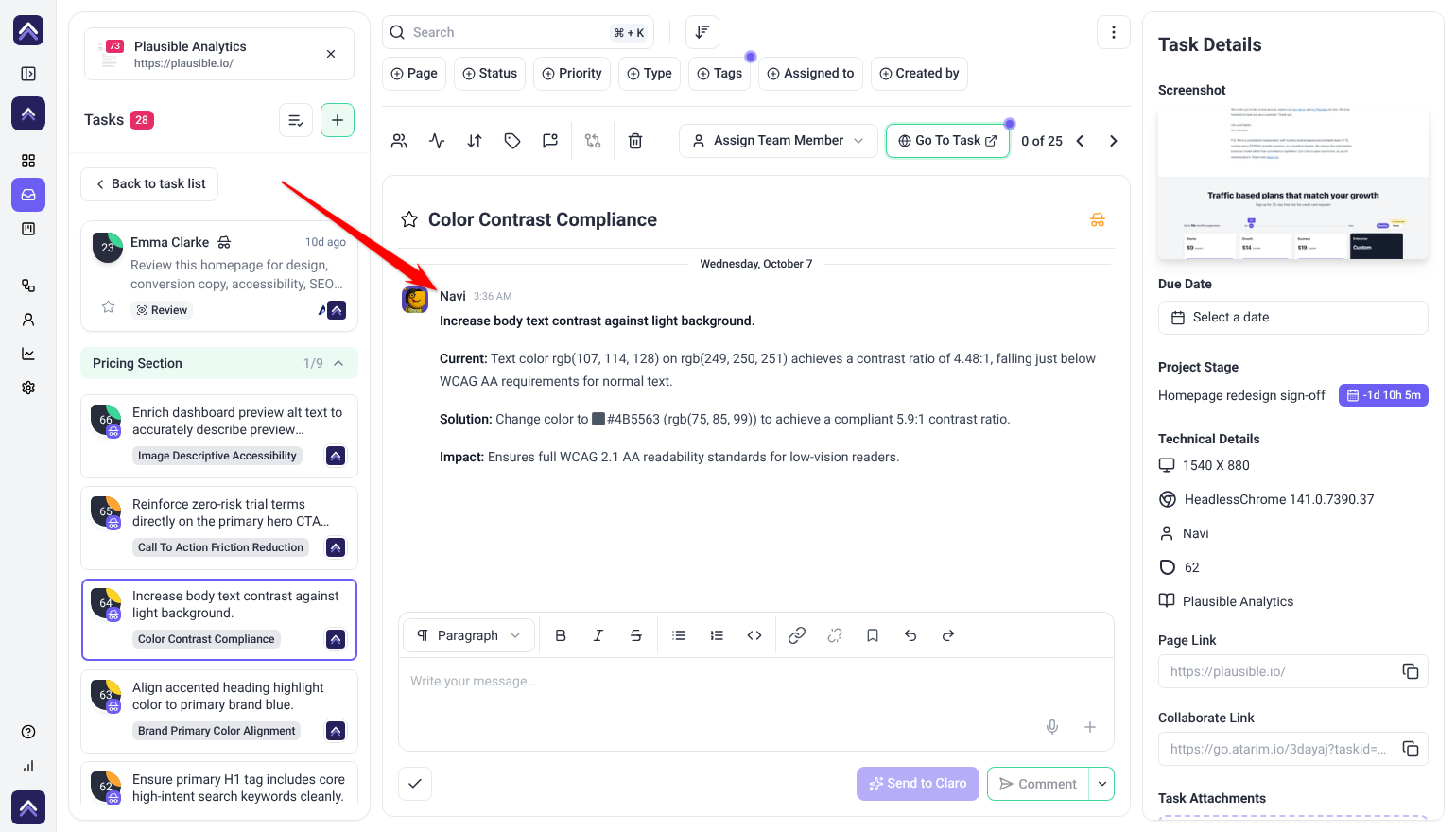
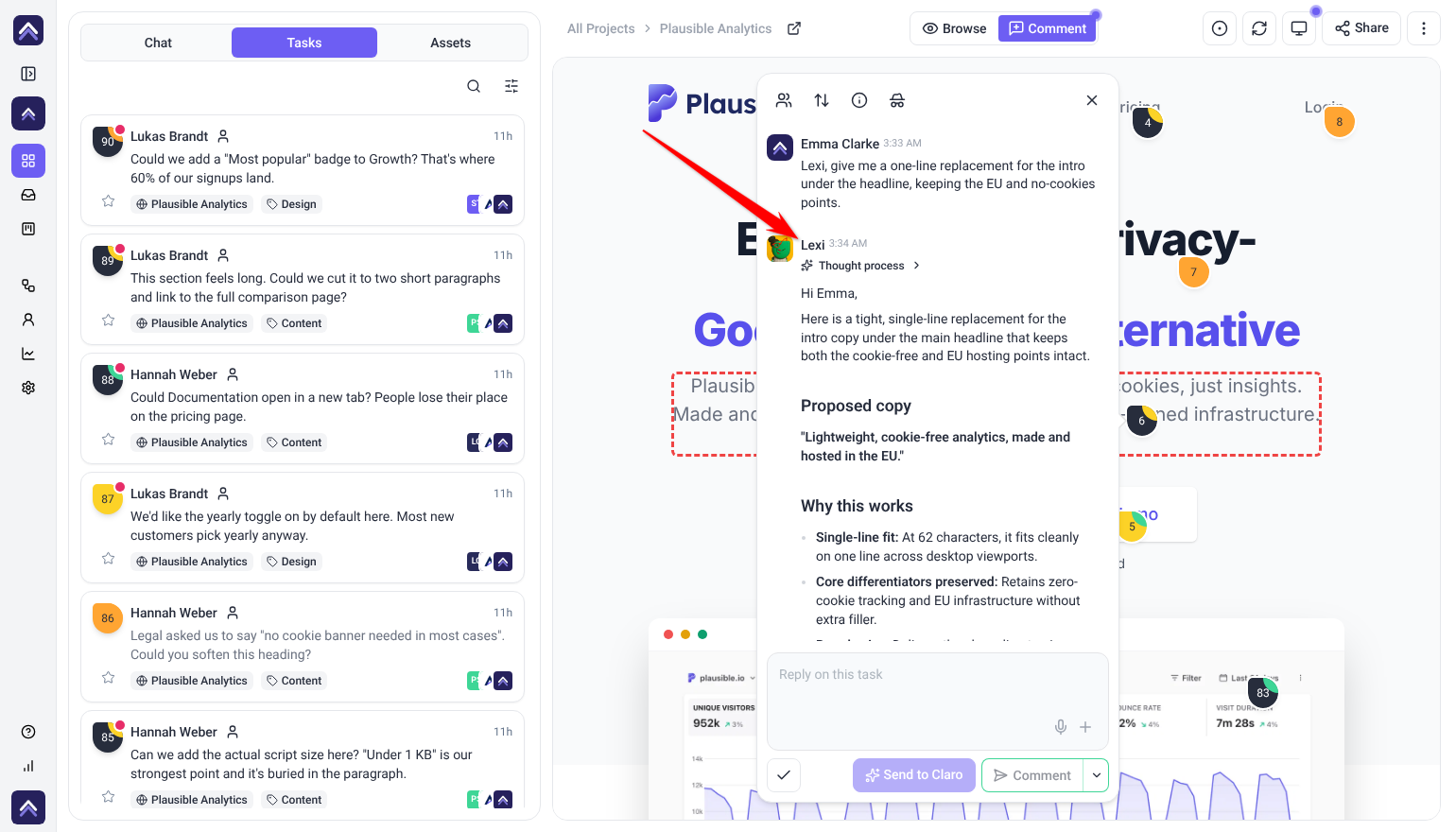
- Proactive Agency — an AI agent can review a connected site and surface suggestions on its own, through named agents: Pixel (UI & Design), Navi (UX & Accessibility), Index (SEO & Performance), Lexi (Content & Copy), Glitch (Functionality), and Claro (Clarity & Strategy). Claro is on from the start as your chat assistant. You choose which agents take part each time you start a review.
- Self-Serving Clients — a Website Owner can ask the AI for changes to their own site. A proposed change can be previewed (“Show me”) or applied directly (“Do It”). Do It is currently a WordPress-only, Beta feature; other platforms are listed in the interface as upcoming.
- The Upsell Machine — describe your services in Settings › Upsell Machine. The AI uses it to spot work worth offering your client, and to know when to bring your team in instead of acting on its own.
Meet Your AI Agents
Six named agents make up Atarim’s AI layer. Each one is scoped to a specific kind of review:
Claro doubles as your workspace chat assistant, so it’s active from the start. The other five join a review when you choose them as you start it, with a preset or with Custom.
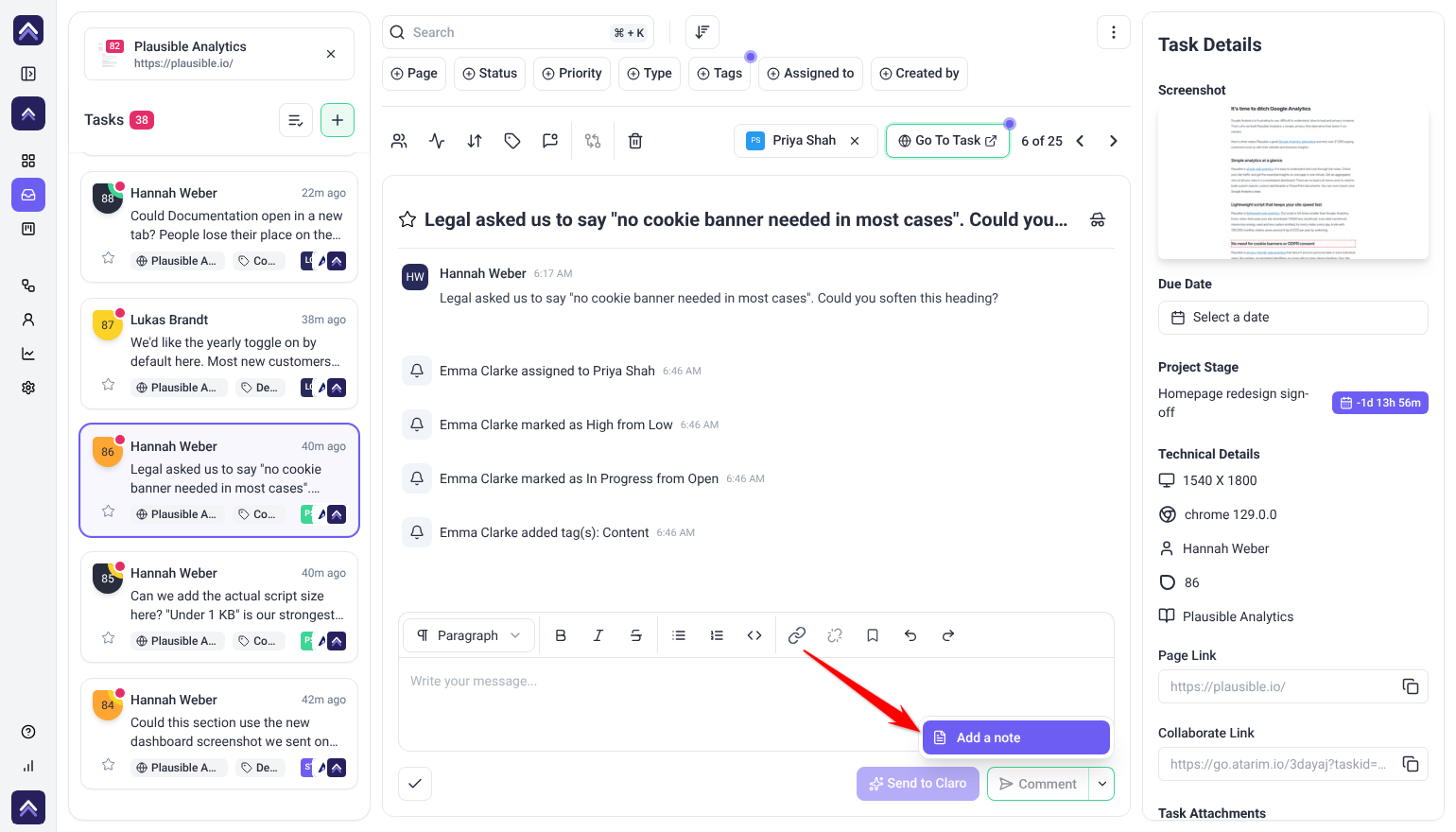
Findings from these agents are pinned as comments the same way a human comment would be, and become tasks through that same mechanism. On workspaces with Internal Tasks enabled, these are commonly kept marked internal until your team has reviewed them, rather than shown to the client immediately.
Visual Collaboration, Still at the Core
Atarim still does what it always did well: contextual feedback directly on live pages, designs, and images, attached to the exact element being discussed — so nothing gets lost in a long email thread or a vague “see the header” comment.
Instructions:
- Open your Project in Atarim
- Click on the element you want to comment on and leave a note
- Switch between Browse and Comment in the bottom bar to move around the site without leaving feedback.

Your Dashboard, at a Glance
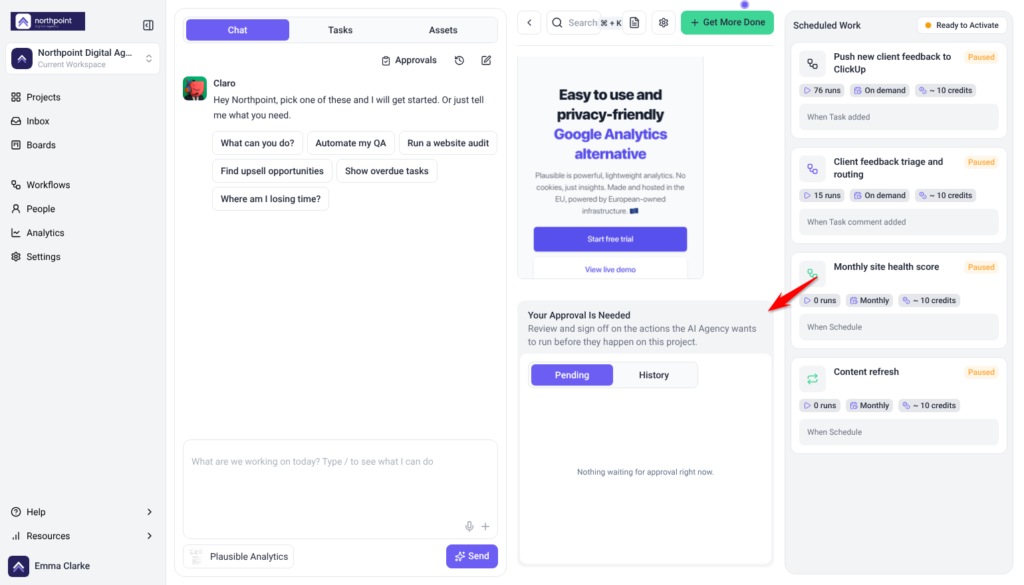
Each website project has a Project Dashboard, laid out in three areas:
- Chat rail (left) — your conversation with Claro, focused on this project, with Chat, Tasks and Assets tabs and a Chat history button.
- Main panel (center) — a header for the site, screenshots of the site across desktop, tablet, and mobile, and a two-item row below: Your Approval Is Needed (the Approval Queue) and Credits Utilization (a donut chart showing credits used, scheduled for upcoming workflow runs, and still available).
- Scheduled Work (right) — the workflows actively running or queued for this site.
Agencies and Website Owners see the same layout. Website Owners don’t get the plan approval or budget steps. Collaborators and guests open the project in Collaborate instead.
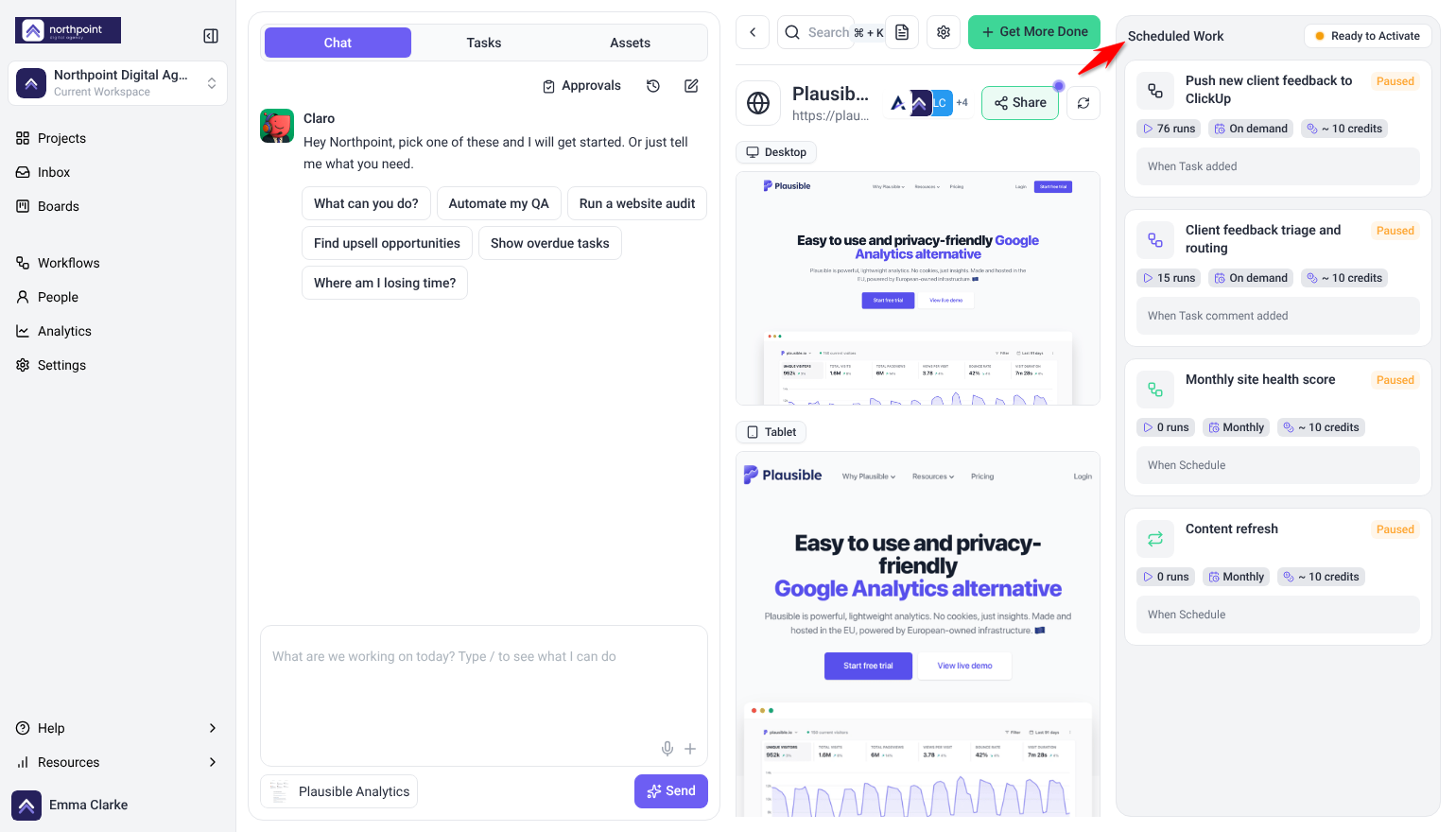
Refreshing the site screenshots
The dashboard shows the site at Desktop, Tablet and Mobile sizes. Refresh them after a change goes live, so the dashboard matches the site.
Instructions:
- On the Projects screen, hover the project card and select Manage.
- In the site header, select the refresh icon (Regenerate screenshots).
- Wait for “Screenshots updated.” If you see “Screenshots are still generating. Reload in a moment to see them.”, reload the page shortly.
- To leave feedback on what you see, select a screenshot. The site opens in Collaborate.
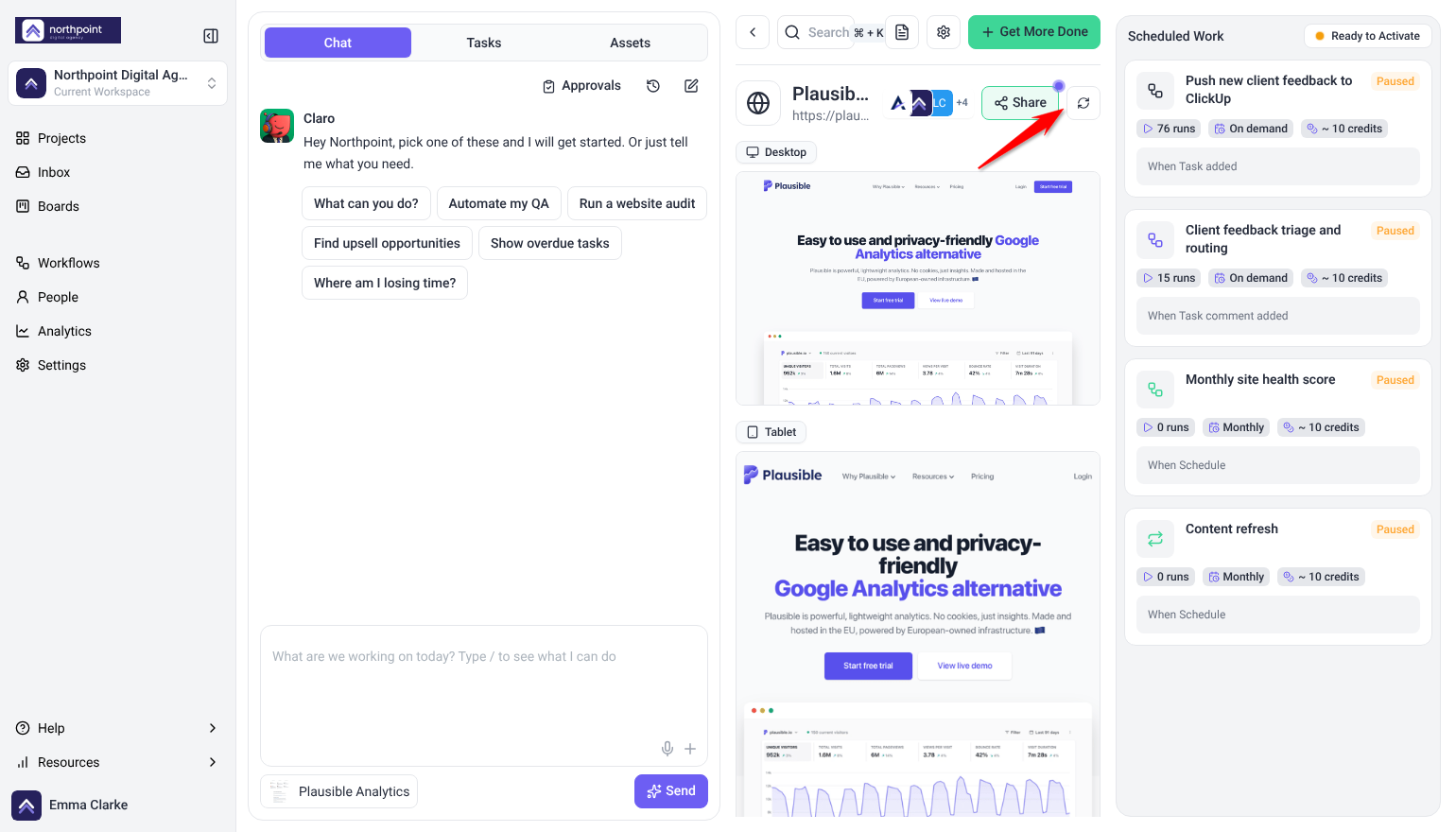
Getting scheduled work running
The Scheduled Work column lists the workflows lined up for this project, and the label in its header says what they still need before they run. It needs a wide window (see the tip above). Clients see the workflows, but not the steps below.
Instructions:
- If the column reads No scheduled work yet, select Build the proactive plan. Your AI team studies the site and proposes workflows in a window headed Your proactive plan is ready. Nothing runs until you approve.
- Switch off any workflow you don’t want, then select Approve & schedule (it reads Approve & deploy when the client already has a budget). If you close the window first, the header reads Awaiting approval. Select Review the plan to open it again.
- If the header reads Needs budget, the client has no monthly credits yet. Select Set monthly budget and choose an amount. Learn How Client Budgets Work
- When the header reads Active, the plan is running. A card confirms the budget and when the first runs start.
Each workflow card shows its status, its runs, how often it runs and roughly what a run costs. While the plan waits for approval the cards read Proposed, and until the client has a budget they read Waiting. After that each one shows Active, Paused or Draft.
For a project without a plan, the header shows your account’s status instead: Active on a paid plan, Ready to Activate on the Free plan, or Paused when your paid subscription isn’t active.
Task Management
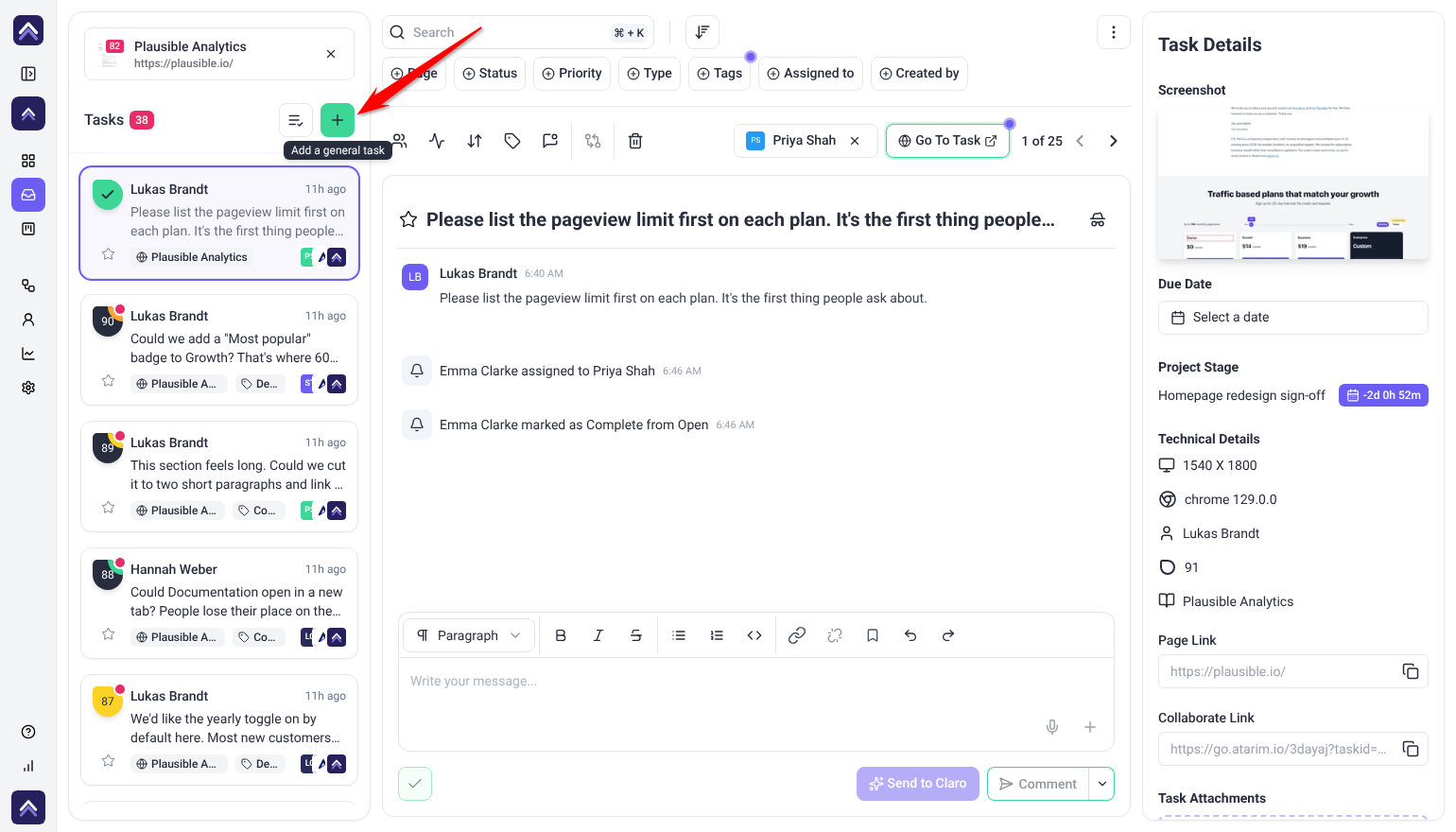
Atarim converts feedback into actionable tasks, gathering additional information automatically to provide more context for the tasks. This includes auto screenshot, browser type, screen resolution, and even the exact URL where the feedback was placed. These tasks can be tracked through the unified Inbox or Boards, allowing teams to manage tasks easily, maintain full clarity on requirements, and monitor progress at a glance.
Instructions:
- Assign tasks to team members for full clarity.
- Set project deadlines to shorten feedback cycles.
- Track task progress in Boards.
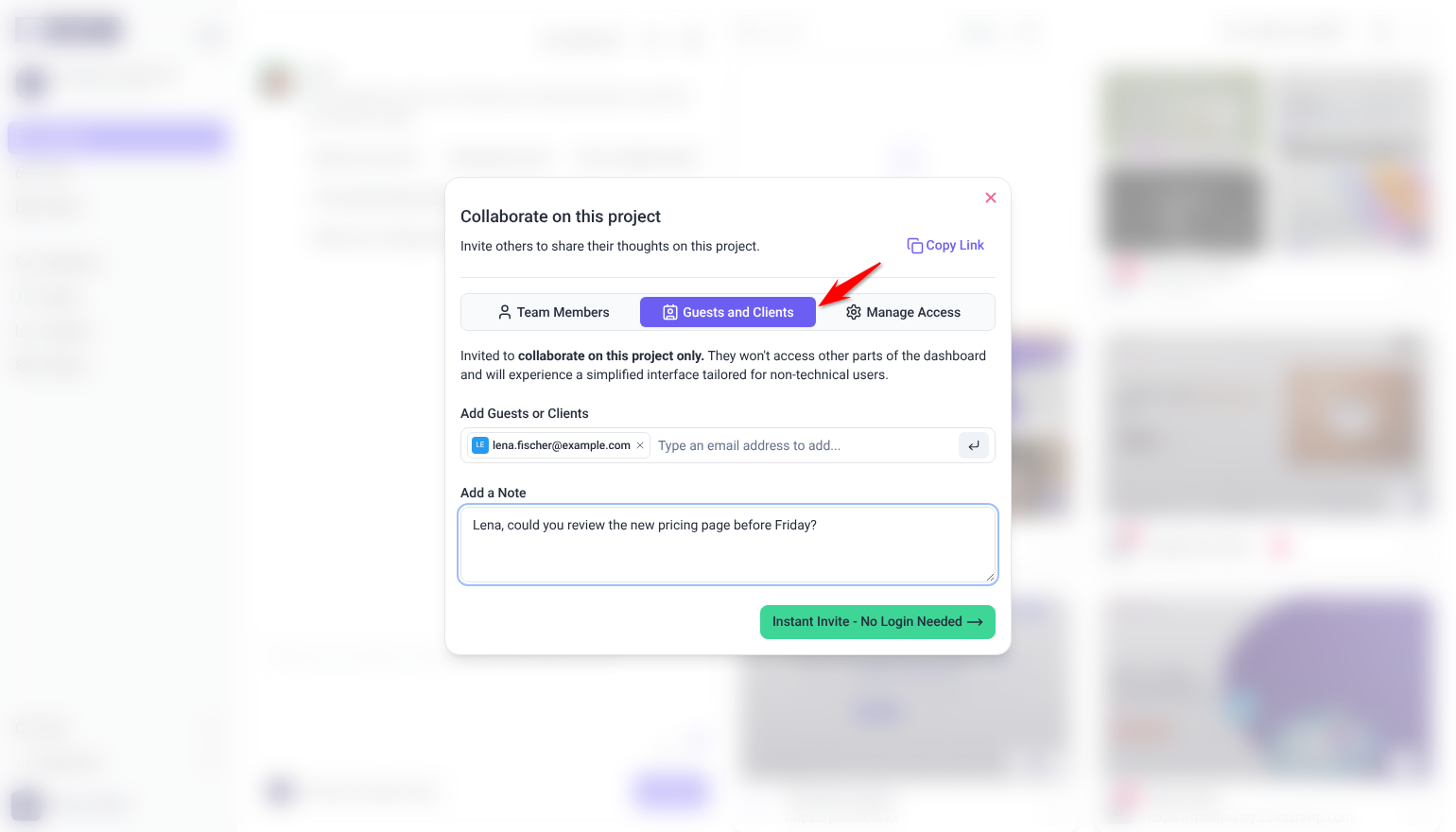
Client and Stakeholder Communication
Keep clients and stakeholders updated with automated notifications, ensuring they’re always aware of project progress without needing constant manual follow-ups.
Instructions:
- Invite clients via email from the projects page to bypass their need to register. Straight into feedback.
- Grouped email notifications is designed to combine multiple updates within a single project—such as new tasks, comments, status updates, and priority changes—into a single, consolidated email. This reduces inbox overload while ensuring clients receive all relevant updates in a streamlined, organized manner.
- Brand Atarim as your own in Settings › White Label.
First-Time Guest Identification
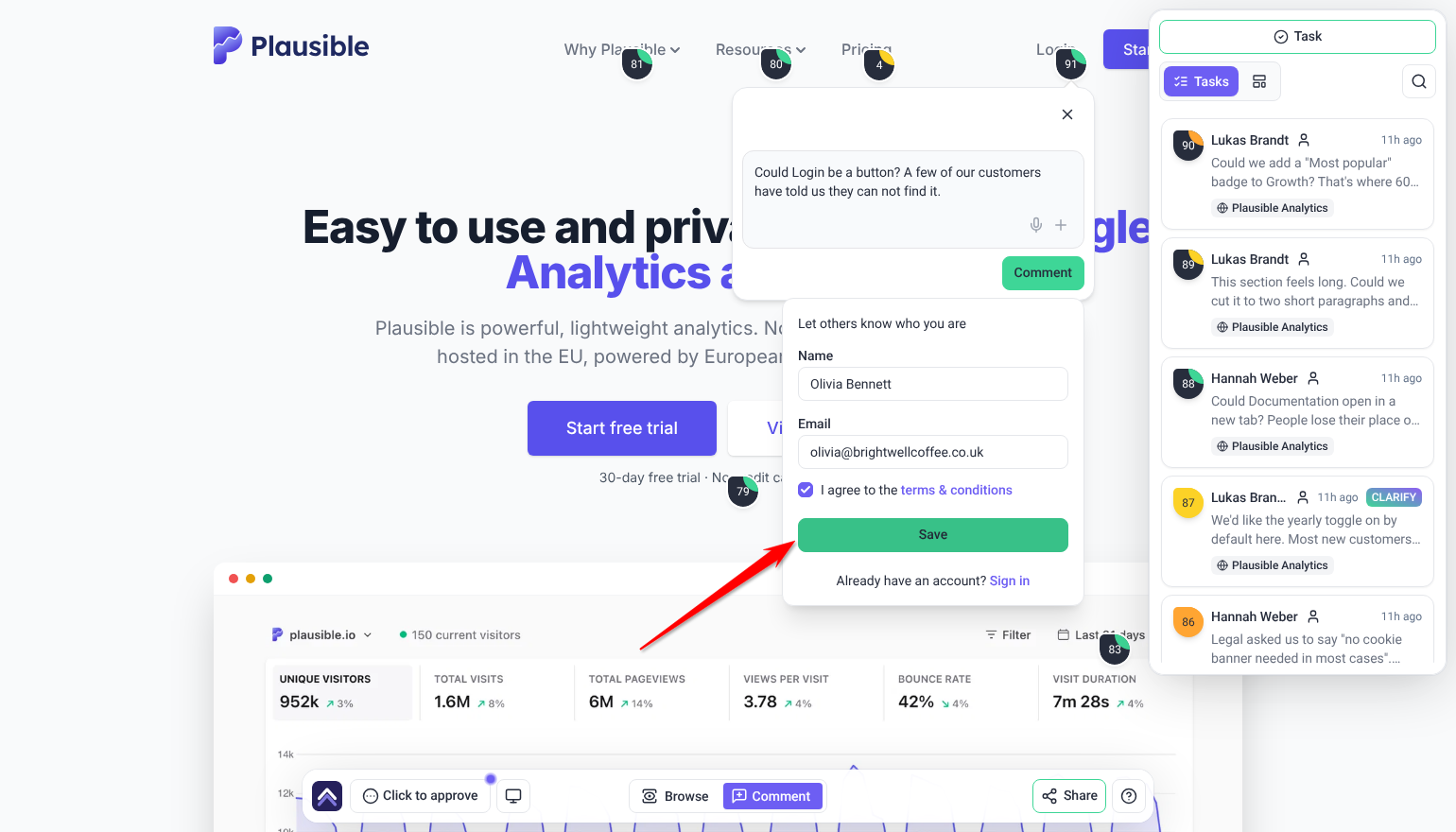
The first time a guest leaves feedback on a project, they’re prompted for their name and email address. This lets Atarim identify who submitted the feedback and notify them when there’s a response. Once submitted, they can keep leaving feedback immediately — no account, no password.
Plugin Installs and the Approval Queue
When the AI needs a WordPress plugin that isn’t on the connected site yet during a live chat with Claro or after an automated site scan, it doesn’t install or activate it on its own. The request waits in Your Approval Is Needed until an Owner or Administrator approves or declines it. It also holds Do It changes to published pages, and AI actions that would change or remove something on a WordPress site. A request nobody decides on within 14 days is declined automatically, and nothing runs. One approval covers installing and activating the plugin. Activating a plugin that is already installed is a request of its own. You can approve or decline from the Approval Queue (which has Pending and History tabs, and an Approve all button), or right inline in the chat where the request came up.
Every Workflow Run Leaves a Trace
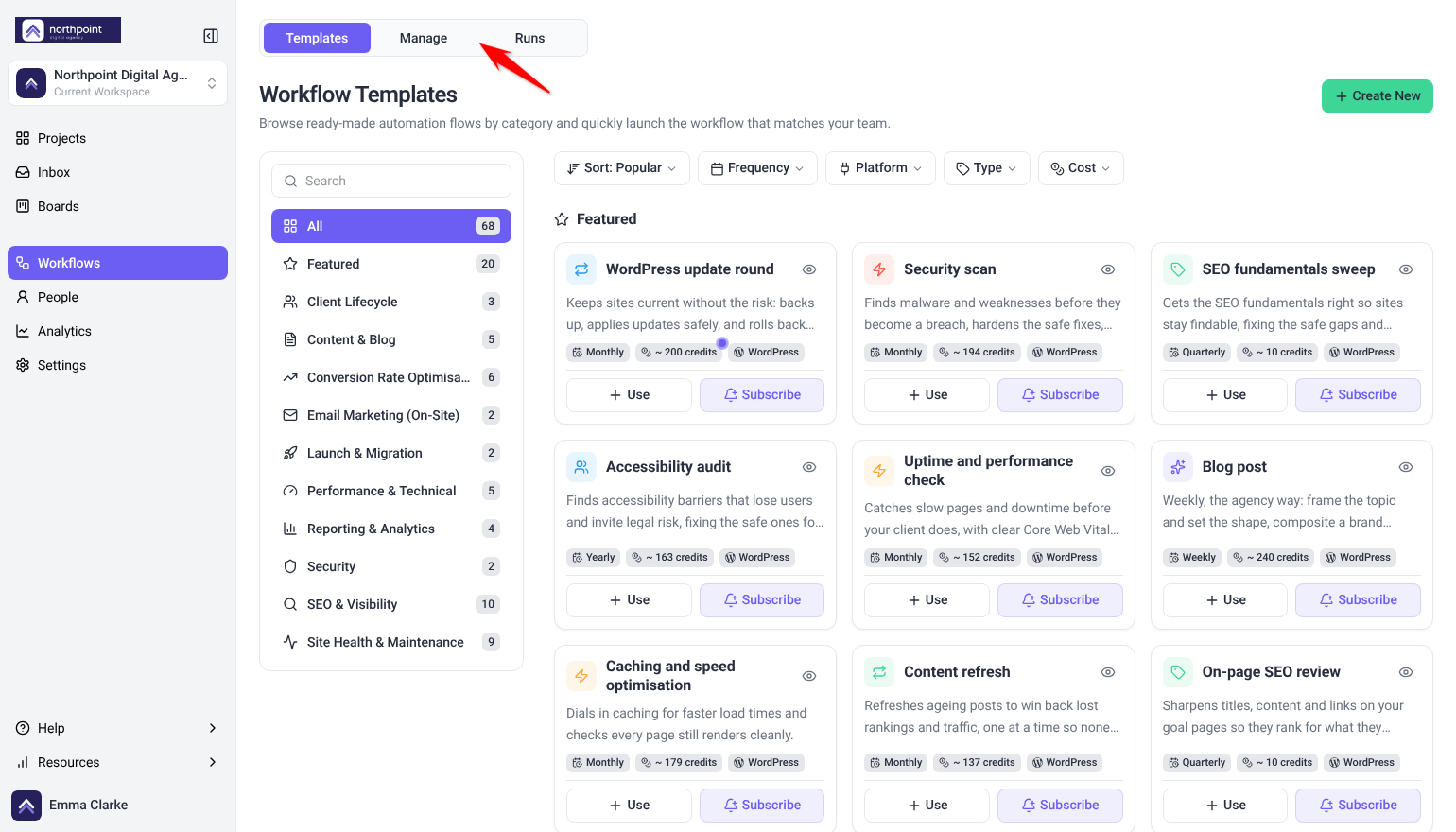
Automated work isn’t a black box. The Workflows section has three tabs:
- Templates — a browsable library you can deploy from.
- Manage — a table of every workflow currently deployed.
- Runs — an execution log of every run, scheduled or manually triggered.
If a client asks “is this actually working?”, or a scheduled run silently stops producing output, open the Runs tab and drill into that run — you’ll see the same workflow diagram as the builder, with each step’s status overlaid in the order it actually ran, including the specific error if one occurred.
Integrations
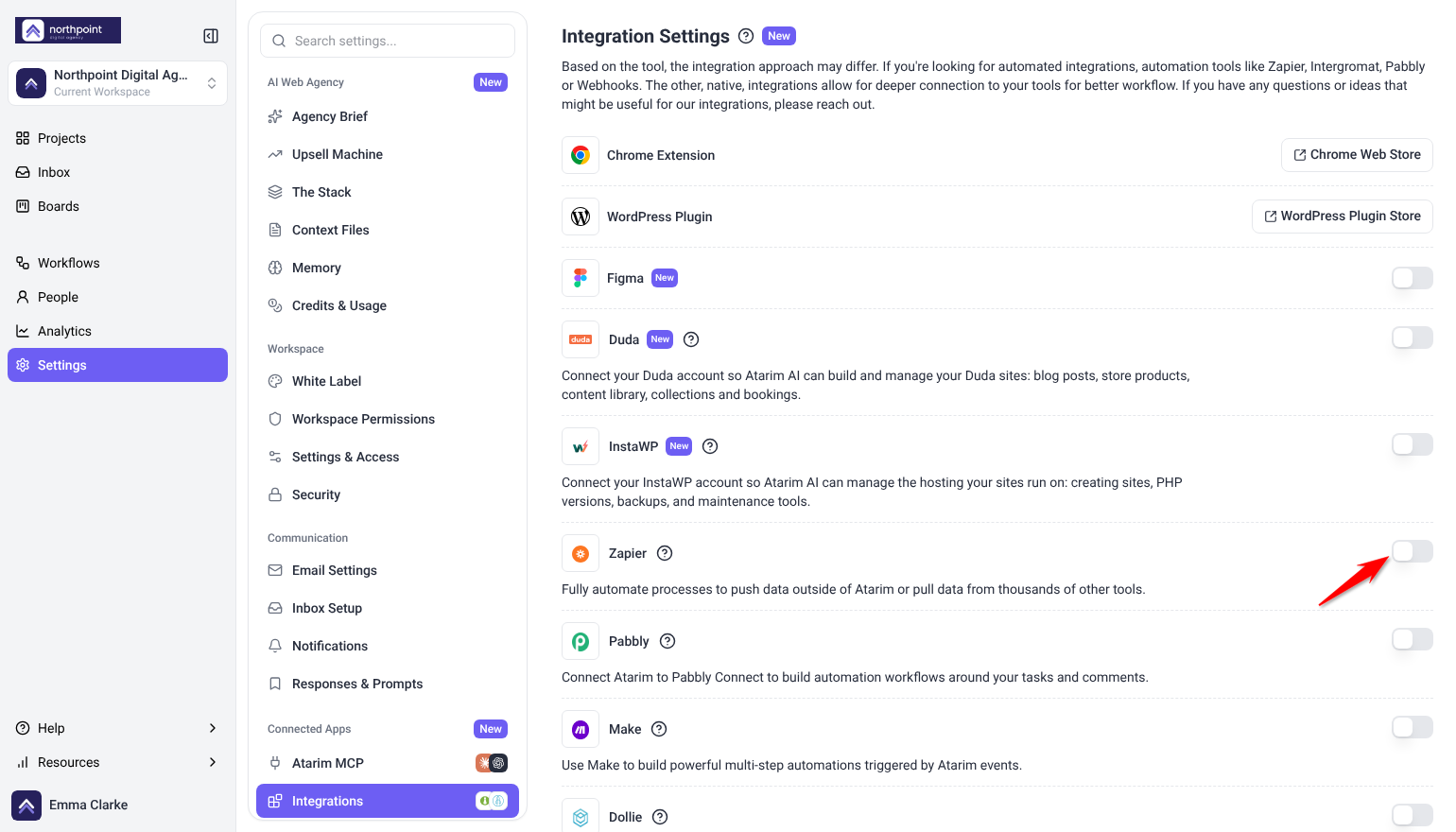
Atarim integrates with many popular tools like Slack, Trello, and Jira, ensuring that teams can continue using their preferred tools while benefiting from Atarim’s visual collaboration features.
Instructions:
- Go to the Integrations section in Atarim’s settings.
- Connect your desired tool (e.g., Slack, Trello) and customize how Atarim shares project updates.
Using Atarim on Phones and Tablets
Atarim works in the browser on your phone or tablet, with nothing extra to install. On a screen narrower than 1024 pixels, which covers most phones and a tablet held upright, the left sidebar gives way to a bar across the top, and each screen rearranges to fit.
| Screen | On a phone or small tablet |
|---|---|
| The menu | The ••• button at the right of the top bar opens the menu. It starts with On this page, the actions for the screen you are on, then Manage (People, Analytics and Settings), Help and Resources. Projects, Inbox, Boards and Workflows run along the bottom of the menu. |
| Projects | Projects shows as a tab in the top bar, with a search button beside it. |
| Inbox | Tabs for Tasks, Content and Details. Pick a task in Tasks, read its conversation in Content, and see its details in Details. |
| Boards | Tabs for Projects, Pages and Tasks. The board picker and Backlog open from a tab on the board’s left edge. An open task has its own Tasks, Subtasks, Content and Details tabs. |
| Workflows | Tabs for Templates, Manage and Runs, and your workflows and runs show as cards. On a phone, the workflow builder and run traces ask you to open them on a tablet or computer. |
| Settings | A dropdown at the top lists the settings sections. |
| People | Tabs for Settings, Feed, Assigned and Invites. Pick a person first: Settings and Assigned open once you have. |
Most pop-ups slide up from the bottom of the screen.
Installing Atarim as an App
Installed, Atarim opens in its own window with its own icon, instead of a browser tab.
In Chrome or Edge, on a computer or an Android device:
- Open Atarim and select Install app near the bottom of the left sidebar. On a phone, it is in the ••• menu.
- Confirm in your browser’s install prompt.
Press and hold the new icon, or right-click it on a computer, for shortcuts to Projects, Inbox, Boards and Workflows. Install app disappears once Atarim is installed. Safari on a Mac and Firefox don’t offer it.
On an iPhone or iPad:
- Open Atarim in Safari and select Install app. On an iPhone, it is in the ••• menu.
- Follow the steps that appear: tap Share in Safari’s toolbar (tap ••• first if you can’t see it), then View More if Add to Home Screen isn’t listed.
- Tap Add to Home Screen, then Add.
Atarim then opens full screen from your Home Screen, like any other app.
FAQs
How do I provide feedback on a design?
Click on the design element and leave a comment directly on the visual. It’s easy and intuitive.
Do I need to set anything up to start using the AI agents?
Claro is on by default and works as your workspace chat. The five review specialists — Pixel, Navi, Index, Lexi, and Glitch — join a review when you choose them as you start it, with a preset or with Custom.
How does AI fit into collaboration in Atarim?
Human feedback leads. In the background, the review specialists can flag design, UX, SEO, content, and functionality issues on connected sites. On request, the AI can also preview a change (Show me) or apply it (Do It). Plugin installs the AI asks for in chat, and changes the AI itself makes to published pages with Do It or a page builder, wait for your approval first.
Will the AI change my client’s site without asking?
Plugin installs the AI asks for in chat, and changes the AI itself makes to published pages with Do It or a page builder, wait for your approval. AI review findings are treated as internal tasks and kept from clients until your team has reviewed them, on plans that include Internal Tasks.
If I turn the AI features off, does it delete what it already posted?
No. Turning the AI off stops new replies, but it doesn’t remove anything already posted — deleting is a separate action. Existing AI comments or threads stay until you remove them explicitly.
Can “Do It” be used on any website builder?
Today, Do It is a WordPress-only feature and is labelled Beta in the interface. Other platforms are shown as upcoming, not yet available.
Can I integrate Atarim with my current tools?
Yes. Atarim integrates with tools like Slack, Trello and Jira. Set it up in Settings › Connected Apps › Integrations.
Conclusion
Atarim V5 is still built around clear, contextual feedback on real pages — with an AI layer on top that's live for chat, review, and WordPress edits today, and still expanding into automated request-routing.
Tips & best practices
- Choose the specialists you want each time you start a review. If you don't choose, Claro picks the specialists for you.
- Fill in Agency Profile and Rates & Pricing Context under Settings › Upsell Machine. They help the AI understand your services and pricing.
- If Scheduled Work seems to be missing from a dashboard, check your browser window width before assuming something's broken.