Grid vs. List View: Which One is Right for You?
Two ways to see your projects — one built for recognising them, the other for acting on them.

Both views live on the Projects screen and offer the same actions. The difference is emphasis: Grid shows a thumbnail so you recognise a project by sight, while List puts every action on screen without hovering.
Same projects, same actions, different emphasis.
Both views live on the Projects screen and offer the same actions. The difference is emphasis: Grid shows a thumbnail so you recognise a project by sight, while List puts every action on screen without hovering.
Which One to Use
| Grid View | List View | |
|---|---|---|
| Layout | Cards | Rows |
| Actions | Appear on hover | Always visible |
| Best for | Recognising projects visually, and creative work | Scanning many projects and acting quickly |
| Task count | Not shown | Shown per project |
| Folder drag-and-drop | Yes | — |
| Bulk actions | Yes | Yes |
| Filters and sorting | Yes | Yes |
| Availability | Always available | Plan feature — locked on some plans |
Grid View
Grid favours recognition, which suits projects you know by their screenshot rather than their name.
Instructions:
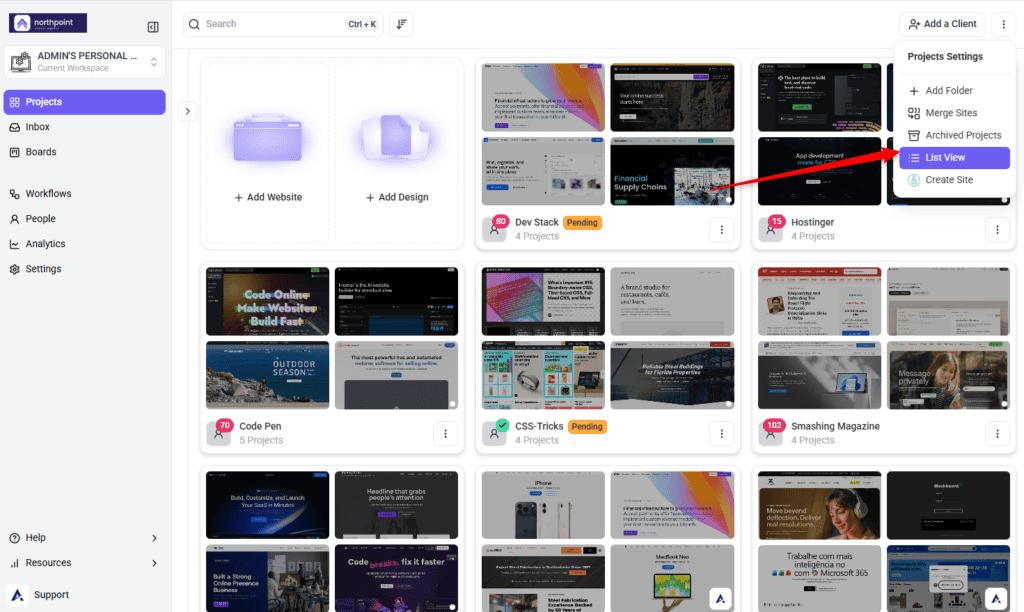
| Each card shows | On hover |
|---|---|
| Thumbnail preview | Inbox — jump to that project’s feedback and tasks |
| Active project stage | Collaboration — open the visual interface |
| Folder name | Share — invite stakeholders or copy the link |
| Assigned users, as avatars | Checkbox — select for bulk actions |
| Project type icon — web or design | Drag-and-drop — onto another project to create a folder, or into an existing one |
| Project name and URL | |
| Settings, via the three-dot menu |
List View
List favours scanning, which wins once you have more projects than you can recognise at a glance.
Instructions:
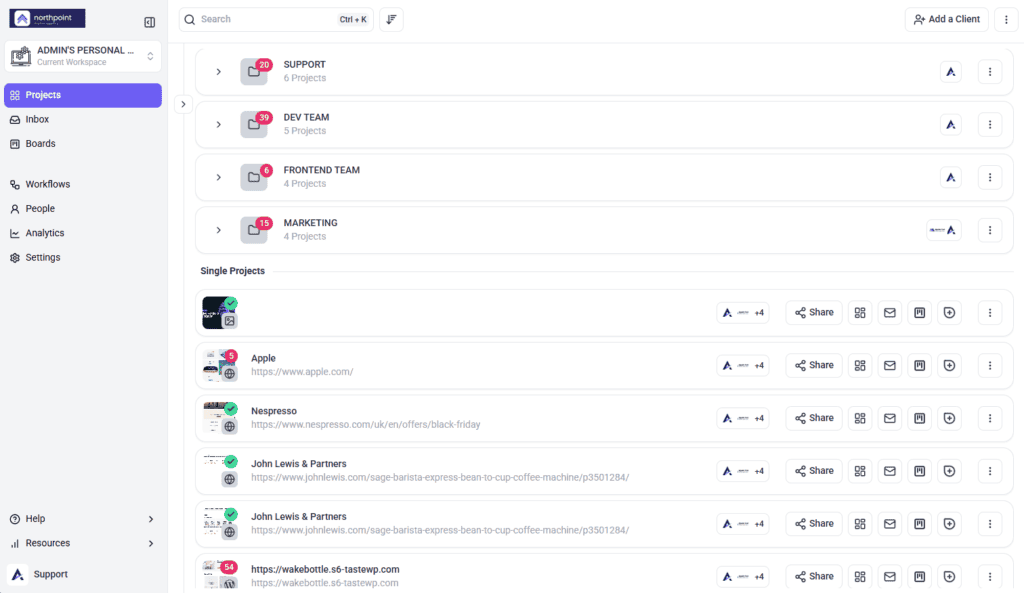
Each row shows a thumbnail, the task count, the project name and URL, the folder name, the active project stage, and assigned users. Inbox, Collaboration, Share and the selection checkbox are all on screen without hovering.
Switching Between Them
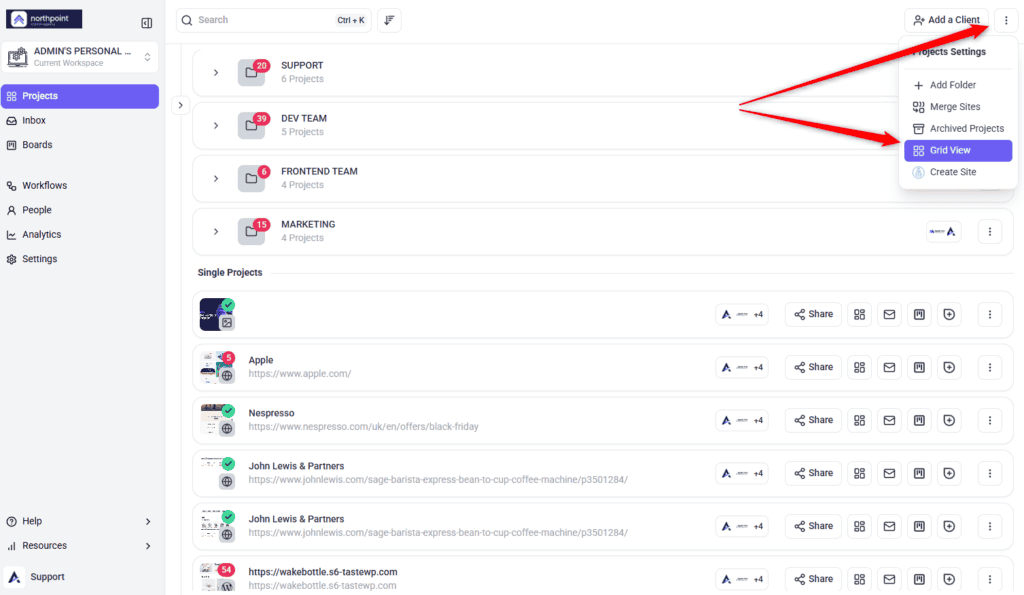
The choice is remembered per person rather than per workspace, so nobody is stuck with a teammate's preference.
Instructions:
FAQs
Can I switch views at any time?
Yes, from the view menu on the Projects screen — provided your plan includes List View.
Why can’t I select List View?
It’s a plan feature. Where your plan doesn’t include it the option is locked, and the lock names the minimum plan required.
Does one view do more than the other?
They offer the same actions. The difference is presentation: Grid reveals actions on hover, List keeps them visible, and List additionally shows a task count.
Which is better if I dislike hovering?
List View. Everything is on screen by default.
Are filters and sorting available in both?
Yes, in both.
Can I do bulk actions in both?
Yes. Both provide checkboxes for archiving, deleting and similar.
Does my choice affect my team?
No. The preference is per person, so everyone can work in the layout they prefer.
Common issues
- List View is locked — your plan doesn’t include it. The lock names the minimum plan required.
- You can’t find the view options — they’re in the view menu on the Projects screen, shown as Grid View and List View.
- Actions aren’t visible on a card — Grid reveals them on hover. Switch to List if you’d rather they were always on screen.
- You can’t see task counts — task count appears in List View, not Grid.
- A colleague sees a different layout — expected. The preference is per person.
- Bulk actions feel slow — use List View, where checkboxes and actions are permanently visible.
- You want to group projects into folders — use Grid, and drag one project onto another.
Conclusion
Grid is for recognising projects; List is for processing them. Grid gives you a thumbnail and folder drag-and-drop, List gives you task counts and permanently visible actions.
Most people end up using both — Grid to find something, List to work through a batch. Switching costs nothing, so there’s no need to commit to one. Discover Simplifying Views With Filters
Tips & best practices
- Use Grid for visual recognition, List for direct access to actions.
- Start in Grid to locate a project, then switch to List to work through several.
- Apply filters and sorting in either view to narrow a long portfolio.
- Use List for bulk archiving or reorganising.
- Use Grid’s drag-and-drop to build folder structure quickly.
- Let team members choose their own view — the preference is personal.